
Task Setup
Projects, Templates
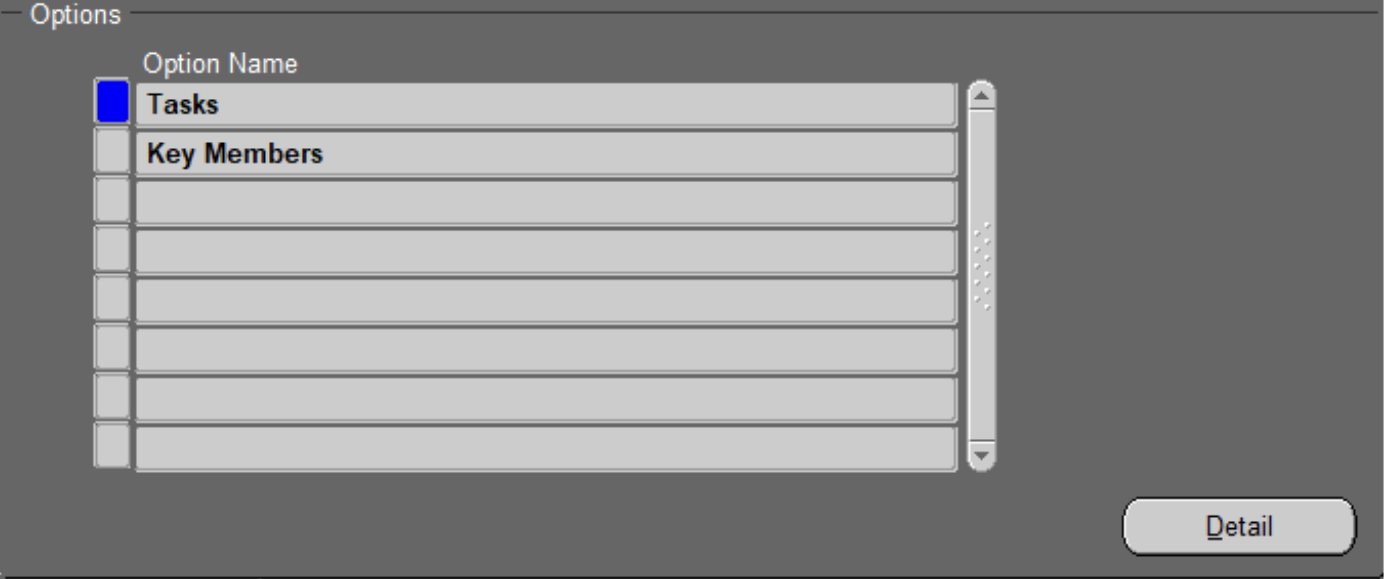
1. Select Tasks and select Detail or select the blue box to the left of Tasks. The Tasks window will display.
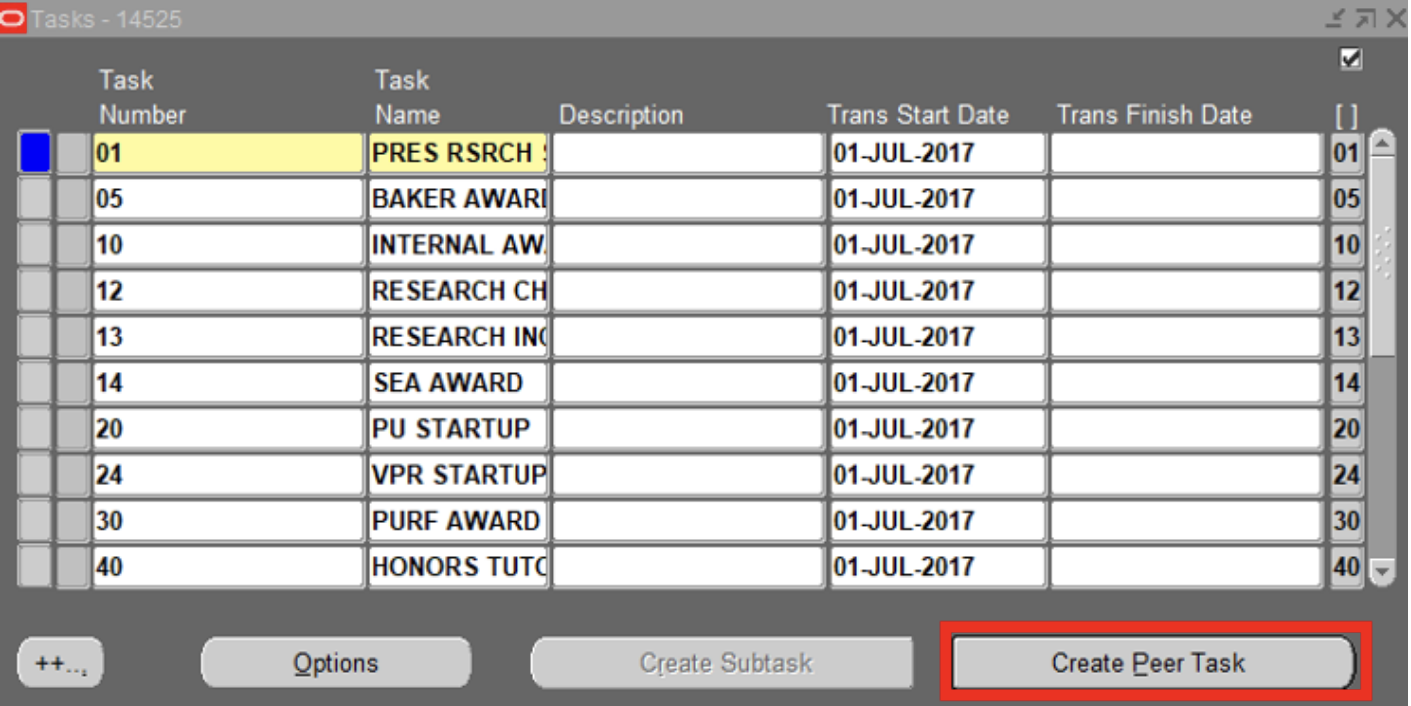
- The Tasks window lists all of the standard tasks setup on the Projects template.
- To setup a new task complete the following:
- Each task number must be unique and cannot be changed after charges post to the task.
- Select Create Peer Task.
Example: Setup Task 50 by completing the fields below:

| Field Name | Enter… |
|---|---|
| Task Number | Task Number convention: 01 = PRESIDENTIAL RESEARCH |
| Task Name | Short description of task should equal funding source from number convention. Limited to 20 characters alphanumeric, ALL CAPS. |
| Description | Long description of task. Not required. Limited to 240 characters alphanumeric |
| Trans Start Date | Defaults from Projects Trans Duration Start Date. This date can be changed. See Appendix C for further explanation. |
| Trans Finish Date | Defaults from Projects Trans Duration End Date. This is blank but can be end dated if applicable. See Appendix C for further explanation. |
| OU Parent Task (Defined Flex Field = DFF) | This holds the corresponding parent task value. It allows the user to replicate the task-rollup functionality for reporting purposes. For example, 20 is entered in the OU Parent Task Number when you enter 20, 20.01, 20.02, etc. This is a required field for reporting consistency. 
The following OU Parent Task will default from the Template: 
|
Select Save.

- Select Options.
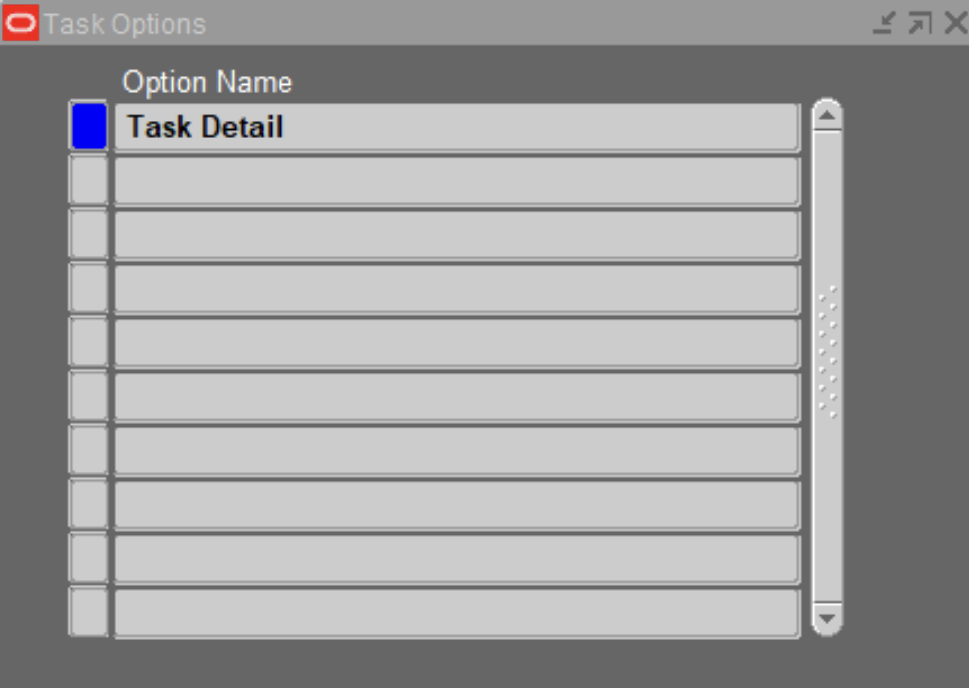
- Select the blue box to the left of Task Detail. The Task Details window will display.
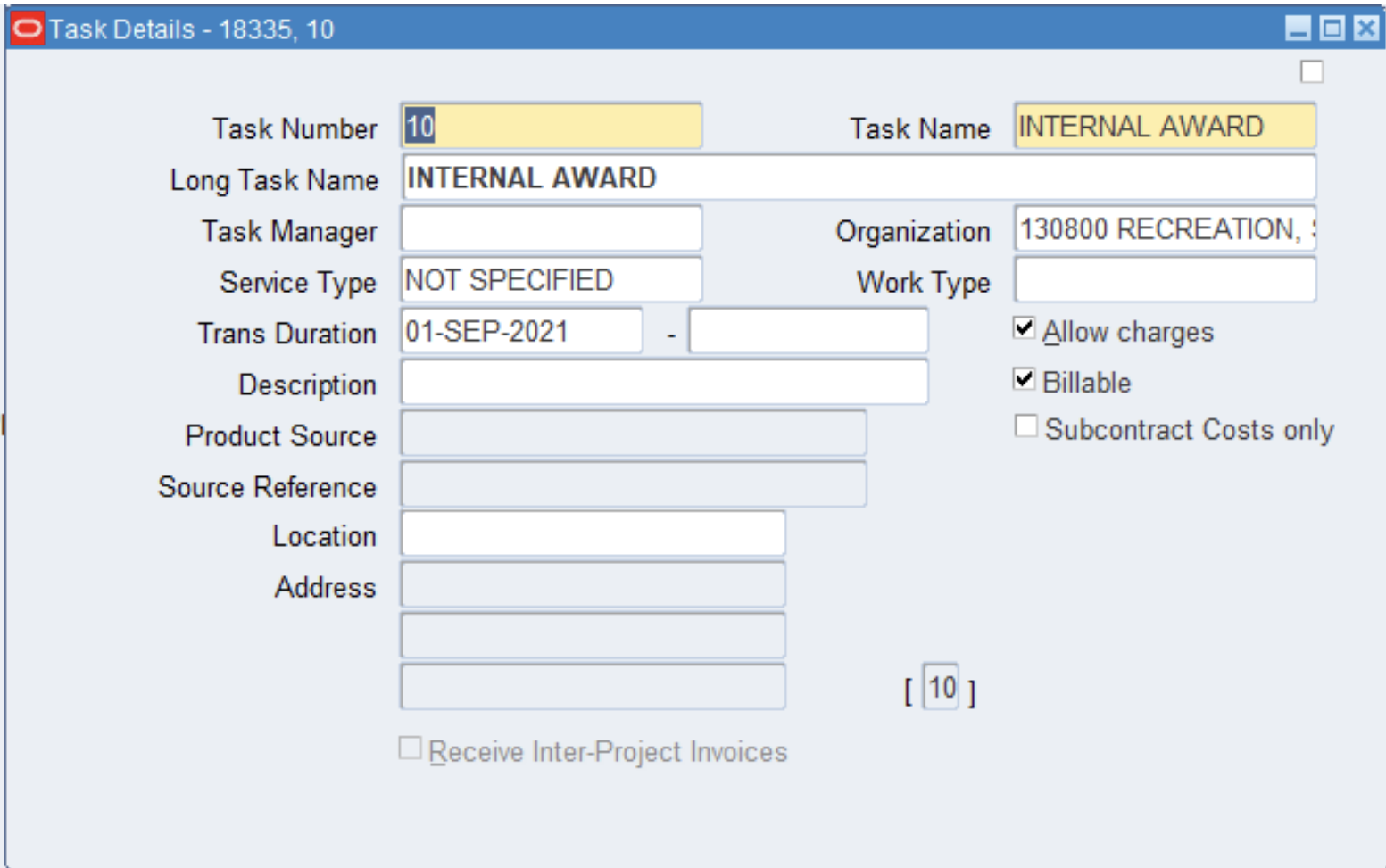
- The Task Details window contains the following information:
| Field Name | Enter… |
|---|---|
| Task Number | Defaults from Task Window. This can be changed if no funding, budget, or transactions have posted to this task. |
| Task Name | Defaults from Task Window. Limited to 20 characters alphanumeric, ALL CAPS. This can be changed. |
| Long Task Name | Defaults from Task Name. Limited to 240 characters. This can be changed. |
| Task Manager | Leave blank. |
| Organization | Task owning organization defaults from Project. NOTE: Complete an Internal Award Account Maintenance Form to update this segment. |
| Service Type | Defaults to NOT SPECIFIED. This auto accounts to the Activity segment in the General Ledger. NOTE: If the activity does not exist, complete a Chart of Accounts (COA) Segment Value Request Form. If the activity already exists, but is not available, complete an Internal Award Account Maintenance Form to add this service type. To update this segment, complete an Internal Award Account Maint Form. |
| Trans Duration | This is the Start and End date for the Task. Start date defaults from the Start Date entered on the Project. End date is optional. This can be changed within time frame of Project and Award. See Appendix C for further explanation. |
| Description | This is optional and can be changed. |
| Allow Charges | Check Box. When checked signifies that expenses may be charged to the task. DO NOT UNCHECK. |
| Billable | Check Box. When checked signifies that expenses charged to the task are eligible for generating the transfer journal entry in the general ledger. DO NOT UNCHECK. |
| Subcontract Costs only | Leave Box unchecked. This new box was added in an upgrade but is not applicable to Internal Projects. DO NOT CHECK. |
Select Save. Close the window by Selecting the X (top right). NOTE: To make changes to any Task, go to step 6 (Task Details window). End of task setup.