
Budgeting Awards
An Award budget is a detailed estimate of the cost of a project funded by a particular award.
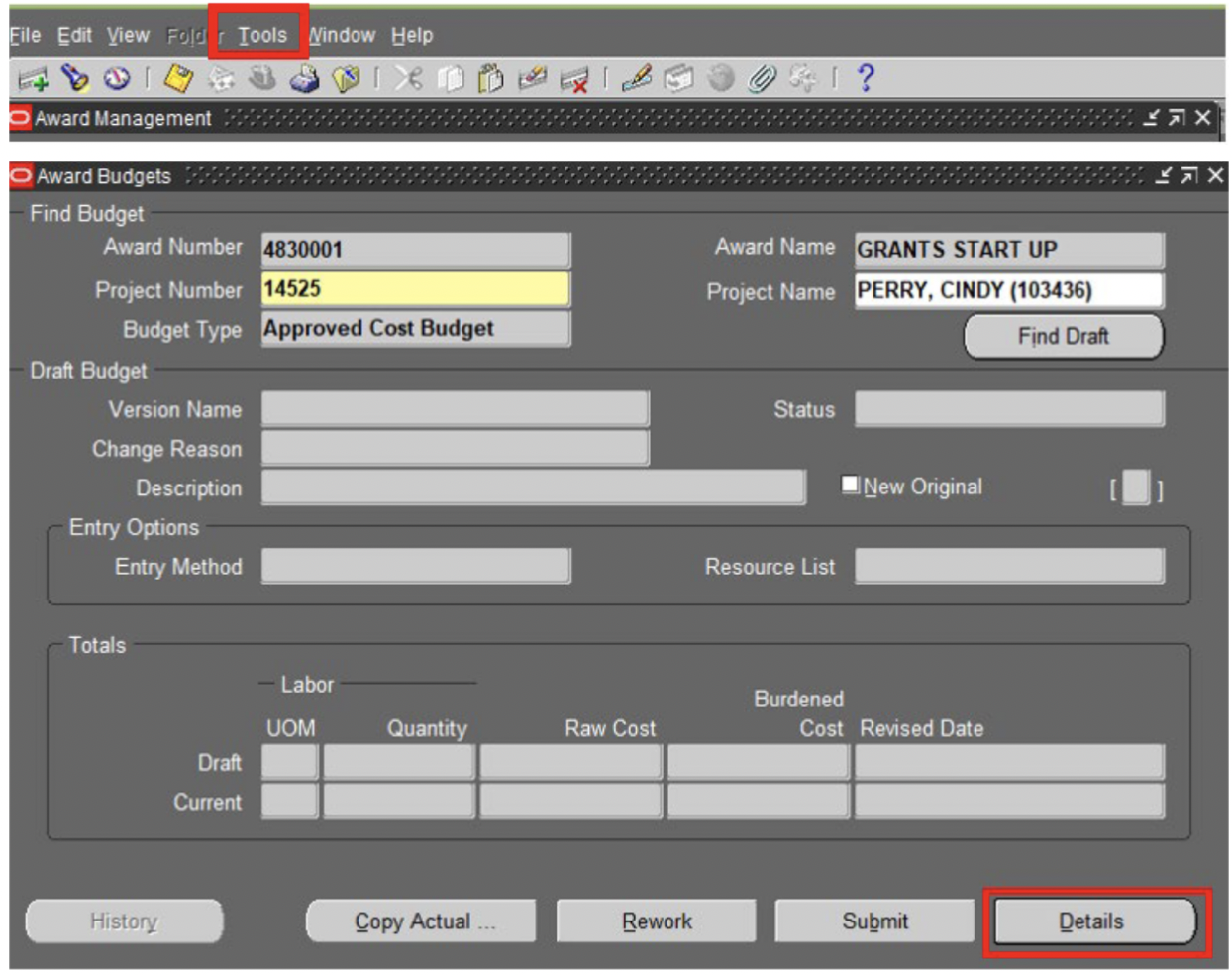
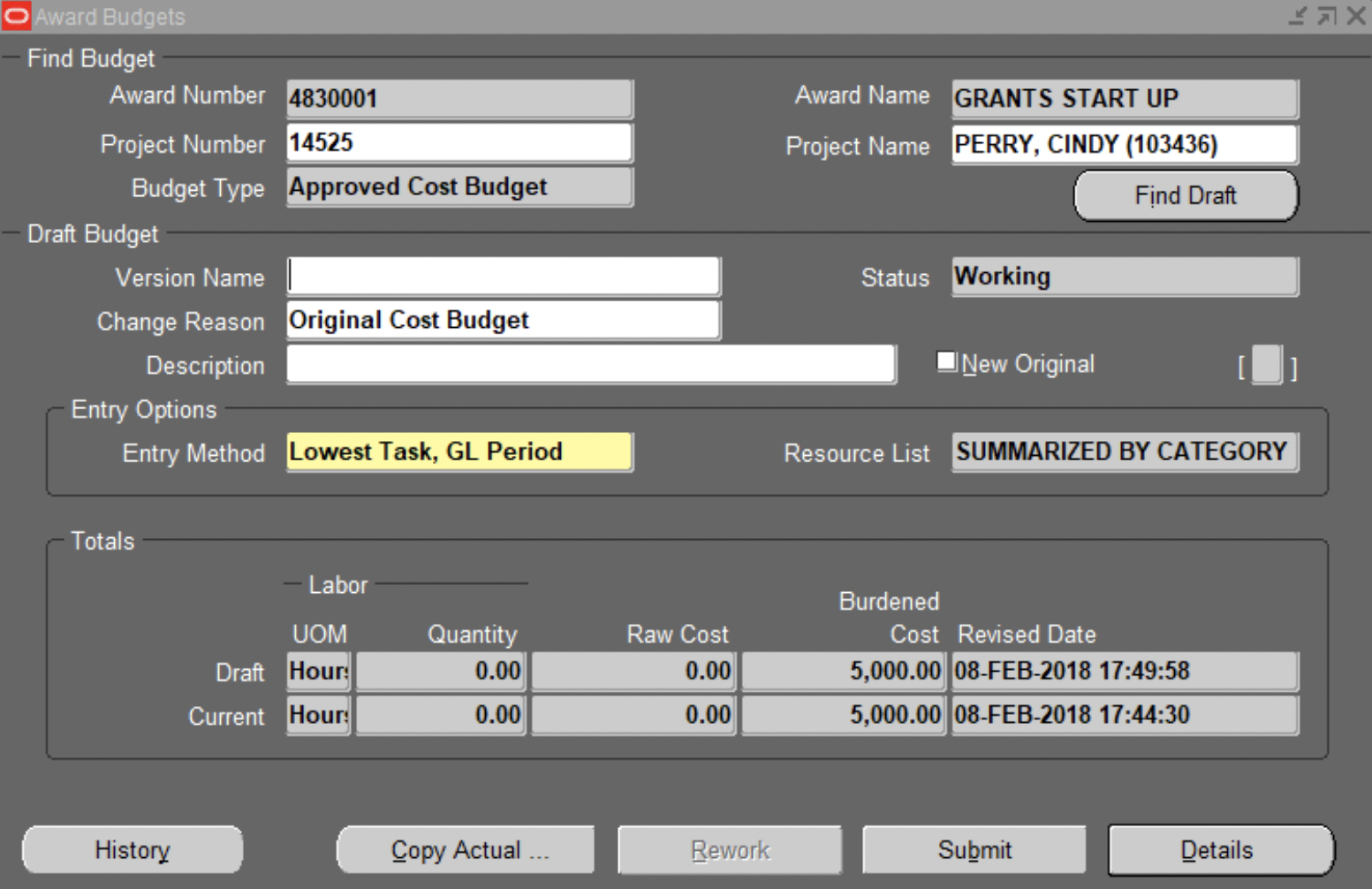
In the Tool Bar at the top of the Award Management window, select Tools and select Award Budgets.
| Field Name | Enter… |
|---|---|
| Version Name | Leave blank. |
| Change Reason |
|
| Description | Leave blank. |
Select Details and the Task Budget window will display.
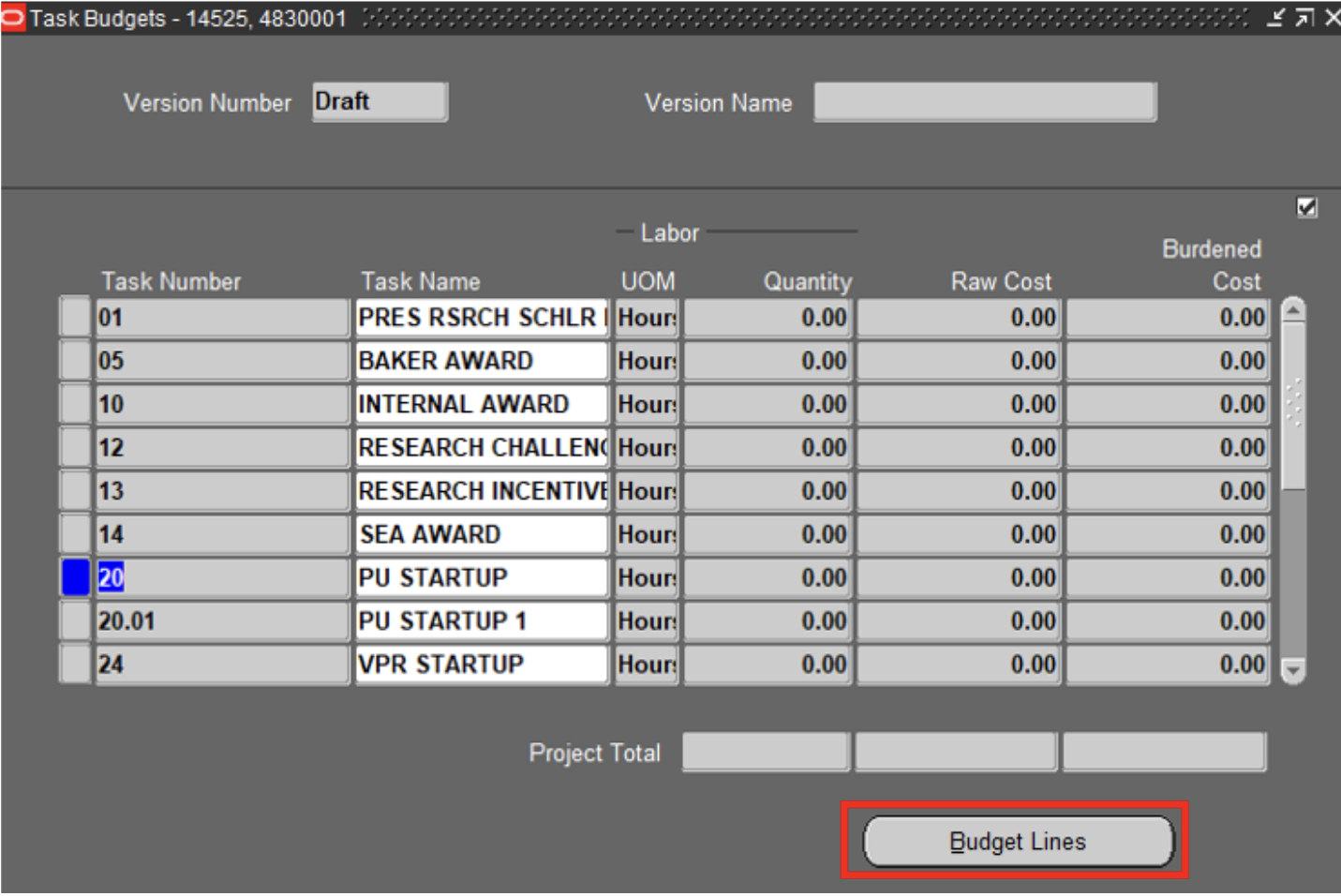
- Select Budget Lines and the Budget Lines window will display. If there are multiple tasks, highlight the appropriate task.
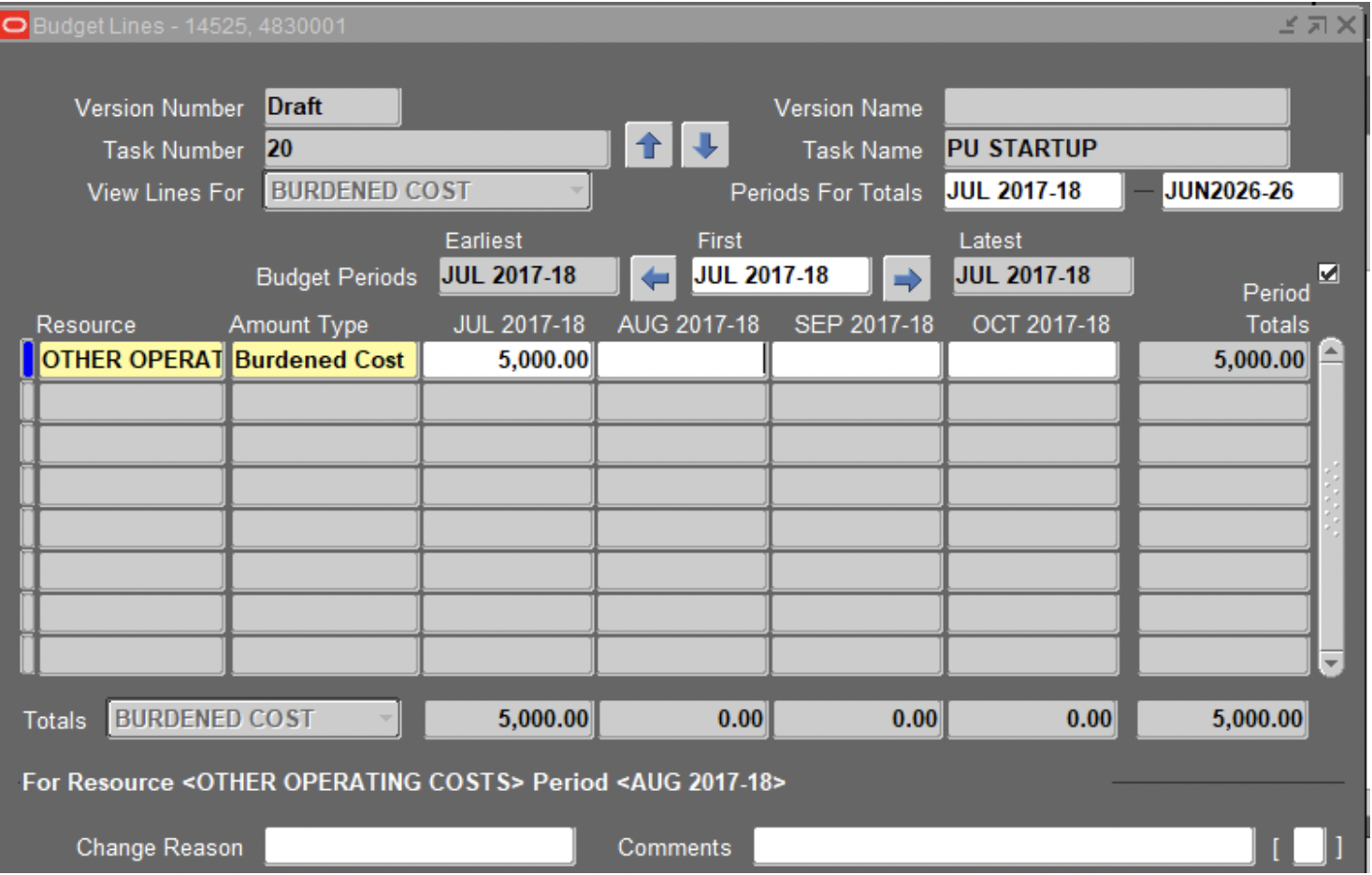
Enter the following:
| Field Name | Enter… |
|---|---|
| Resource | Enter Expenditure Category Important: Budget in any resource, or multiple resources – these are “Expenditure Categories.” This does NOT restrict spending to these Expenditure Categories. It is just for viewing the budget in OBI. See Appendix A: Expenditure Categories |
| Amount Type | Defaults to Burdened Cost. |
| This is the month in Oracle FMS. | Enter in the budget in the month corresponding to the date of the revenue event. Use the arrows in budget periods to allow the proper budget dates to show in the table. Note Exception: When decreasing the budget due to a negative revenue event, go back to the oldest dated available budget amounts and decrease as necessary rather than entering a negative in the current month. |
Select Save. Close the Budget Lines window and Tasks Budgets window by clicking the X (top right).
The Award Budgets window will display.
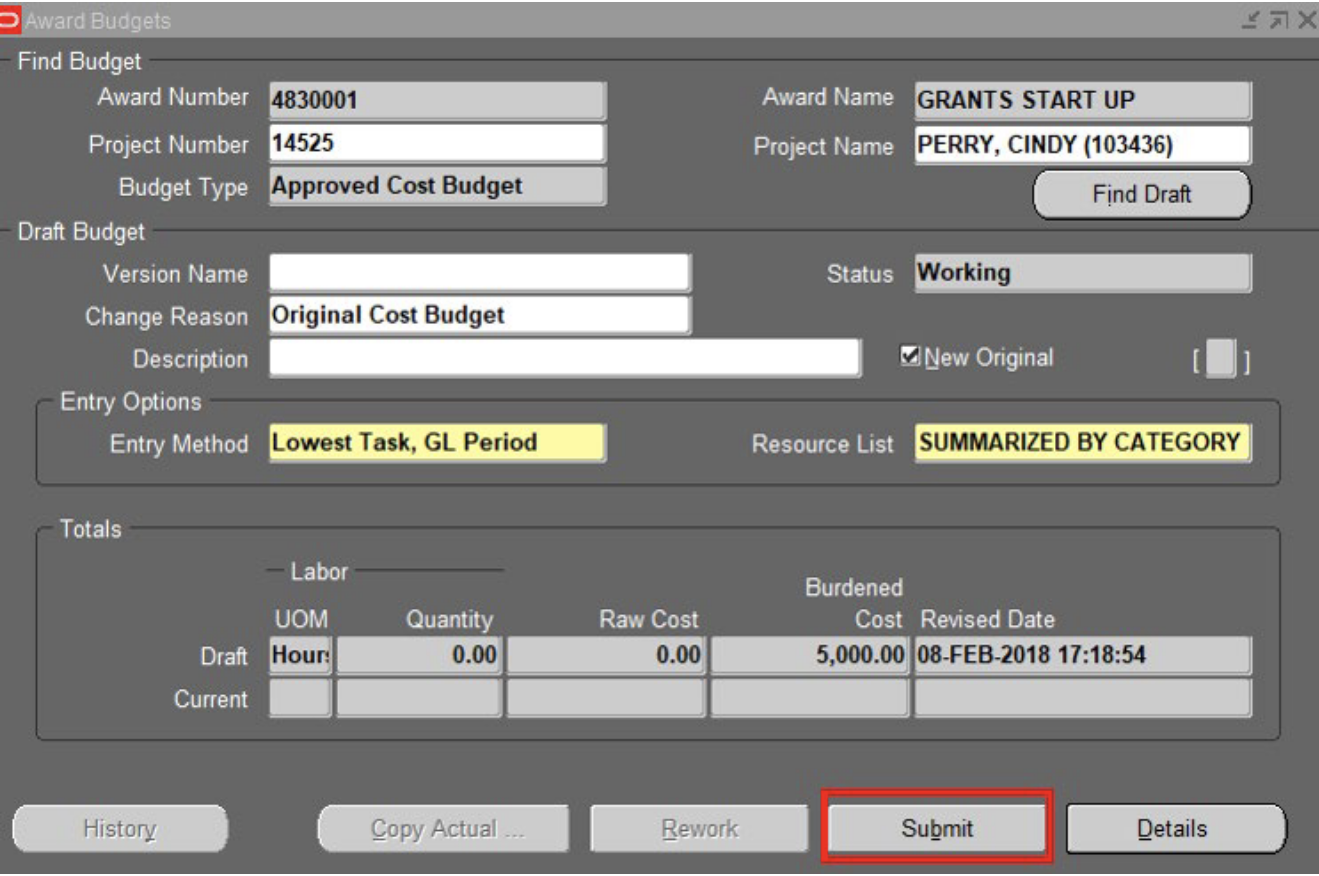
- Select Submit to approve the Budget. This shows the Status “Submitted.”
- To accept the completed budget click Baseline.

When you select Baseline, the budget is approved. This shows the Status “Working.”
If changes in the budget do not appear in OBI the next day or changes are not being accepted, double check that the submit and baseline process has been completed.
End of setup of the project-task-award
Verifying Project, Task, Award Set-Up
It is important that you check the OBI Grants Funds Available dashboard the day after these processes to make sure all steps were done correctly and to verify Funding Amt = Budget ITD = Revenue ITD for the Award.
- To adjust “Funding Amt” to the correct amount see Project Funding.
- To adjust “Budget ITD” to the correct amount see Budgeting Awards.
- To adjust “Revenue ITD” to the correct amount see Compliances.