
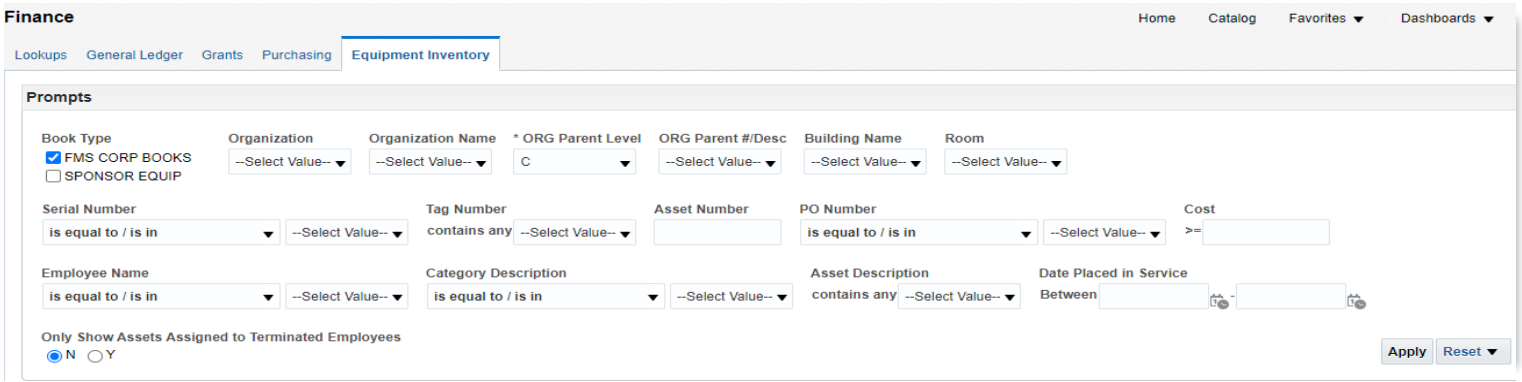
Equipment Inventory Dashboard
The Equipment Inventory dashboard page is a database for equipment inventory on campus. There are several prompts used to sort and view equipment inventory. This dashboard also includes all of the specific information for each asset including cost, employee name, organization, tag number, PO, and the asset description.
Use Equipment Inventory:
- To view a listing of fixed assets
- To complete quarterly and biennial inventory reviews
NOTE: Equipment inventory replaces the Fixed Assets dashboard
| Prompts | Definition |
|---|---|
| Book Type | The Book Type separates items that are Ohio University owned (green tag) or sponsored equipment (red tag). |
| Organization | Is the 6-digit number that represents and organization. Search and review all |
| Organization Name | If you do not know the 6-digit organization number, you can look up the inventory list by organization name. |
| *ORG Parent Level | Review inventory listing by Org Parent Level. |
| ORG Parent # Desc. | Review Inventory by Org Parent Description. |
| Building Name | Review inventory located in specific buildings. |
| Room | Review inventory by a specific room number. |
| Serial Number | Lookup an asset by serial number. |
| Tag Number | Lookup an asset by assigned tag number. |
| Asset Number | Lookup an asset by assigned asset number. |
| PO Number | Lookup assets by the PO used to purchase. |
| >=Cost | Lookup assets greater than or equal to a specific cost. |
| Employee Name | Lookup assets assigned to specific Ohio University Employees. |
| Category Description | View assets by category description. |
| Asset Description | Lookup assets by description. |
| Date Placed in Service | Lookup assets based off the date they were added to Equipment Inventory. |
| Only Show assets Assigned to Terminated Employees | Filter asset listing to only show assets that are assigned to employees no longer at the university |
The following example is searched by prompt “Organization” number 100060.
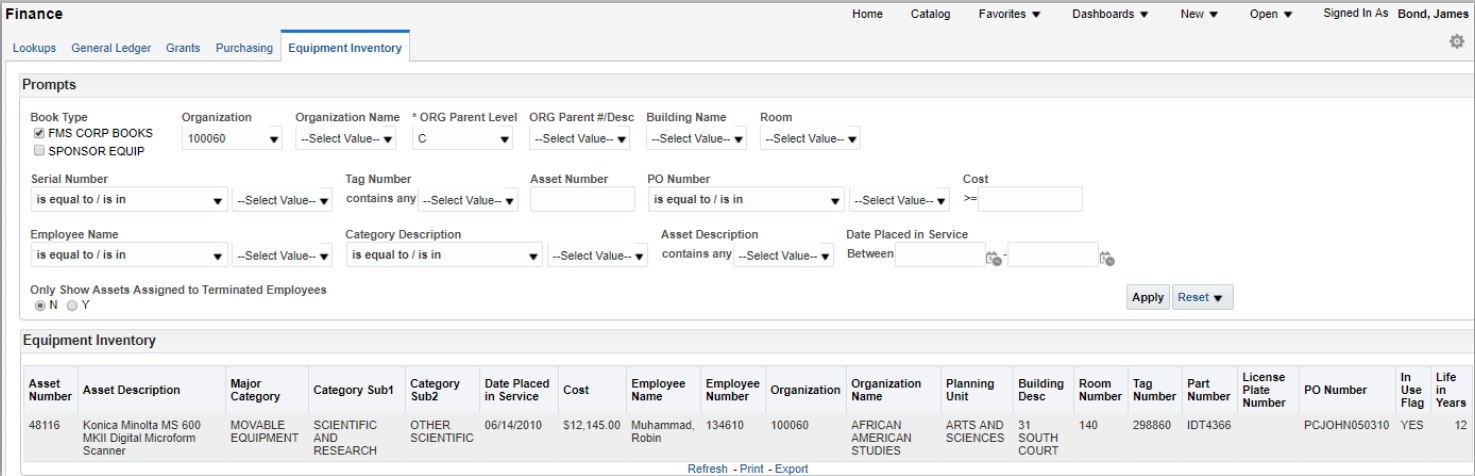
Use any of the above prompts to review the inventory. Common uses will be for quarterly and biennial inventory reviews.
- Make sure the book type prompt is correct. By default, the book type is set to "FMS CORP BOOKS". This is for green-tagged equipment. Please use "Sponsor Equip" for red tag items.
- Type in your org number in the prompt "Organization".
Select Apply.
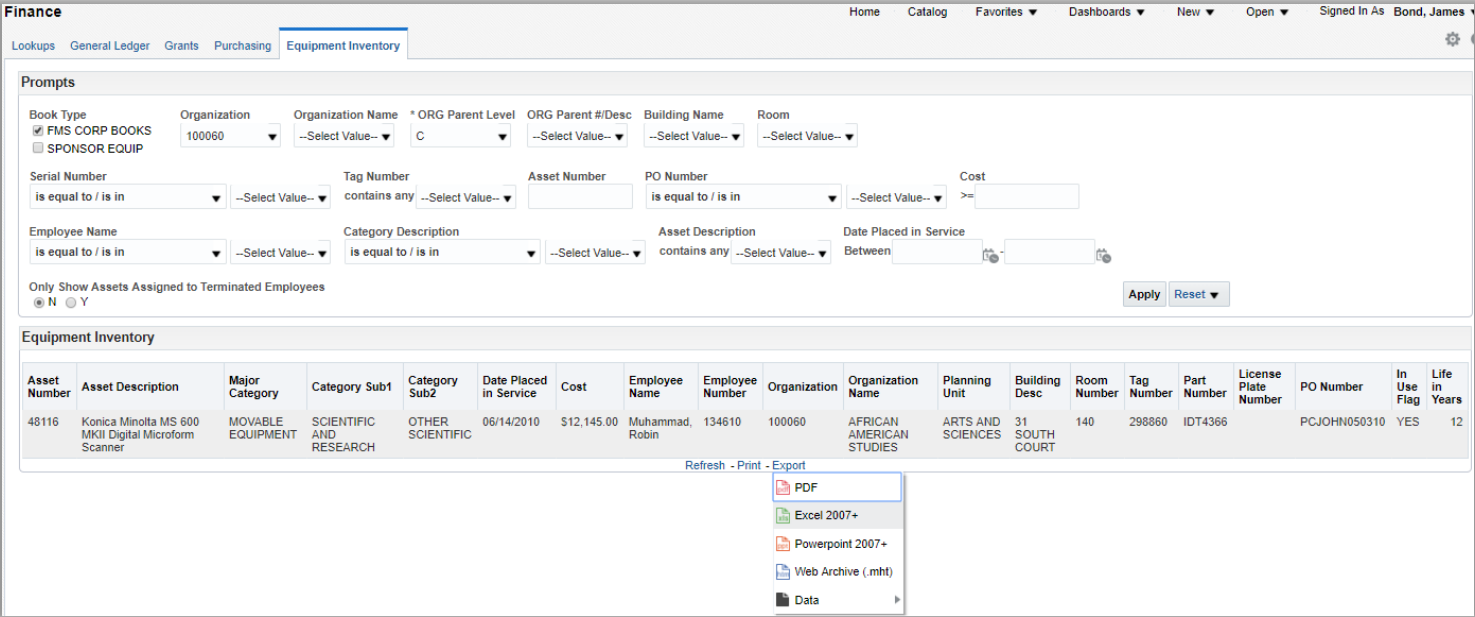
After choosing the Excel dropdown, the file will download. Use this file to review inventory or submit changes to existing inventory.
If you only have partial information, you can use the search function by selecting the down arrow and choosing search. This can be used for any prompt.
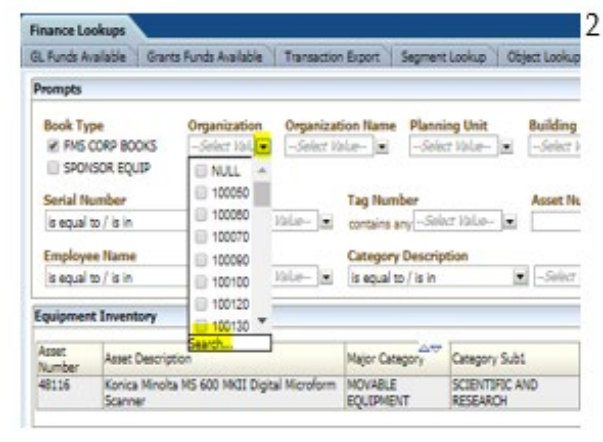
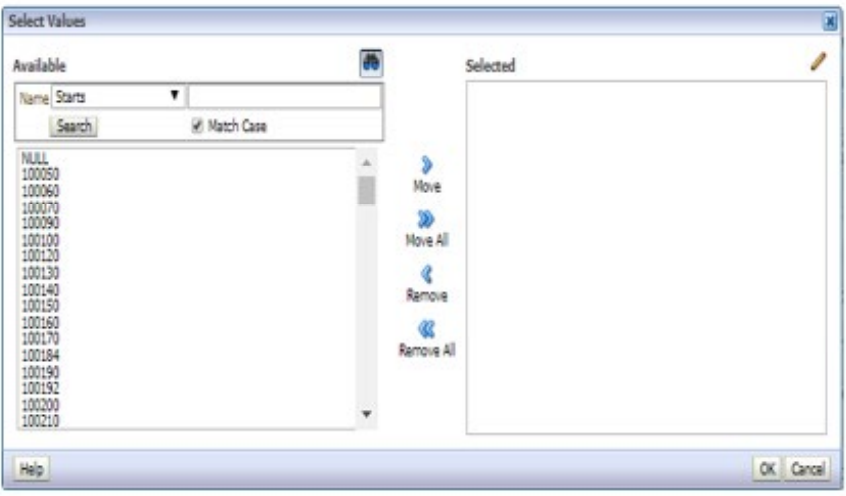
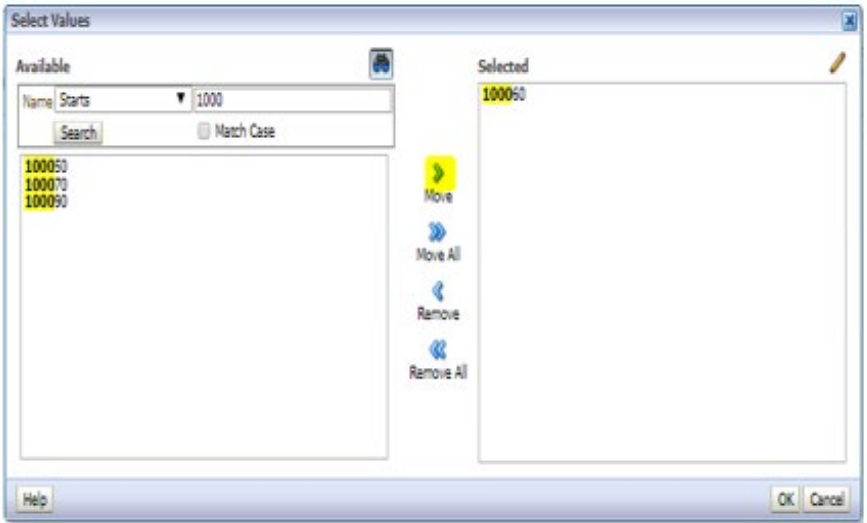
Type in the known information and select search. Move the values you want to search to the right and hit ok. This will select the items moved to the right. Hit apply on the dashboard (follow steps on page 2).
Dashboard Page Columns (on screen)
Asset Number, Asset Description, Major Category, Category Sub1, Category Sub2, Date Placed in Service, Cost, Employee Name, Employee Number, Organization, Organization Name, Planning Unit, Building Desc, Room Number, Tag Number, Part Number, License Plate Number, PO Number, In Use Flag, Life in Years.
Additional Fields Included
Building Number, Campus, State, SE Asset Name, SE Date Acquired, SE Date Posted, SE Grant/Contract No., SE CFDA, SE Agency, SE UIM, Current Units, Comments.