
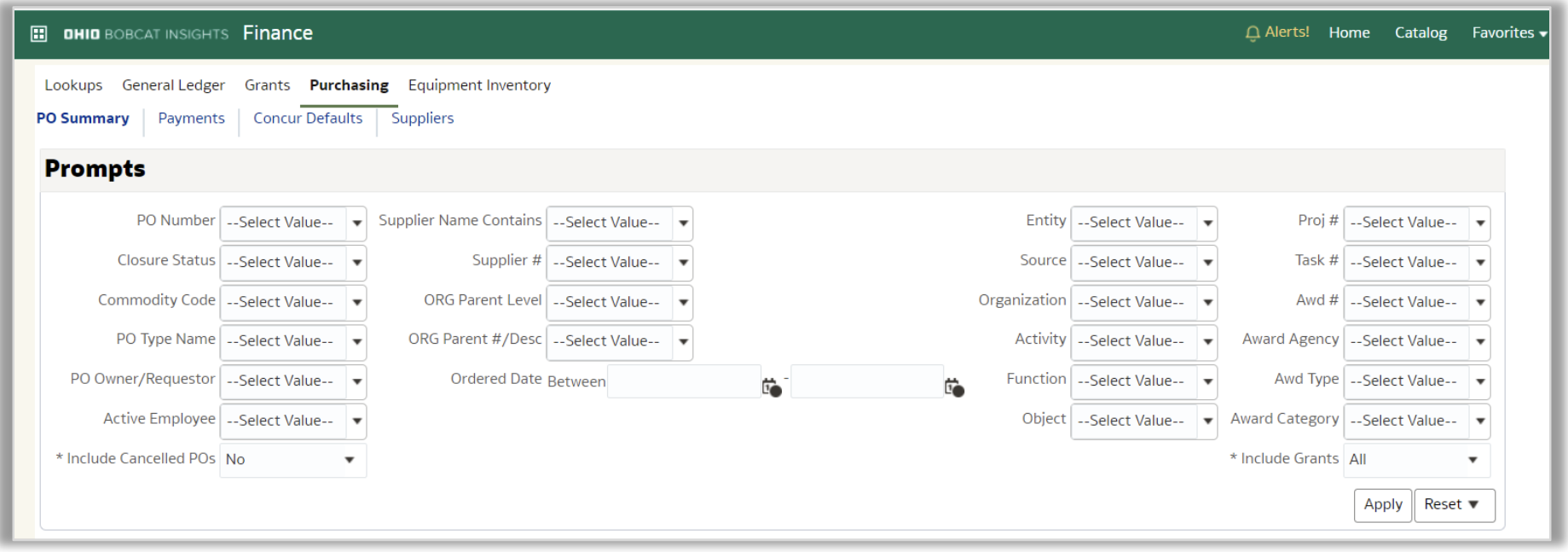
PO Summary Dashboard
The PO Summary dashboard page is located on the purchasing tab in the OBI finance dashboards. It allows you to view Purchase Order details and their associated Invoices.
Use PO Summary to view purchase order details and drill into PO lines, invoice information, and payment details on specific purchase orders.
Dashboard Prompts
Several prompt options are available on this dashboard. Select at least one prompt.
Prompt Definitions
| Term | Definition |
|---|---|
| PO Number | Six-digit number assigned by BobcatBUY for each purchase order (PO), or five-digit value assigned by Oracle for capital POs. |
| Closure Status | The status of the Purchase Order.
|
| Commodity Code | Standard classification codes for products and services used to detail where money is spent. |
| PO Type Name | The type of purchase order. PO types include: General, Maintenance, Blanket, Direct Payment, Lease, Contracts, and Construction. |
| PO Owner/ Requestor | The name of the OHIO employee responsible for requesting the Purchase Order creation. |
| Active Employee | Use this prompt to check if the PO Owner/Requestor is an active employee. When “No” is selected, all the POs that have Inactive PO Owner/Requestor are listed. |
| *Include Cancelled POs | * (Asterisk) indicates this is a required field; defaults to No. Use this prompt to include/exclude cancelled POs. *Note - Cancelled POs cannot be re-opened. However, closed POs can be re-opened. POs can only be cancelled before they are invoiced where as they can be closed after they are invoiced. |
| Supplier Name Contains | Name of the Supplier listed on the invoice. You may enter a partial name, full name, or select a supplier name from the drop-down menu. (This prompt is not case sensitive.) Note: A PO can have 2 addresses, one for the order (where we send the PO) and the other to which we remit payment. Most often, the supplier on a PO is the vendor to which the order was placed. |
| Supplier # | Number assigned to the Supplier by Oracle. |
| ORG Parent Level | The parent level (letter) of the Organization hierarchy. |
| ORG Parent #/Desc | The Organization parent number with description. |
| Ordered Date Between | The date (range) when the PO was placed. |
| Entity Source Organization Activity Function | If you would like to search transactions based upon the GL account, select one or more values in these GL segment prompts. |
| Object | Use this prompt if you would like to search for specific object codes. |
| Proj # Task # Awd # | If you would like to search transactions based upon the Grants Accounting account, select one or more values in these PTA segment prompts. |
| Awd Agency | The bill to agency on the Award. For example, Internal Awards are Internal Funding Source. |
| Awd Type | The source of funding for an award; summarized to the Source segment in the General Ledger. |
| Awd Category | The type of award (Internal, Sponsored, Cost Share or Capital). |
| *Include Grants | * (Asterisk) indicates this is a required field; defaults to All. Select All to show both GL and Grants transactions, or select GL Only or Grants Only as appropriate |
Dashboard Results/Columns
Default Columns
Shown below are the columns that will appear on the dashboard by default.

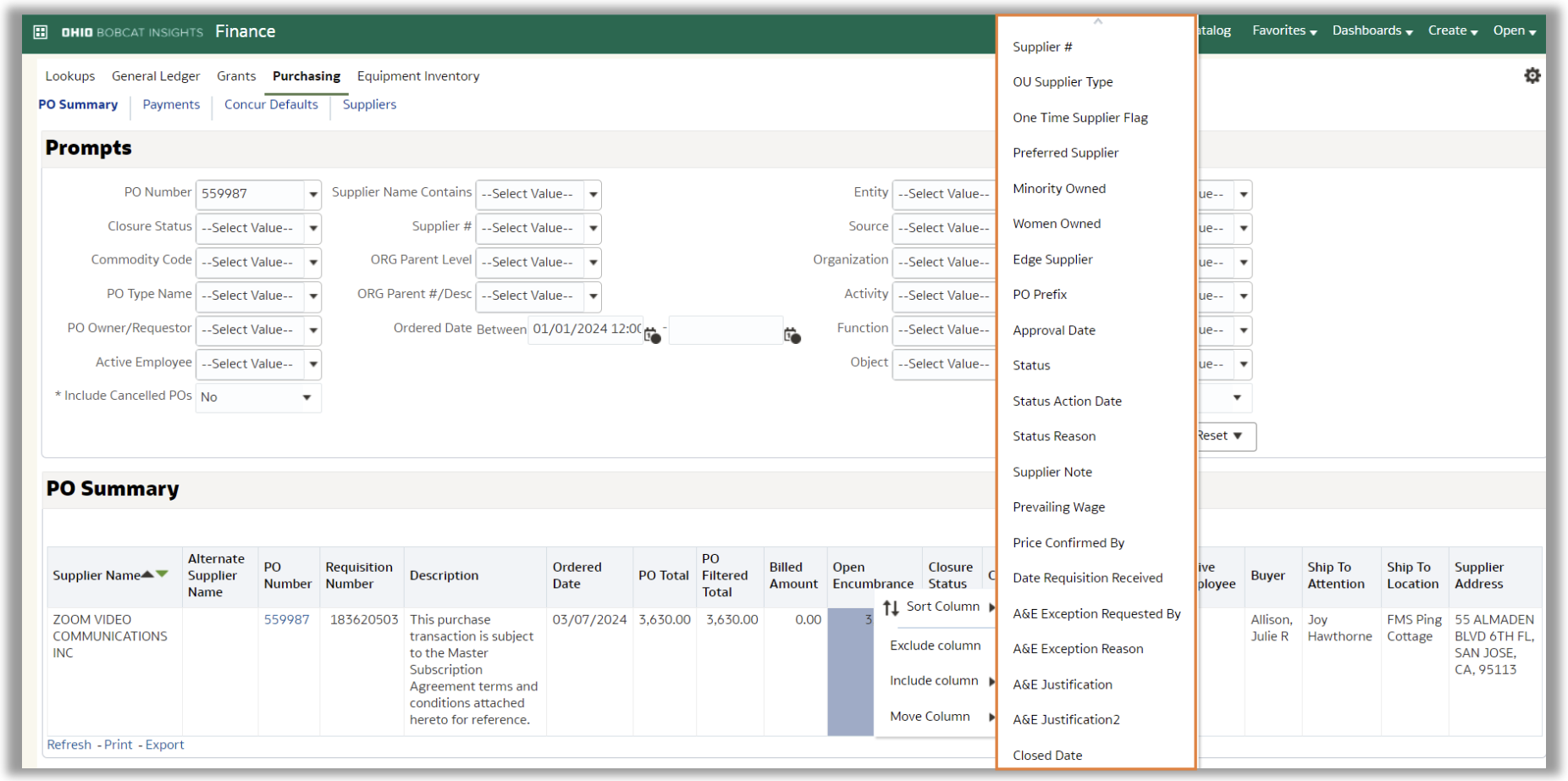
Additional Columns
The following additional columns are available for individual users to add to their results as needed. To add any of these columns to your results, right click on the header row, select include column, and select the columns that you would like to add.
Column Definitions
| Term | Definition |
|---|---|
| Supplier Name | See prompts definitions table above |
| Alternate Supplier Name | “Doing Business As” (DBA) name of the supplier |
| PO Number | See prompts definitions table above |
| Requisition Number | Requisition Number from BobcatBuy |
| Description | PO header description. This description is populated from internal note or external note on the requisition in BobcatBuy. |
| Ordered Date | See prompts definitions table above |
| PO Total | Total amount on the PO |
| PO Filtered Total | PO total based upon filtered criteria selected in the prompts. |
| Billed Amount | Amount billed on the PO or Invoice matched amount. |
| Open Encumbrance | Open balance on the PO |
| Closure Status | See prompts definitions table above |
| Cancelled | Yes (Y) or No (N) flag to indicate if the PO was cancelled. *Cancelled POs cannot be re-opened. However, closed POs can be re-opened. POs can only be cancelled before they are invoiced where as they can be closed after they are invoiced. |
| PO Owner/ Requestor | See prompts definitions table above |
| Active Employee | See prompts definitions table above |
| Buyer | Procurement staff member responsible for the Purchase Order. |
| Ship To Attention Ship To Location | To whom and where the order is shipping |
| Supplier Address | The address listed on the Supplier record for the site selected. |
| A&E Exception Requested By | The person who requested the exception to use a non-preferred supplier, in accordance with the Affordability and Efficiency mandates. |
| A&E Exception Reason | Used to track approved exceptions for not using a preferred supplier in accordance with the Affordability and Efficiency mandates. Exception reasons include:
Unique Expertise or Situation |
| Closed Date | The date the purchase order was closed |
| Supplier # | See prompts definitions table above |
| One Time Supplier Flag | Yes (Y) or No (N) flag to indicate if the supplier was set up for one-time use |
| Preferred Supplier | Yes (Y) or No (N) flag to indicate if the supplier is an OHIO preferred supplier |
| PO Prefix | Preceding letter(s)/number(s) to PO number. ‘OU’ (for operating POs) or ‘OUP’ (for capital POs) |
| Approval Date | The date the PO was approved |
| Status | PO approval status (approved, requires reapproval, incomplete, pre-approved) |
| Status Action Date | The date when the status on the PO was updated. Corresponds to the status column above |
| Status Reason | Notes that were entered on the PO with the to the last status update to indicate the reason for the status change |
| Supplier Note | Note to the supplier. Manually entered in Oracle for capital POs |
| Prevailing Wage | Indicates contractor wage restrictions on the Purchase Order |
| Price Confirmed By | Ohio Revised Code reference that governs competitive bidding |
| Date Requisition Received | Requisition submitted date |
| A&E Justification A&E Justification2 | Affordability & Efficiency justifications entered in BobcatBuy |
| PO Type Name | See prompts definitions table above |
| OU Supplier Type | Field on supplier record that tracks Independent Contractor, Energy Cap and Food Pro suppliers |
| EDGE Supplier | Field on supplier record that tracks EDGE suppliers |
| Minority Owned | Field on supplier record that tracks Minority Owned suppliers |
| Woman Owned | Field on supplier record that tracks Woman Owned suppliers |
Drill Down Options
From the PO Summary Dashboard, you may drill into PO Line Details or Invoice Details by clicking on the PO Number (in blue text). If payments have been made on the invoice, you may also drill from the invoice details to view Payment Details. Each of these drilldown features are explained below.
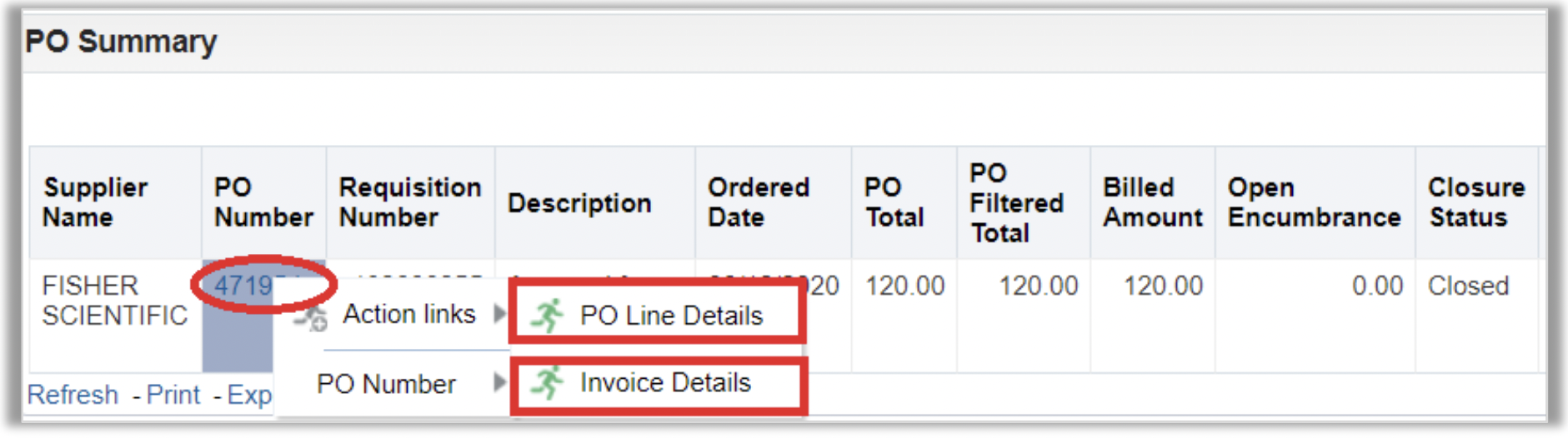
PO Line Details Drilldown
The main page on the PO Summary Dashboard displays PO header information. To view line level detail on the purchase order, select the PO Line Details option. This will show all items ordered on the PO.

Invoice Details Drilldown
The invoice drilldown page will display all invoices for the selected PO. If the invoice has been paid, you will see an additional drilldown option in blue text in the Inv # column that will allow you to drill into the payment details.

Payment Details Drilldown
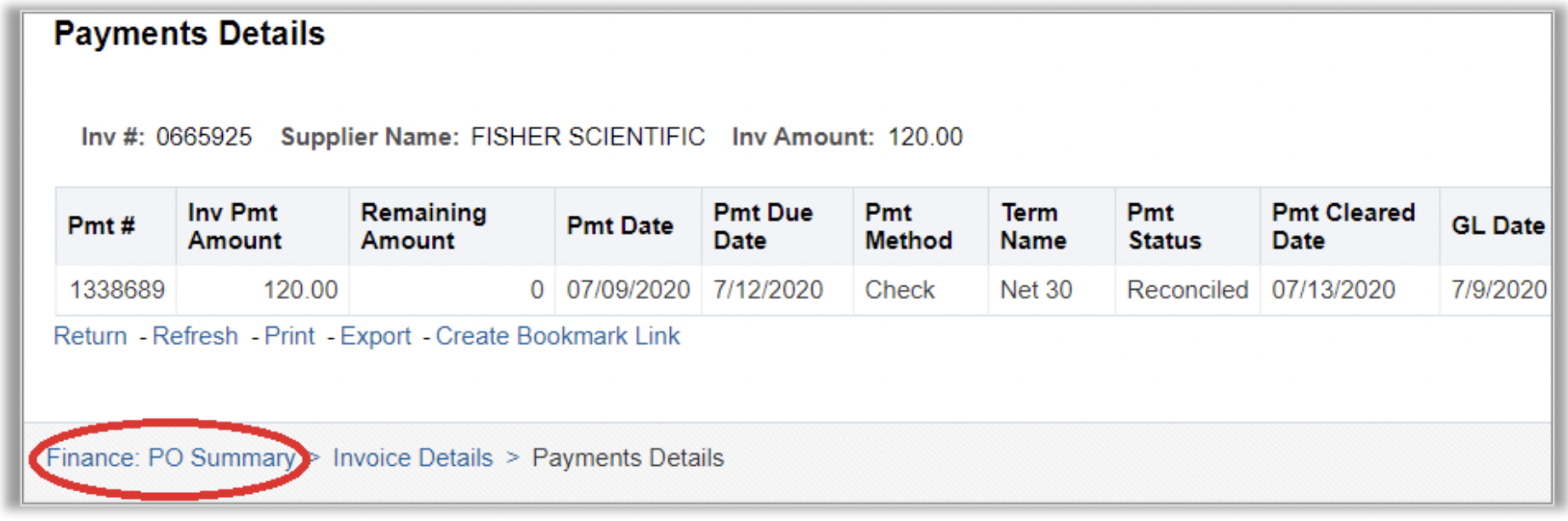
Tip: To return to your report from a drilldown page, click the breadcrumbs (blue text) at the bottom left side of the page. For additional OBI navigation tips, please refer to the following material:
- OBI Finance & HR Dashboards: OBI General Functionality Quick Reference Guide:
https://www.ohio.edu/sites/default/files/sites/finance/systems/files/obi/OBI_General_Functionality.pdf - OBI Navigation and OBI Reporting Fundamentals courses available through Professional Development Program: https://www.ohio.edu/hr/professional-development/courses