Segment Lookup
Segment Lookup Dashboard Page
The Segment Lookup dashboard page provides a detailed list of all segment
values and the ability to fine results for each individual segment.
Use Segment Lookup to view a list of values for each segment of the General Ledger.
All segments can be filtered by range of values, description, end date.
Organization and Activity can also by filtered by Planning Unit.
Object can be filtered by Object Category.
| Segments | Definition |
|---|---|
| Entity | Identifies how the transaction is summarized for financial reporting (Ohio University, OU Foundation, etc. |
| Source | Identifies how the transaction is funded (classified by restrictions) |
| Organization | Identifies who administers the funds, such as Planning Unit or department within the Planning Unit; organization is the lowest level value of the University structure. |
| Activity | Tracks internal purpose of spending; allows Planning Units to define purposes of spending related to their specific needs. |
| Function | Tracks purpose of spending; tracks why the transaction is occurring. Tracks high level spending classification as defined by the government or accounting standards (instruction, research, etc.) |
| Object | Defines what kind of transaction is taking place and delineates the values by account type for Assets, Liabilities, Fund Balance, Revenues, Expenses, and Transfers. |
| Expenditure Type | Defines what kind of transaction is taking place on Grant accounts (project-task-award) and is compromised of the Object Code plus Description. |
Segment Selector
1. Click the radio button to select the desired segment. NOTE: You may only select one segment.

2. Select Apply.
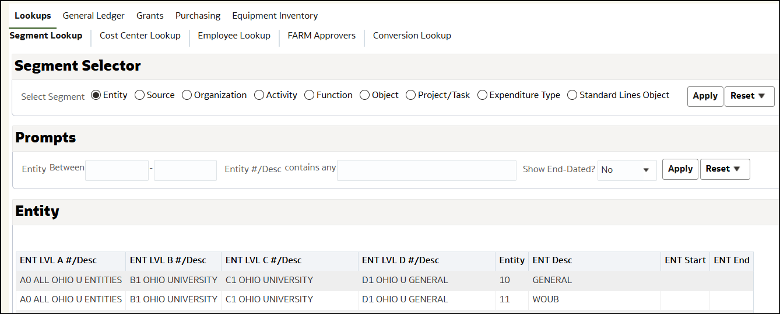
Selecting Prompts for Entity, Source and Function
After you select the appropriate radio button and click apply, a prompt window will appear with additional filter criteria.
- The following search criteria will display for the ENTITY, SOURCE, and FUNCTION segments. If no search criteria is defined, all values defined for that segment will be returned.
- Between: Allows you to filter between a range of segment values
- Desc contains any: allows you to search segment values based on the segment description. This prompt will return all segment values where the segment description contains the entered text.
- Show End-Dated: When “No” is selected, the system will not return results that are currently end-dated.
- This dashboard is refreshed nightly, so this will return any values that are active/inactive as of the previous day.
Enter your search criteria and click Apply.
Selecting Prompts for Organization
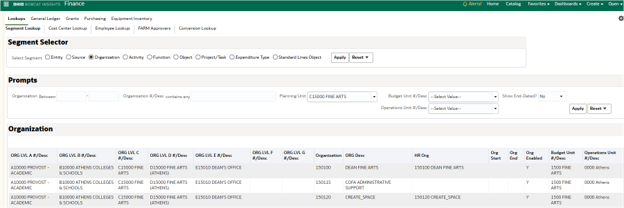
After you select the ORGANIZATION radio button and click apply, a prompt window will appear with additional filter criteria. In addition to the search criteria defined for the ENTITY, SOURCE, and FUNCTION segments, the ORGANIZATION segment has a Planning Unit prompt.
- Select the Planning Unit from the Dropdown.
- Enter your search criteria and click Apply.
This will return Organization results specific to that planning unit. The example below shows all organization values for the Planning Unit: College of Fine Arts as well as the hierarchy for each organization value.
Selecting Prompts for Activity
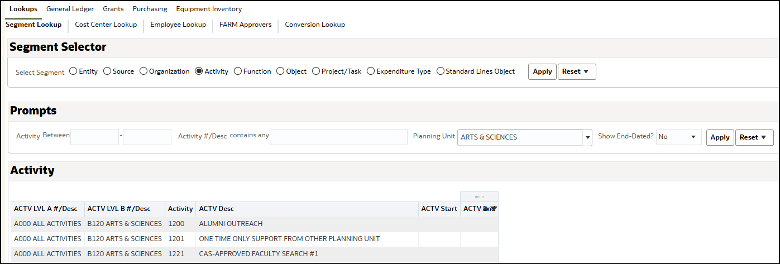
After you select the ACTIVITY radio button and click apply, a prompt window will appear with additional filter criteria. In addition to the search criteria defined for the ENTITY, SOURCE, and FUNCTION segments, the ACTIVITY segment has a
Planning Unit prompt.
- Select the Planning Unit from the Dropdown.
- Selecting “SHARED ACTIVITIES” will return a list of all the shared activity values available to all Planning Units
- Selecting a specific planning unit such as “ARTS & SCIENCES” will return the list of all activity values specific to the College of Arts & Sciences. (EXAMPLE BELOW)
- Enter your search criteria and click Apply.
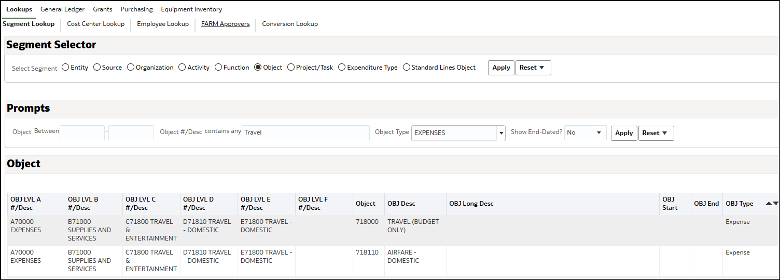
Selecting Prompts for Object
After you select the OBJECT radio button and click apply, a prompt window will appear with additional filter criteria. In addition to the search criteria defined for the ENTITY, SOURCE, and FUNCTION segments, the OBJECT segment has an
Object Category prompt. This will filter results based on the specific object categories: Assets, Liabilities, Fund Balances, Revenues, Expenses, and Investment Transfers.
- Select the Object Category from the Dropdown.
- You can also enter details in the description prompt for more granular results.
Enter your search criteria and click Apply.
In the example below, the “Expense” object category was selected and the word “Travel” was entered in the “Desc contains any” prompt. The values returned are all expense object codes that include the word “travel” in the description. Note: this field will search all parent and child object descriptions.