
PCard Refunds
Description
Pcard refunds are necessary when cardholders accidently use their cards for personal or unallowable transactions. In the past, cardholders have completed the pcard refund form and submitted the form and cash to the Bursar office. Pcard refunds can now be paid by card or electronic check through a Transact Payments eMarket.
This document will guide cardholders through the electronic refund process.
*Note: Making personal purchases with your Purchasing card is strictly prohibited and could result in loss of your card.
Registering for Transact Payments
- Navigate to Transact and refer to the following section Payments via eMarket. You will be prompted to sign in or create an account login during the checkout process.
• Sign in is not related to your OHIO credentials. You will need to create a unique account, as this site will be used for personal/unallowable transactions only. - If not previously registered, complete the registration process and click Continue, then Go back and sign in to submit your registration.
Payments via eMarket
- Navigate to Transact.
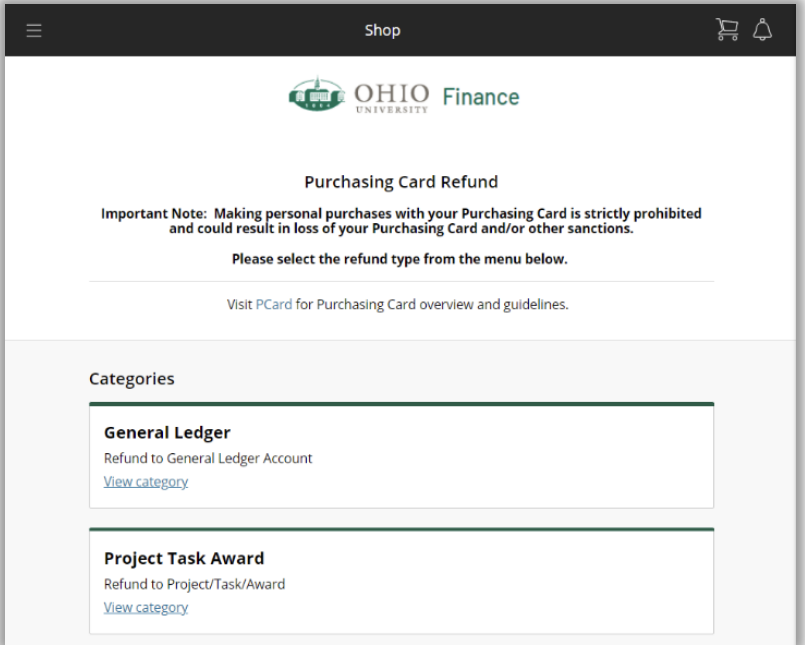
- You will see the following page. Click on either “General Ledger” or “Project Task Award” depending on the type of accounting on your original transaction to start payment.
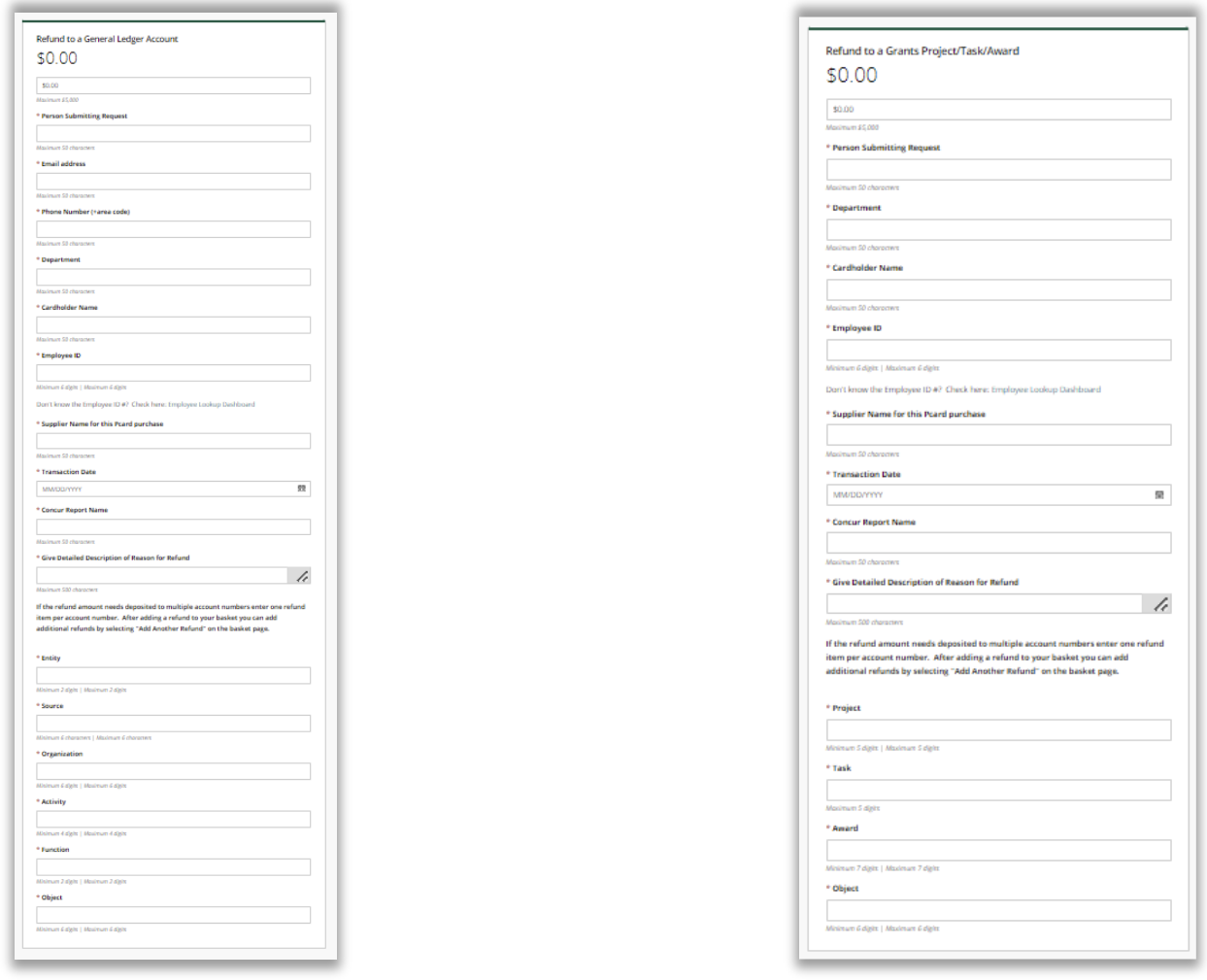
Depending on the option that was selected in step 2, fill in the information page with the PTA or GL account of the original transaction. All fields with an asterisk must be filled in to proceed. Click Add to Basket.
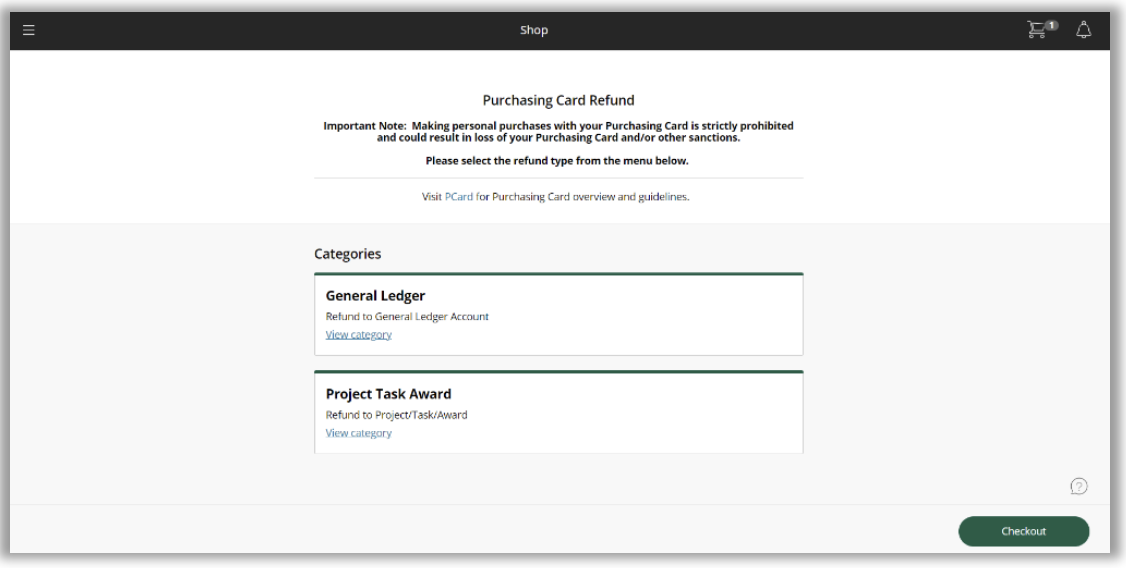
After entering the information, you will be directed back to the home page where cardholders can choose to add another refund or checkout (using the green Checkout button at the bottom) to complete the purchase.
- When cardholder clicks checkout, they will be prompted with the information to review. Select “Continue” to continue checking out or “Keep Shopping” to add another refund.
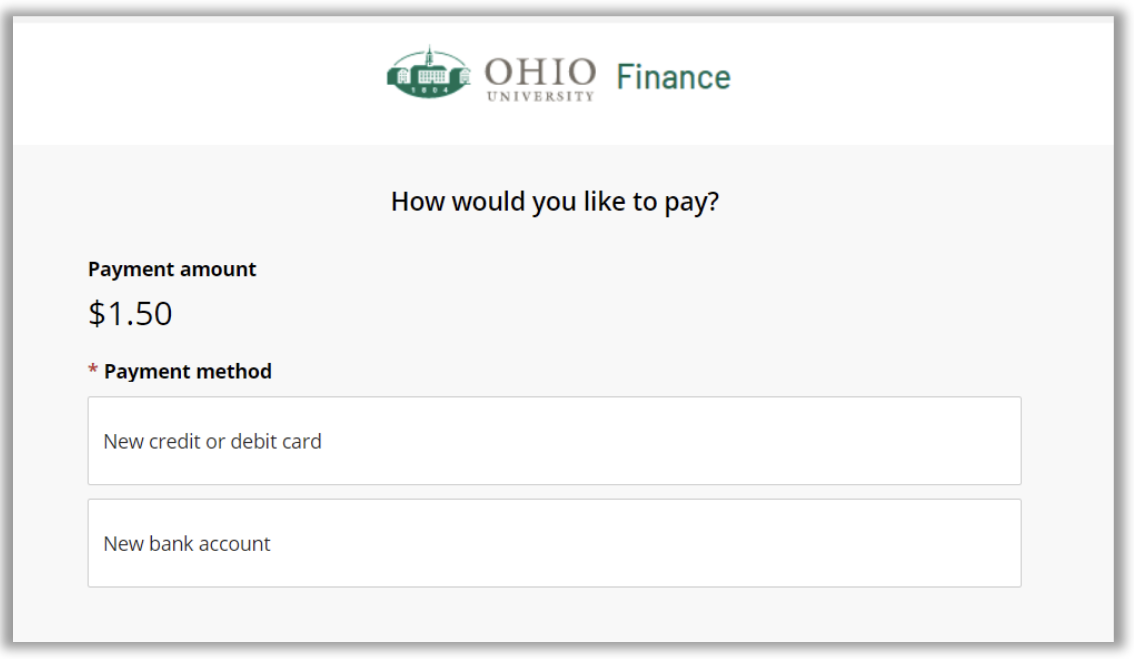
If you select “Continue” you will be prompted to log in as previously described. Once logged in you will be required to select a payment method.
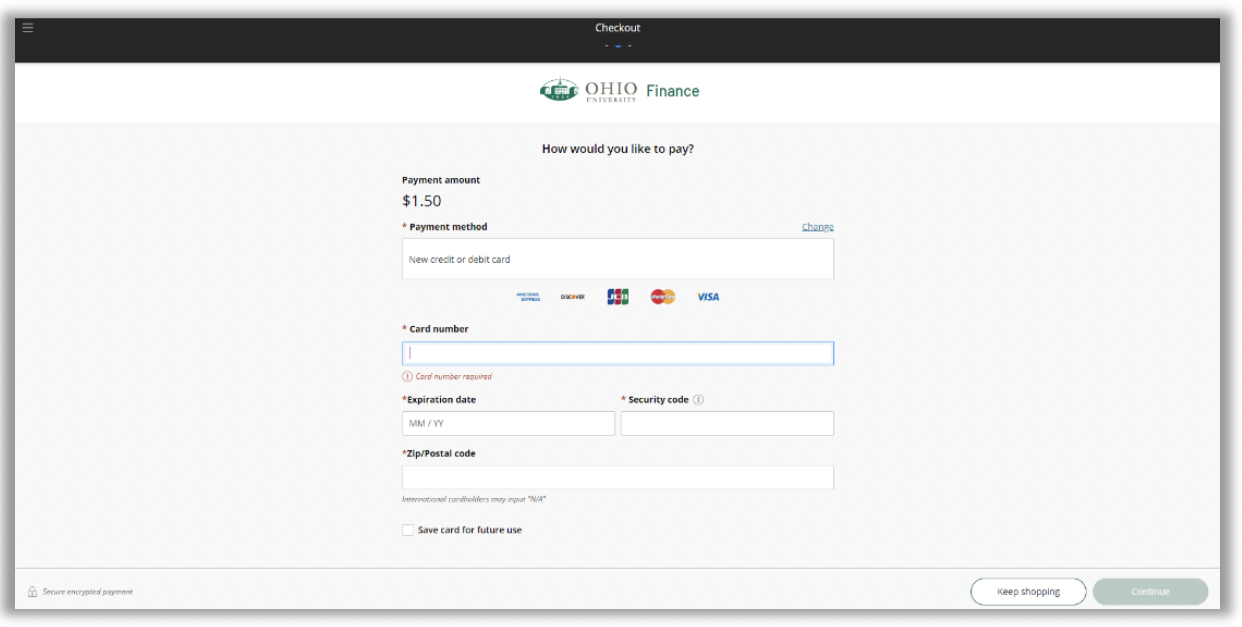
Payment by Credit Card
Complete the required information. If you would like to save your payment method for later use, click the “Save card for future use” check box and add in a name to be applied to that card. Click Continue.
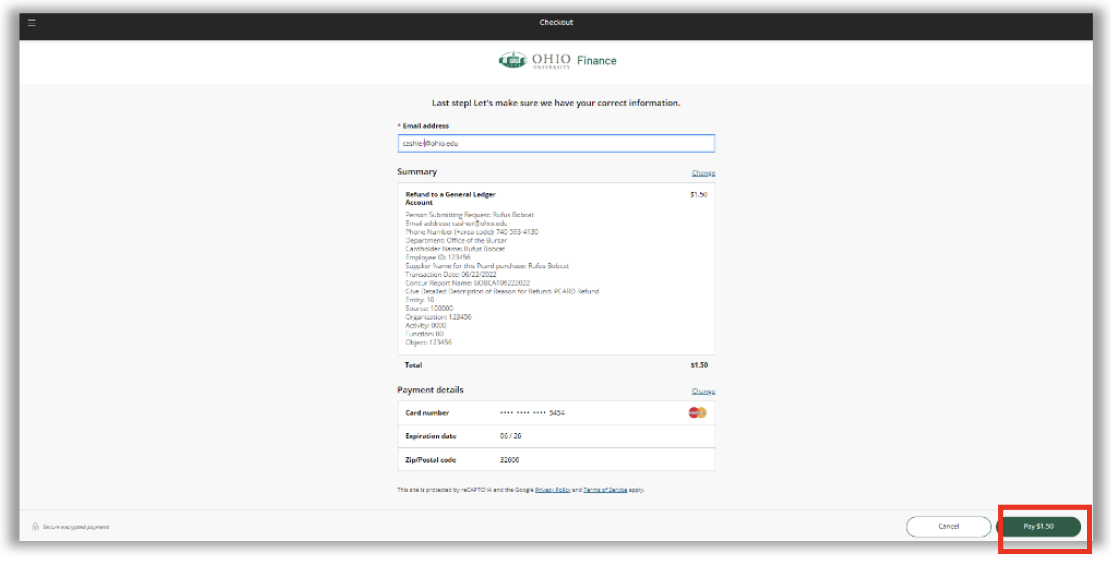
Review payment information and click Pay on the payment confirmation page.
Payment by Electronic Check
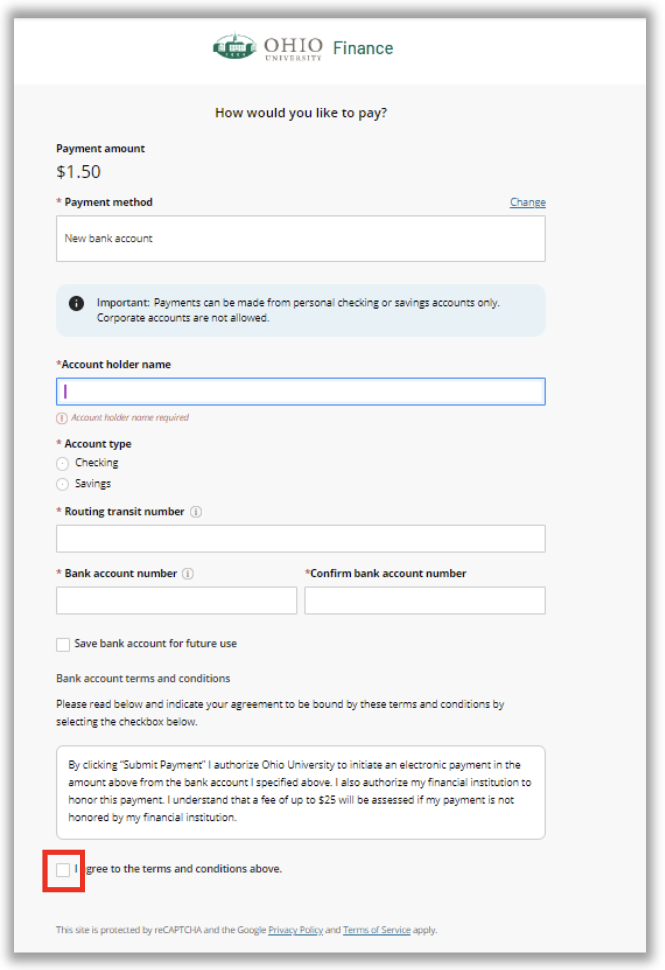
- Fill in all required information. If you would like to save your payment method, click the checkbox for “Save bank account for future use” and enter a name in the “Bank Account Nickname” box. Authorize the ACH payment terms and conditions by checking the checkbox next to ‘I agree to the terms and conditions above.’ Click Continue.
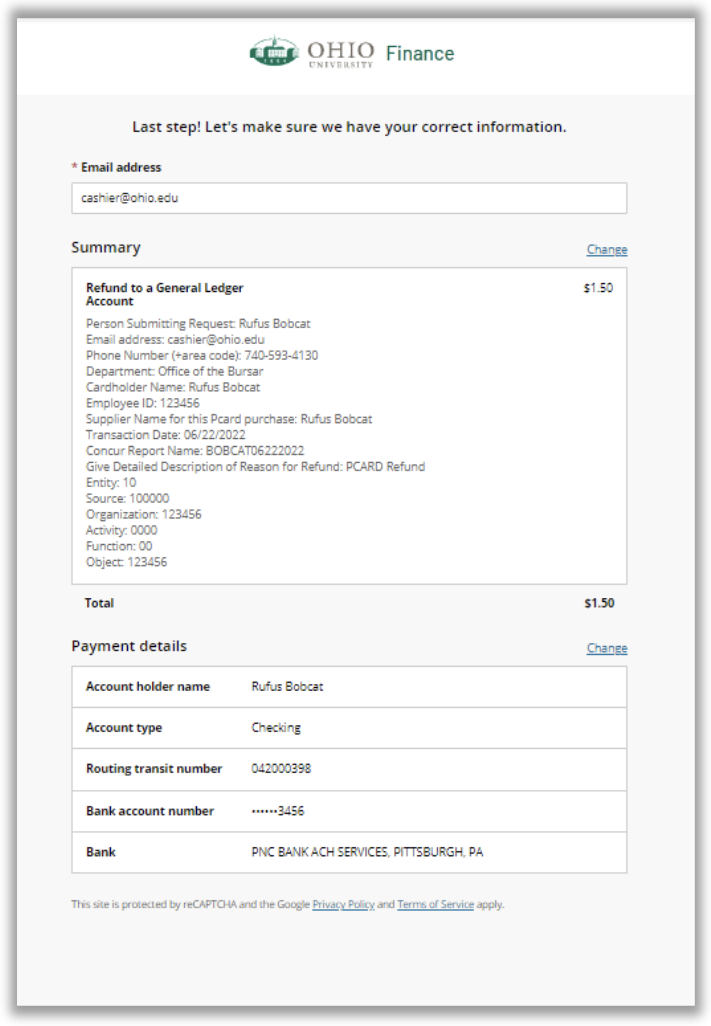
Review payment information. Click Pay on the payment confirmation page.
Receipt of Payment
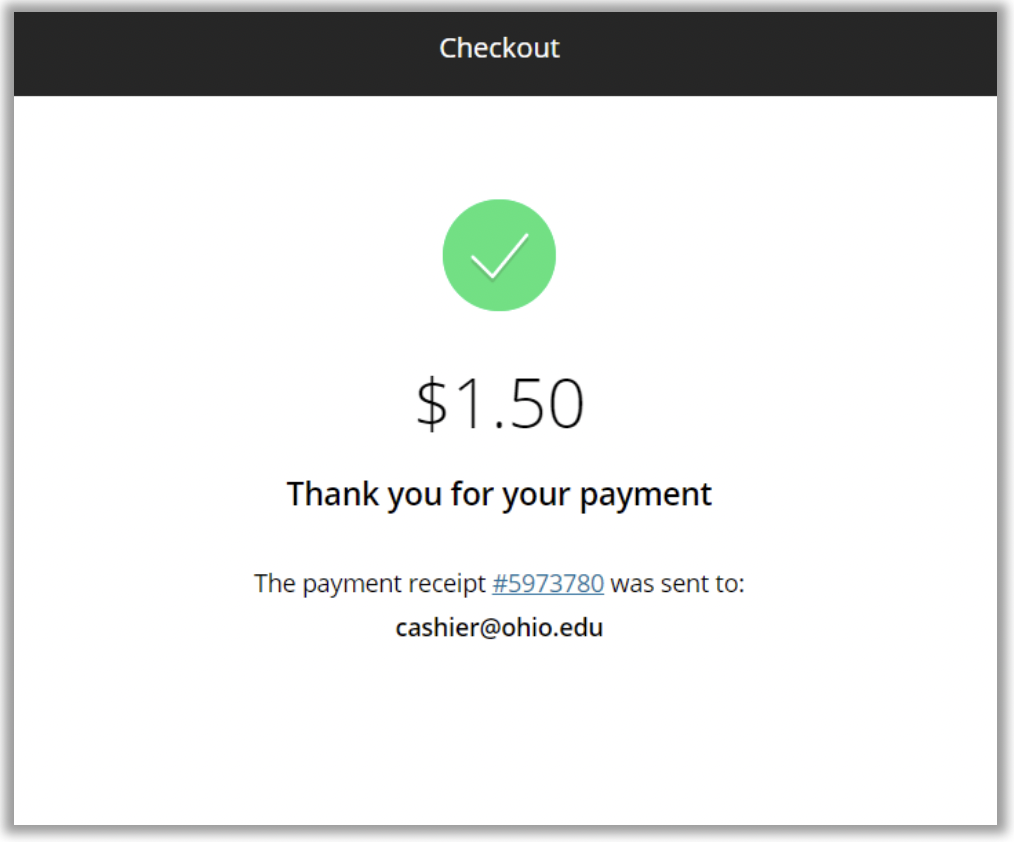
A confirmation with receipt number will be presented on the screen when the transaction is complete.
A receipt will also be sent to the email address that was provided on the payment details page. The email will be sent from bursar@ohio.edu.
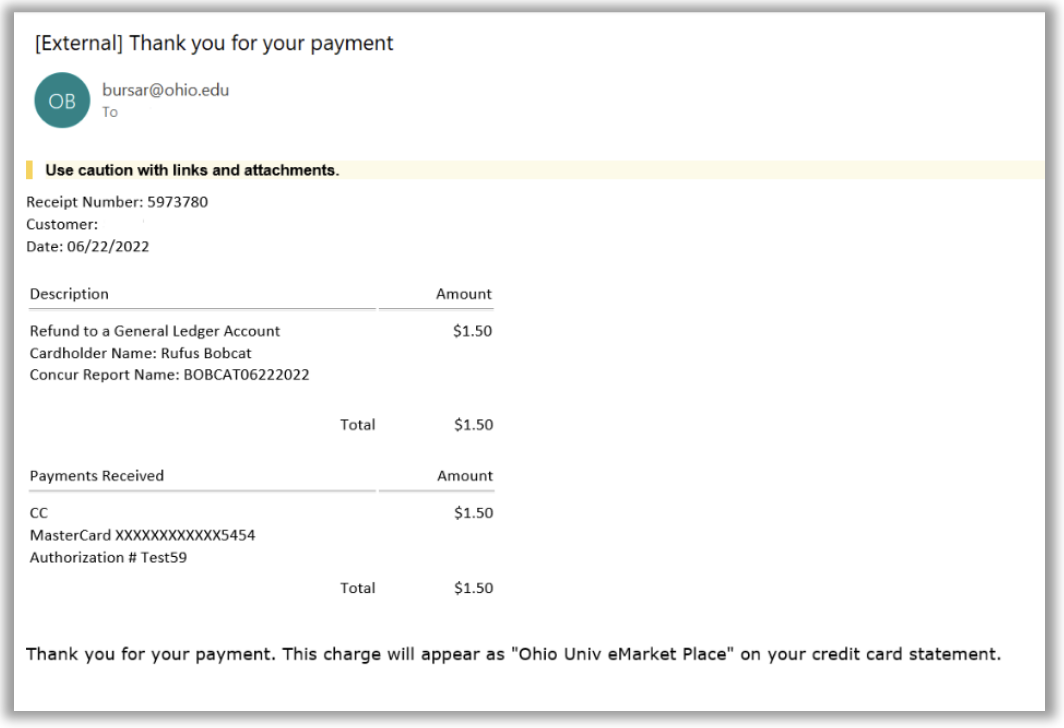
The receipt provided should be attached to the Concur report and submitted within 28 days of the transaction.