Mobile Cost Approver Process
Objective
The purpose of Quick Reference Guide is to help you register your PIN, to begin using the Concur for Mobile app to approve Concur reports.
Concur for Mobile is an app for travel, receipts, reports, and approval of expense reports. It allows you to keep track of your expenses and stay productive anytime – from anywhere. Simply download the application from your Apple or Android app store. After you have registered (see below), select "Connect" and login with your OHIO ID and password.
How to Prepare to Use the Mobile App for Approvers with iPhones (iOS)
Currently the approval screen doesn’t display expenses, details and receipts for users using the iPhone Mobile (iOs) app. This is an issue which Concur is aware of and is working to resolve. Concur has offered the following workaround; which is to “Turn off” the “New Expense Report Approval” field in the mobile app to view the details of the report.
Step 1: Login to open the Concur Mobile App.
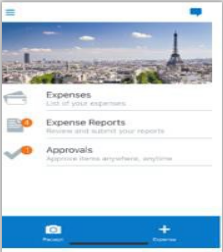
This screen is displayed when the user logs into the Concur Mobile app.
Step 2: Select the "Hamburger Icon" in the upper left of the screen

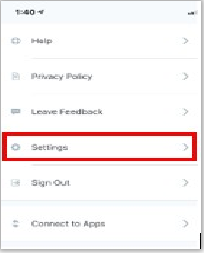
Step 3: Select "Settings"
Step 4: Select "Beta Features"
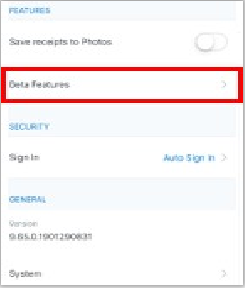
Step 5: Turn off "New Expense Report Approval"
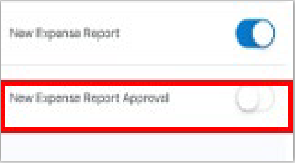
Cost Object Approver Process in Concur Mobile App for iPhones (iOS)
Step 1: Login to open the Concur Mobile App.
This screen is displayed when the user logs into the Concur Mobile App.
- Expenses – PCARD transactions
- Expense Reports – List of expense reports (submitted and unsubmitted)
- Approvals – List of expense reports to approve (Available only for expense approvers)
Step 2: Select "Approvals" to open the "Report Approval" screen.
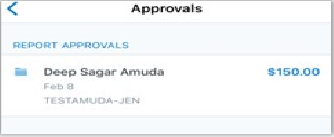
Step 3: Select on the report to "Open" the expense report.
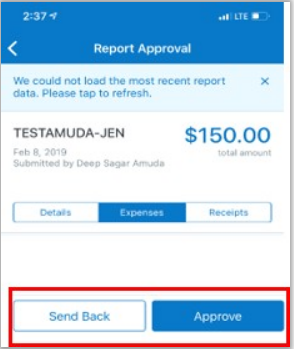
Step 4: Select “Receipts” to view receipts
Step 5: Select “Send Back” to Send Back the report.
Step 6: Select “Approve” to Approve the report.
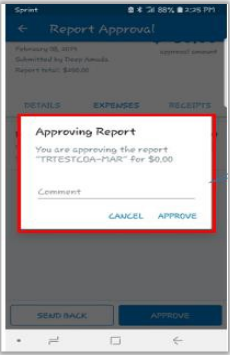
Step 7: When you select to “Approve” or “Send Back” you can enter a comment.
Cost Object Approver in Concur Mobile App for Android Phone
Step 1: Login to open the Concur Mobile App
This screen is displayed when the user logs into the Concur Mobile app.
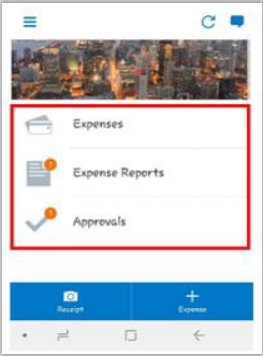
- Expenses – PCARD transactions
- Expense Reports – List of expense reports (submitted and
unsubmitted) - Approvals – List of expense reports to approve (Available
only for expense approvers)
Step 2: Select “Approvals” to open the “Report Approvals” screen.
Step 3: Select on the report to “Open” the expense report
Step 4: “Review Details” is the default view when opening the expense
report.
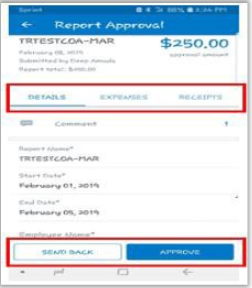
Select 5. Select “Expenses“
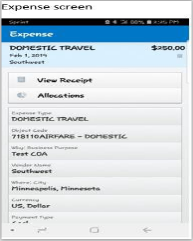
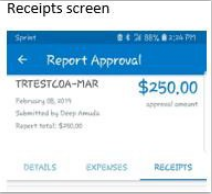
Step 5: Select “Receipts”
Step 6: Select “Send Back to Employee” or “Approve” at the bottom of the expense.
Step 7: When you select to “Approve” or “Send Back” You can enter a comment.