

eBiz – Set up Concur Default Cost Center
Objective
The purpose of this document is to guide CFAOs and planning unit staff through the process of managing default cost centers in Concur for individuals in their planning unit.
Default Cost Centers within the Concur application allow users to have the same cost center populate in the header of reports each time. If the user needs to use an alternative cost center, they are able to change that within their Concur report.
Managing Default Cost Center within Concur
- Log in to OracleEbiz.
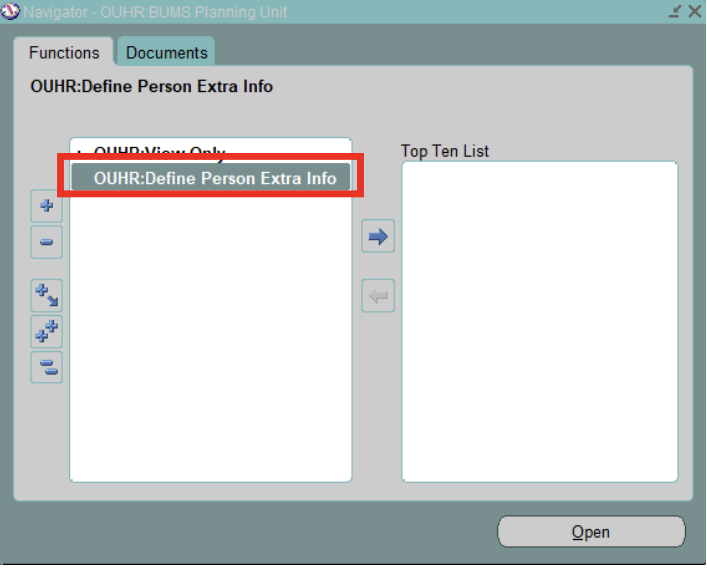
Click on the OUHR:BUMS Planning Unit responsibility to the left of the page to expand, then click on OUHR: Define Person Extra Info.
NOTE: this is an eBiz responsibility. CFAO’s must request this responsibility for their staff through the IT Help Desk
When the screen below appears double click on OUHR: Define Person Extra Info.
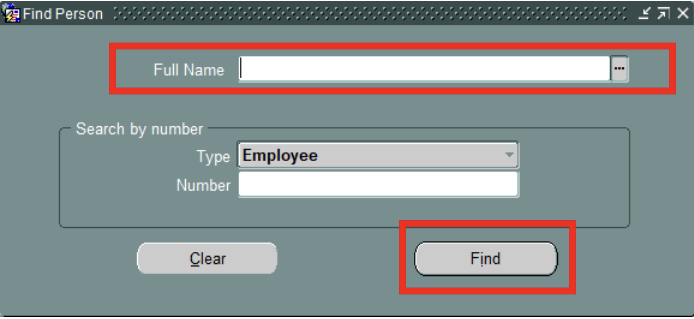
Type last name, first name in the Full Name box and click ‘Find’
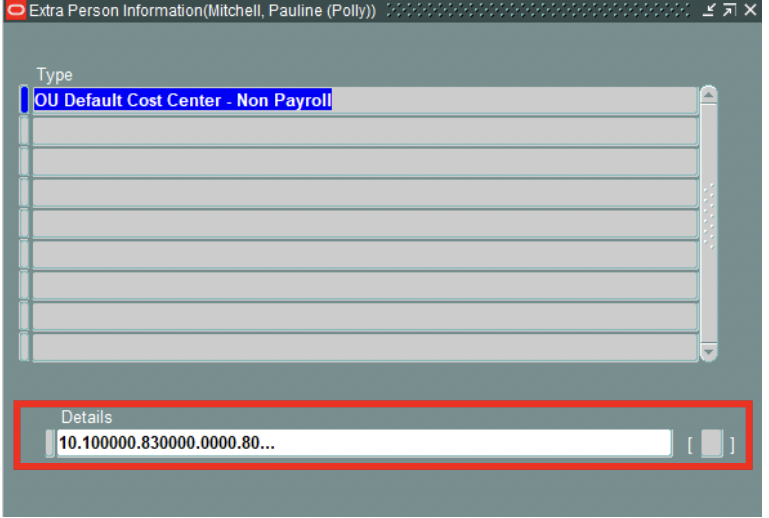
When the screen below appears, click in the Details box.
The following screen will appear. Fill in the default cost center using either the GL string (first 5 fields) or the Grants string (last 3 fields), then click ‘OK’.
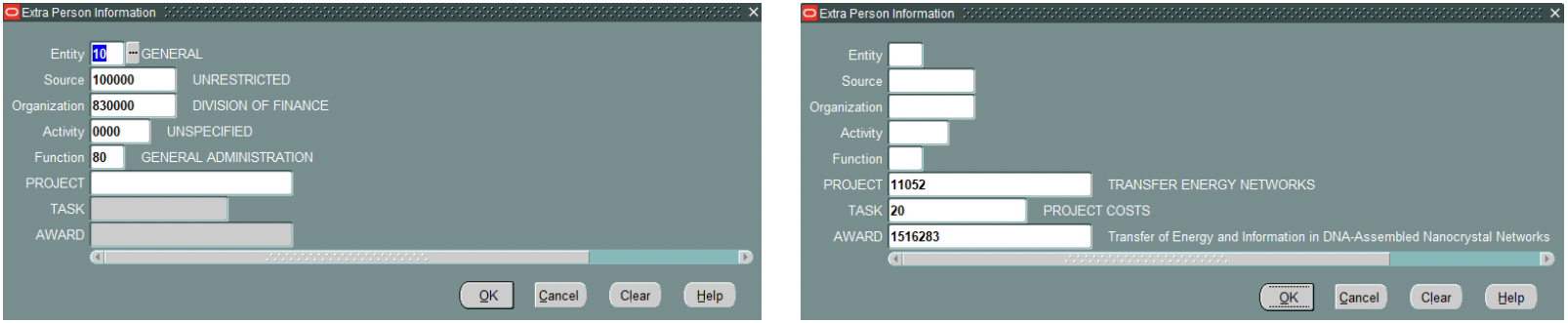
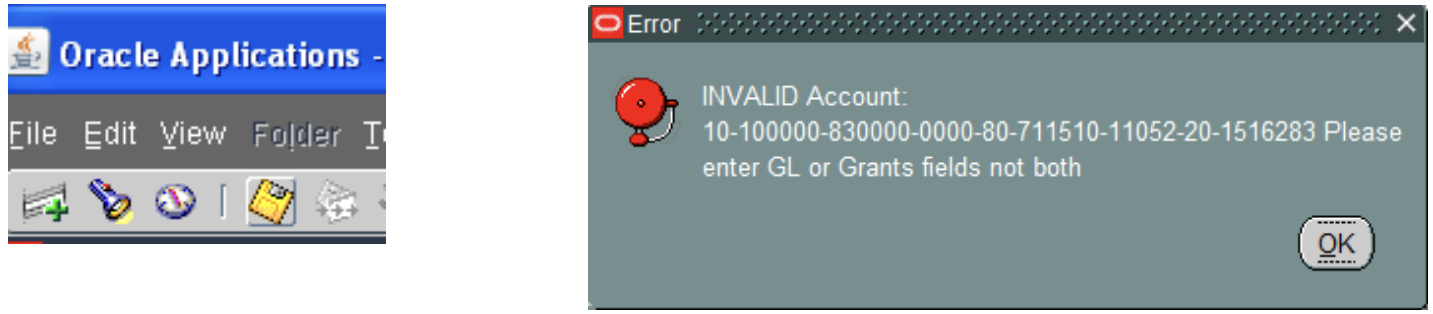
- You must click on the save icon (yellow disc) at the top of the page for changes to be effective. The following error message will appear if both the GL and Grants strings are filled in.
Note: Employee default cost centers can be viewed in the Concur Defaults dashboard within OBI. For guidance on use of the dashboard refer to the OBI Purchasing: Concur Defaults QRG.