

BobcatBUY Payment Request
Description
The payment request form should be used for payments that do not require a Purchase Order (PO). Transactions that require a contract can not use this process. For a list of accepted payments, please access the Payment Request Matrix.
How to Process a Payment Request
The Payment Request Form can be found under Internal Forms within BobcatBUY. Select the Payment Request button to begin.
Be sure to read the Instructions page carefully, then click Next to begin.
Details
In the summary section on the right side of the screen, there will be a form number, be sure to take note of this number as it will allow you to search for the record in the Payment Dashboard. In this section, you will need to fill in the form name. The name should follow the naming convention below:
- Payment Request Type-Supplier Name-Date - Ex.Refund-JohnBenSmith-03212017
If the payment request involves multiple suppliers, instead of supplier name, write “Multiple”.
- Ex.Participant-Multiple-03212017
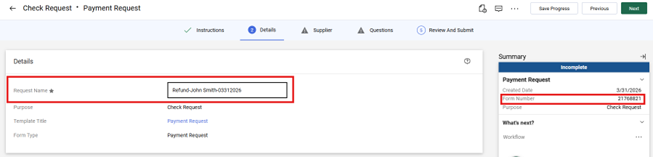
Click Next to advance to the next screen. Click Save Progress if you are making changes and moving around in a non-sequential order in the form.
Supplier
The supplier field is filled in to select the supplier(s) that the payment will be made to. There are four options: existing supplier in BCB, existing supplier in Oracle only, new student supplier, or multiple suppliers.

Existing Supplier in BCB
- Click the text box next to the right of Supplier and type in the name of the supplier. Select the Supplier from the drop-down menu.
- Select the Remit-To Address for the supplier.
- Click Next.
Existing Suppliers in Oracle only
- Click the text box to the right of supplier and type in Not Available as the supplier name and select it from the drop-down menu.
- Select the generic Remit-To Address provided.
- Click Next.
New Supplier
- Click the text box to the right of supplier and type in Not Available as the supplier name and select it from the drop-down menu.
- Select the generic Remit-To Address provided.
- Click Next.
Multiple Suppliers
- Click the text box to the right of supplier and type in Payment Request – Multiple Suppliers* as the supplier name and select it from the drop-down menu.
- Select the generic Remit-To Address provided.
- Click Next.
*This option is applicable only for the Payment Request Form and should not be selected when using other BCB forms.
Questions
Please note that there are two tabs under the questions main tab.
Supplier Details
- Do all suppliers involved in this payment request exist in BobcatBUY?
- Please select Yes, if you have selected a supplier that is already set up in BobcatBUY or selected Not Available because the supplier is only in Oracle.
- Please select No, if you have selected Not Available for a new supplier set up or Payment Request – Multiple Suppliers as the supplier and some or all of the suppliers are not setup in BobcatBUY.
- If you select No, an additional upload button will appear to allow you to upload all required supplier setup information. Please be sure to scan all supplier setup documentation into one document and upload to BobcatBUY.
- REMINDER - We will not accept W-9s or Supplier Payee Information Forms through Payment Requests. All Suppliers other than refunds and student reimbursements must go through PaymentWorks.
- Click Next.
Check Request Information
- Select Payment Request Type from the drop-down menu.
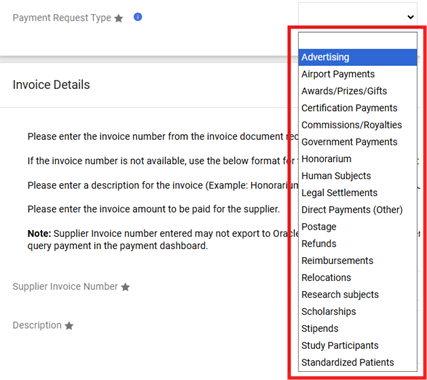
- Enter the invoice number from the invoice document received from the supplier. If the invoice number is not available, use the below format for the Supplier Invoice number.
- Supplier name-Date (Example: FENDRICK-05/01/2017)
- Enter a description for the invoice (Example: Honorarium payment for guest lecture MARK A FENDRICK).
- Enter the total amount of the payment.
- For multiple suppliers enter the grand total of all payments and upload a spreadsheet identifying the name, full address, amount, and accounting codes (if applicable) for each supplier in the Attachments section.
Important Note: If you have multiple documents, please scan all documents into one and upload.
- If your supplier exists only in Oracle, please enter the supplier number in the Note to Accounts Payable Section.
- Refer to the Payment Request Matrix to identify the documentation for each transaction.
- Click Next.
Codes
Click the Pencil icon to the right of the accounting code field to begin entering.

- You can enter a split between accounting codes by clicking the button on the screen when hovering over the accounting string.
- For multiple suppliers with different accounting strings, include this information in the spreadsheet.
Click Next.
Additional Information
- Enter an Object code. Use the magnifying glass icon to search for an object code.
- Click Next.
Review and Submit
- Confirm that there is a green check mark next to all sections.
If a section is marked incomplete, revisit the section by clicking Edit to correct problem.
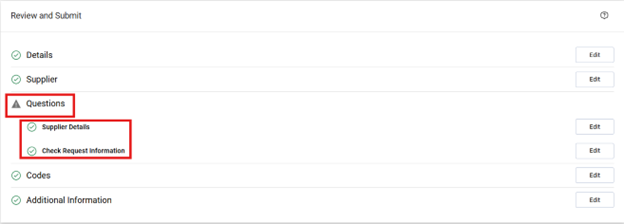
Note: The Questions section will show as incomplete due to a system error. If the underlying sections are marked as complete, that section is complete.
- Select Submit to complete the form.
Search Documents
- Select Accounts Payable icon on the left navigation bar of BobcatBUY.
- Select Search AP Requests from the Accounts Payable menu.

- Select My Requests on the left side of the screen (under My Searches) to see Forms created by you.

Form Status
There are five status that a form can be withing BobcatBUY: Incomplete, Under Review, Returned, Rejected, or Approved/Completed. Below are descriptions on each status type.
Incomplete
This status means the form has not been submitted into workflow. Any Payment Request Forms not needed can be discarded under Form Request Actions (upper right-hand corner within the form) Discard Forms option is only available for forms in this status.
Under Review
This status means the form is with Department Approval, Supplier Review, or Accounts Payable Review. The Forms Approval Tab within the form will show you the current workflow step.
Returned
This status means the form was returned to fix an error, i.e. wrong attachment, wrong supplier, need info, wrong amount, etc. Read notes for return reason in History (upper right-hand corner within the form).
Rejected
This status means the form was rejected for wrong form type and can’t be processed. Read notes for rejection reason in History (upper right-hand corner within the form).
Approved/Completed
This status means the form has completed workflow and has been entered for payment. Please view the Payment Dashboard Quick Reference Guide to learn how to check payment status.