
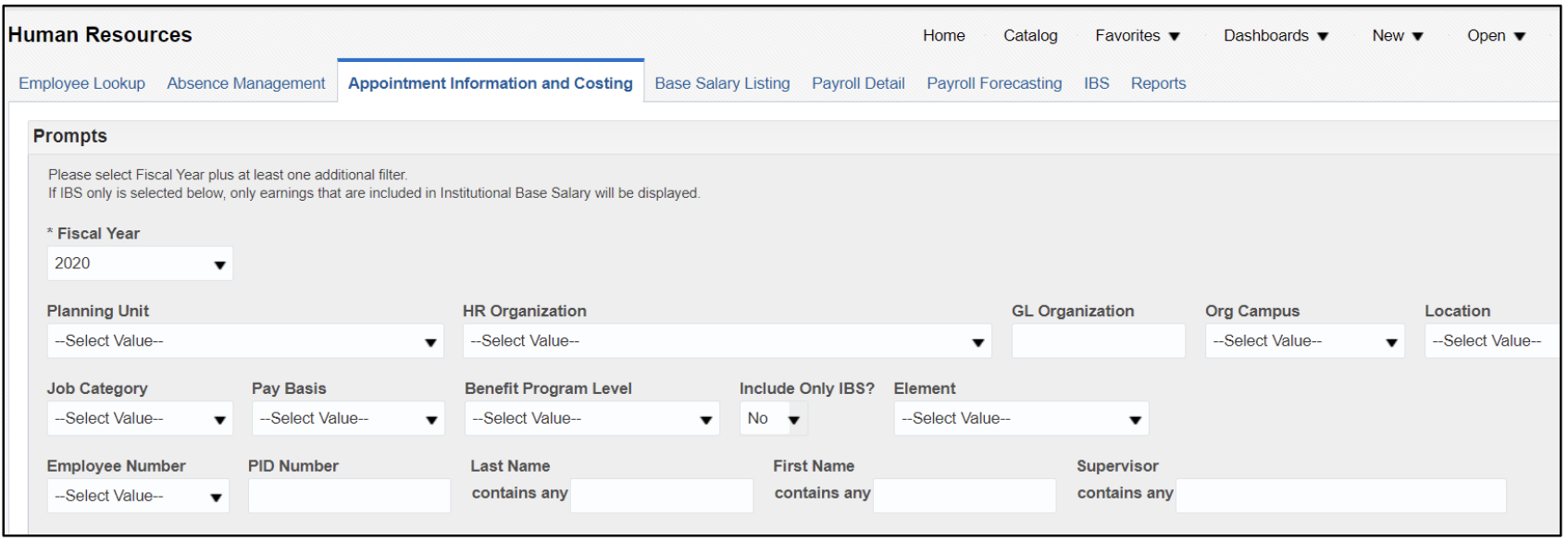
Appointment Information and Costing Dashboard
The Appointment Information and Costing dashboard is located on the Human Resources dashboard in OBI. This dashboard is used to view employee assignment/appointment information, costing, and pay element details for the specified fiscal year. This dashboard can be used to view an employee’s Institutional Base Salary, additional earnings elements, and approved Individual Compensation Distribution (ICD) transactions.
Dashboard Prompts
Multiple prompt options are available on this dashboard. Fiscal Year is a required prompt. Please select Fiscal Year and at least one other prompt to limit the report by specific assignment or costing criteria as appropriate.
Prompt Definitions
| Term | Definition |
|---|---|
| *Fiscal Year | * (Asterisk) indicates this is a required field. Select the appropriate Fiscal Year and at least one other prompt. All pay elements that start or end in the selected fiscal year will be displayed. |
| HR Organization/Planning Unit/Org Campus/Location | The planning unit, organization, campus, or location where an employee is assigned. Caution: An employee can be costed to an org that differs from the HR org/planning unit where they are assigned. Use the GL Organization prompt to view employees costed to a specific org. |
| GL Organization | The GL Organization identifies who administers the funds, such as a Planning Unit or a department within a Planning Unit. Caution: If prompted by GL Organization and the employee is split-costed, only the amount costed to the (prompted) GL Organization will show. As a result, you would need to query both GL Organizations to see the entire cost picture. |
| Job Category | The classification of employees based on job duties within the institution (i.e. Administrators, Classified, Faculty, or Research). |
| Pay Basis | Indicates if employee is paid on an hourly or salaried basis. |
| Benefit Program Level | Determines the level of benefits the employee is entitled to (i.e. Full, GF Full, ACA Qualifier, PTO, Retiree, None). |
| Include Only IBS? | Change prompt to Yes if you would like to only view pay elements that are included in Institutional Base Salary as defined in Ohio University policy 41.005. |
| Element | This report contains earnings payroll elements only. For example, OU Regular Salary, Overload, Additional Pay, etc. If you would like to view specific earnings elements, select those elements in this prompt. |
| Employee Number/PID Number/Last & First Name | If you would like to search for a specific employee, enter the employee’s six-digit employee number, 10-digit PID number, or their last name/first name. |
| Supervisor | If you would like to search for a list of employees who report to a specific supervisor, enter the supervisor’s last name. |
Criteria
The following earnings elements are included in this dashboard:
- All approved pay elements for salaried faculty and staff (pending approval ICD transactions are not included until they are approved by the department and payroll office)
- All pay elements for hourly paid staff (student employee pay is not included)
Benefits are not included in this dashboard.
Dashboard Columns
The following employee assignment columns are included in this dashboard:
- Full Name, Employee Number, Position Number, PID Number, Latest Hire Date, Job Category, Job Code, Job Family, Title, Assign Pay Basis, Academic Title, Faculty Rank, Tenure Status, Org Campus, Location, Planning Unit, HR Organization, Salary/Hourly Wage, Annualized Salary, Grade Name, and Annual FTE
- Appointment Type Months and Payments Per Year columns are also displayed if the dashboard is exported to a CSV file
The following payroll costing columns are included in this dashboard:
- Account – If costing is entered on the pay element (for example, in Workforce or ICD), then the element costing will be displayed in this column; otherwise, the employee’s assignment costing will be displayed.
Note – OU Regular Salary follows assignment costing - Proportion (of assignment costing, if applicable)
- GL Org
- PTA – Project, Task and Award
The following payroll element columns are included in this dashboard:
- Effective Start Date, Effective End Date, Element Full Name, Amount, ICD Justification, and ICD Course
- Pre and post furlough salary information – In the HR system, regular salaries have already been adjusted to reflect the appropriate furlough reductions. However, the reductions to the fiscal increment and additional salary elements will not be reflected in the element amounts. Those reductions are calculated during the payroll process. The chart below explains where the pre and post furlough salary amounts can be found.
| Column | Definition |
|---|---|
| Amount | For all pay elements, except fiscal increment and additional salary, the amount displayed reflects the amount after furlough reductions are applied, if applicable. For fiscal increment and additional salary, the amount displayed reflects the pre-furlough amount. |
| Amount to be Paid | Reflects the amount to be paid after furlough deductions are applied. |
| Pre-Furlough Amount | Reflects the original element amount, prior to furlough reductions. |
| Salary/Rate & Annualized Salary | Reflects the employee’s salary/hourly rate as of the current date. Note – furlough reductions were applied to salaries effective July 1st for fiscal year appointments and on Aug. 16th for academic year appointments. |