
MPI: Benefits Self Service Guide
Purpose: The purpose of this guide is to assist new OHIO employees with benefits enrollment or existing OHIO employees during the annual open enrollment period or those who have experienced a qualifying life event with making changes to their benefits using My Personal Information: Benefits Self Service.
For Questions Contact: Employee Service Center (ESC) at 740-593-1636 or benefits@ohio.edu.
Helpful Definitions
| Term | Definition |
|---|---|
| Update | To update information for an existing contact, click the Pencil icon next to the appropriate person’s name. |
| Details | Click the + or Show to expand the view. |
| Plan | Benefit Offerings (Medical PPO Plan, Dental, Standard Vision, Basic Life Insurance Plan, Supplemental Life Insurance Plan, Healthcare FSA Plan, Dependent Day Care FSA Plan, Employee Assistance Plan, etc.) |
| Options | Coverage levels available for each plan (e.g. Employee, Employee + One Dependent Child, Employee + Spouse, Employee + Family, etc.) |
| Details | Click the http eyeglass icon to review plan options and descriptions. This will open in a new window. Depending on your browser, it may open multiple windows. Click your browser in the taskbar at the bottom of the screen. |
| Select | Each checkbox is a toggle button. Click once to select the checkbox. Click the checkbox again to deselect it. Only one checkbox may be selected for each plan. |
| Coverage/Amount | The amount of coverage that you are electing (Flexible Spending Accounts and Supplemental Life Insurance) or are eligible for (Short Term Disability and Basic Life Insurance). |
| Employee Pre-tax Premium | The amount that the employee pays for the tax-free benefit per pay period. Deductions are prior to taxes being calculated. |
| Employee After-tax Premium | The amount that the employee pays for the taxable benefit per pay period. Deductions are after taxes are calculated. |
| Employee Imputed Income | The amount per pay period that is added as taxable earnings for health coverage of a non-taxable dependent, such as a domestic partner or domestic partner child(ren). |
| Employer Premium | OHIO’s cost per pay period for your benefit enrollment. |
| Life Event | A change in your employment status or personal life that allows you to make changes to your benefit coverages. |
| Enrollment Period | The date range in which you may enroll or make changes to your benefits. |
Benefits Overview
Ohio University offers a comprehensive benefit package designed to provide high-quality benefits to fit your needs and the needs of your family. For information regarding these benefits, visit OHIO’s Benefits Guides website.
Allowable Benefit Enrollment Periods
OHIO employees have an opportunity to enroll in benefits when they begin their employment. Changes may be made annually during Open Enrollment. In compliance with federal regulations, changes may not be made outside the Open Enrollment period unless a qualifying life event occurs.
Open Enrollment
Open Enrollment is the annual opportunity OHIO benefits-eligible employees have to make changes to their benefits coverage plan options including: increasing or decreasing coverage; adding or dropping covered dependents; and enrolling in flexible spending accounts. The annual Open Enrollment period is typically held in April. An email will be sent to all benefits-eligible faculty and staff with more information and further instructions once the Open Enrollment period begins. Benefit changes and elections made during Open Enrollment take effect on July 1. Visit our Open Enrollment website to learn more.
New Hires
Newly hired benefits-eligible employees may enroll in benefits within 31 days after their hire date. Employees may access Benefits Self Service on or after their date of hire, after their OHIO ID has been activated.
The effective date of coverage for a new hire will begin on their hire date. If benefit elections are made or changed after a payroll has processed, retroactive premiums will be deducted from the next payroll.
NOTE: The effective date for faculty who begin employment Fall Semester is August 16.
Qualifying Life Events
Employees who experience a personal qualifying life event (marriage, birth, etc.) should call 740-593-1636 or email benefits@ohio.edu. A qualifying life event will be initiated which will allow the employee to update benefits in MPI.
Employees who experience a change in employment status with Ohio University (changing from part time to full time or changing employment groups) may be eligible to enroll in or change benefits elections. Employees will be notified by Human Resources if they have a qualifying event that permits benefits enrollment changes.
Changes must be made within 31 days from the date of the qualifying life event. The effective date of coverage is the date in which the qualifying life event occurs. If benefit elections are made or changed after a payroll has processed, retroactive premiums will be deducted from the next payroll. Visit Qualifying Life Events for further details.
My Personal Information: Benefits Self Service
Benefit enrollment changes must be made online using MPI. Accessing the system will allow you to view your current benefit selections, enroll in coverages as a new hire, or make changes during Open Enrollment or throughout the year if you experience a qualifying life event.
To initiate a change in your benefits due to a qualifying life even, you must email benefits@ohio.edu and provide proper documentation within 31 days of the life event. The system will not allow changes outside of the new hire or open enrollment period unless Benefits has initiated the qualifying life event on your record.
System Requirements
Multi-factor authentication is required to access Oracle e-Business Suite and My Personal Information (MPI).
You must set up multi-factor authentication prior to accessing MPI to enroll in your benefit selections. For more information, visit: OIT's Multi-Factor Authentication site.
Log in to My Personal Information (MPI)
- Visit https://myhr.ohio.edu/
- Click My Personal Information
- Enter your OHIO Email and Password
- Complete your multi-factor authentication. From the mobile app, either enter the key passcode or tap to respond. From the automated phone call, answer the call and press any key on your phone to log in.
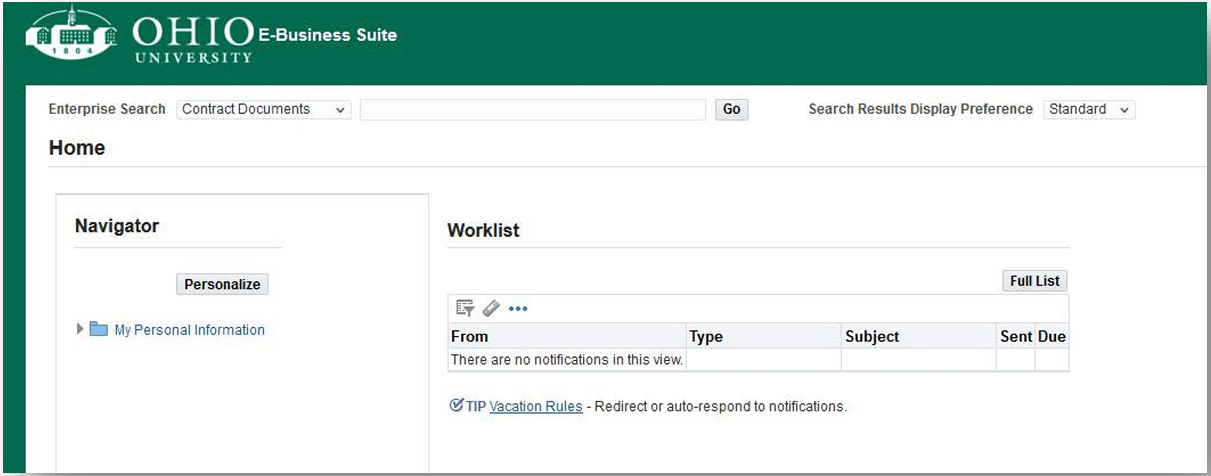
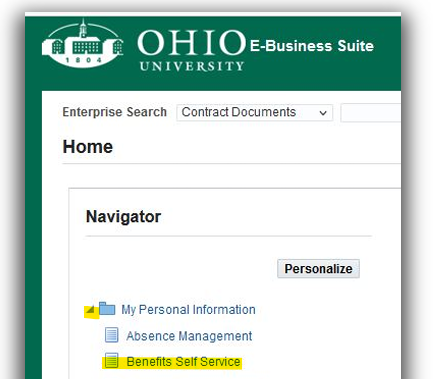
- Click the arrow to expand your My Personal Information folder and choose Benefits Self Service
WARNING: In MPI, your browser's back button will not navigate to the previous screen. You will receive an error message. Click the appropriate tab/link/button to navigate to the desired screen.
How to Enroll
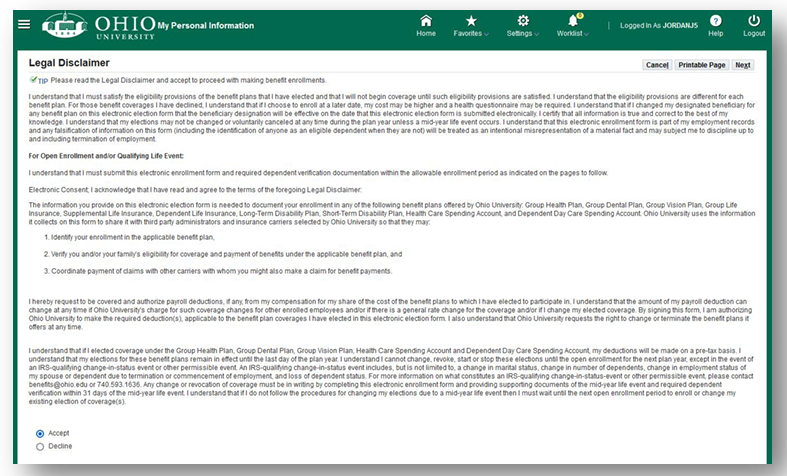
- Read the Legal Disclaimer. Click the radio button next to Accept and click Next.
Dependents & Beneficiaries
Eligible Dependents and Beneficiaries provides a list of individuals currently linked to your record as a “contact.” Contacts include your health care eligible dependents as well as life insurance beneficiaries. A qualified dependent for health care coverage is a legally married spouse, domestic partner for which you have completed a domestic partner affidavit with University Human Resources; children under the age of 26 including adopted children, stepchildren, children of domestic partners, children for which you are the legal guardian, and disabled children who have been approved by Anthem.
A beneficiary can be any individual(s). NOTE: You may also name trusts, estates or other nonindividuals, as well as individuals for which you do not have a Social Security Number (SSN), however, these must be documented on a paper Beneficiary Designation Form.
NOTE: a paper beneficiary designation form is required if you do not know your beneficiary's social security number (SSN). Use online enrollment for everything but designating a beneficiary.
Contacts Who Cannot be Added/Updated in Benefits Self Service
The following dependents and beneficiaries cannot be added in Benefits Self Service at this time. Please contact University Human Resources at 740-593-1636 or benefits@ohio.edu if any of the situations below are applicable to the dependent/beneficiary who you would like to add or update:
- They are a current or former Ohio University employee
- Dependents without a Social Security Number (SSN)
- If you receive a duplicate record error
Add a New Contact or Update an Existing Contact
Review your list of dependents and beneficiaries.
A Social Security Number (SSN) is required for a new dependent. If you do not know your new dependent’s SSN, the paper Benefits Enrollment Form is required. You must also complete Anthem’s SSN Exception form. You may upload completed forms to the Benefits secure upload site, send via campus mail or hand deliver to University Human Resources’ Employee Service Center (ESC), Grosvenor West 103.
- To update information for an existing contact, in the Update column, click the Pencil icon next to the appropriate person’s name.
- To add a dependent or beneficiary, click the Add Another Person button.
- Under Name and Relationship, enter or update the contact’s information. Fields marked with an asterisk (*) are required.
- Click the drop-down menu to select the appropriate Relationship. NOTE: A beneficiary can be any relationship type, however, a qualified dependent for health care coverage must be one of the following:
- Spouse
- Domestic partner
- Child (WARNING: Do NOT choose Son or Daughter.)
- Adopted child
- Stepchild
- Legal dependent
- Domestic partner child
- Domestic partner adopted child
- Domestic partner legal dependent
- In the Qualifying Event Date field, enter the date your qualifying life event occurred. For example, for a new hire enrolling in benefits for the first time, enter your hire date; for marriage or divorce, enter your marriage or divorce date; for the birth of a child, enter your child’s birth date; for the adoption of a child, enter the date of the adoption, etc.
- Enter or update the contact’s Legal Name in Proper Case (not UPPERCASE and not lowercase). Example: Rufus Bobcat (capitalize “R” and “B.”)
- Under Address Information, enter or update the contact’s Address, or click the Shared Residence checkbox if the contact resides with you.
- Under Miscellaneous Information, enter or update the contact’s information. NOTE: If updating a contact record, please contact the Employee Service Center at 740-593-1636 prior to changing a Social Security Number.
- Click the Calendar icon to select the contact’s Date of Birth or manually key in the date in the following format: DD-MM-YYYY. Example: 12-JUN-2005
- If you are enrolling a spouse/domestic partner in medical coverage, you must specify if this person has access to health care coverage from his or her employer. If they have access to health care, click the checkbox.
- If they are enrolled in their employer’s health care plan, enter their Employer Name.
- Click Apply. The person you added will now display in your Dependents and Beneficiaries list.
NOTE: Employees, with the exception of AFSCME 1699 members, will be charged an additional spouse/domestic partner premium of $50 per month for health care coverage for a spouse/domestic partner if they are offered health coverage through their employer, but are not enrolled. The additional premium is not applicable if your spouse/domestic partner is an Ohio University employee. - Repeat (steps 1-12) to add additional dependents and beneficiaries.
- Verify your dependent and beneficiary information is correct and click Next.
Remove a Contact
Eligible Dependents and Beneficiaries provides a list of individuals currently linked to your record as a “contact.” To remove a contact from your record, contact Benefits at benefits@ohio.edu or 740-593-1649.
NOTE: Individuals listed on your Dependents and Beneficiaries page, are contacts on your record. You only need to remove a contact if the relationship has permanently ended for that contact. For example, if you would like to drop health coverage for a child or spouse, you may remove their coverage from the health plan in later steps. Since the relationship still exists, you should not remove the person from your Dependents and Beneficiaries page.
Update Benefits
The Benefits Enrollment button will display your current Benefit Selections and Rate Details as well as Covered Dependents and Beneficiaries. To make changes to your benefits coverage, click Update Benefits.
- The Benefits Enrollment button will display your current Benefit Selections and Rate Details as well as Covered Dependents and Beneficiaries. To make changes to your benefits coverage, click Update Benefits.
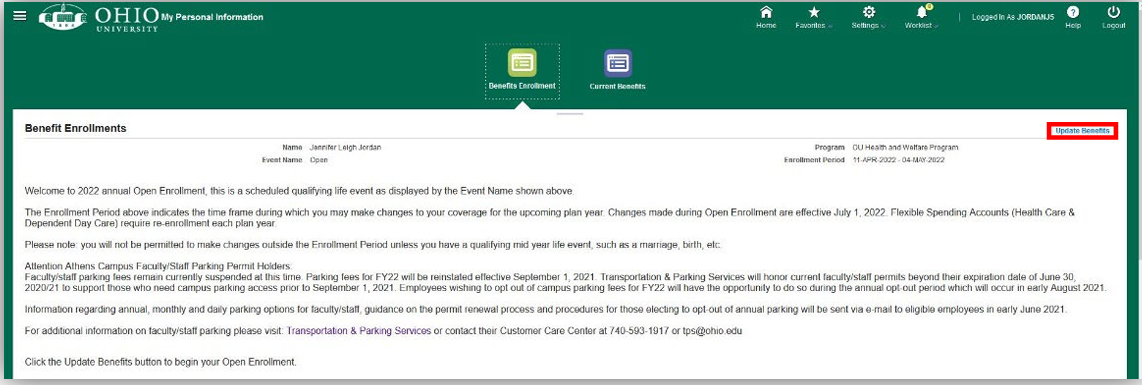
- Your Qualifying Life Event (New Hire, Marriage, Divorce, Birth/Adoption/Legal Custody, etc.) will display.
- You will also see your Enrollment Period. This is the time period during which you can make changes to your coverages.
NOTE: Benefits changes must be made within 31 days of the qualifying life event. - Under each Plan, next to the desired option, click the checkbox to select your benefit choice. Each checkbox is a toggle button. Click once to select the checkbox. Click the checkbox again to deselect it. Only one checkbox may be selected for each Plan Type.
WARNING: only one checkbox may be selected for each plan type. - If you wish to decline coverage, next to Waive, click the checkbox for the appropriate Plan Type.
- Benefits that do not have a cost for employees cannot be waived (Employee Assistance Plan)
- If enrolling in the Supplemental Life Plan or a Flexible Spending Account, in the Coverage/Amount column, enter the Coverage Amount. For additional information, hover your mouse over the "i" information icon.
NOTE: If you are requesting an increase to your Supplemental Life Insurance over $20,000 or a coverage amount over $200,000, you may need to complete the Evidence of Insurability process.
- After selecting your coverage options and amounts for each Plan Type, click Next.
Dependent Selection
If you created a contact in order to add a dependent or beneficiary, the contact will display here, however, you still must specify your election for his or her coverage.
WARNING: if the correct relationship types are not used when adding a new contact, they may not display. Example, contacts with a relationship type of "son" or "daughter" will not be shown on the cover dependents page. "Child", "Adopted Child", and "Stepchild" are appropriate types that should be used instead.
- Under Cover Dependents, next to the appropriate person’s name, click the checkbox to indicate dependents you elect to cover for each Plan Type. Each checkbox is a toggle button. Click once to select the checkbox. Click the checkbox again to deselect it.
- Click Next.
Beneficiary Selection
A beneficiary can be any individual(s). NOTE: You may also name trusts, estates or other nonindividuals; however, these must be documented on the paper Beneficiary Designation Form.
- Under Beneficiary Selection, update your beneficiary designations by entering the percentage of benefit for each beneficiary listed. Enter the percentage of benefit for both Primary and Contingent beneficiaries.
- The Primary Beneficiary is the person(s) who will receive the benefits in the event of the insured's death. Proceeds will be divided in equal shares if multiple primary beneficiaries are named, unless otherwise indicated. If percentages are listed, the total must equal 100%.
- The Contingent Beneficiary is the person(s) who will receive the benefits if the primary beneficiary is not living at the time of the insured's death.
WARNING: each listing of primary beneficiaries must equal 100% and each listing of contingent beneficiaries must equal 100%.
- Click the Recalculate button to ensure totals equal 100%.
NOTE: While a change in life insurance coverage will not be effective until your start date or the date of your qualifying life event, your beneficiaries will be updated immediately. - Click Next.
Supplemental Life Insurance
If you are requesting an increase to your Supplemental Life Insurance over $20,000 or a coverage amount over $200,000, you may need to complete the Evidence of Insurability process.
This does not guarantee coverage, and additional information may be required. These requests are reviewed by Minnesota Life/ Securian Life Insurance Company, our life insurance provider. Failing to submit this form by the end of the enrollment period will result in your supplemental life enrollment defaulting to the interim coverage amount.
Be sure to designate beneficiaries for both your elected coverage amount as well as your interim coverage if applicable. Your interim coverage amount will be equal to your current coverage amount + $20,000. Once the Evidence of Insurability process is complete and approved by the life insurance company, your elected coverage amount will be applied. The beneficiaries on both your elected coverage as well as your interim coverage must be the same since these are the same plan.
Dependent Certifications
Dependent Eligibility Verification
New hires and employees newly eligible for benefits must provide dependent verification (birth certificate, marriage certificate, domestic partner affidavit, etc.). Existing employees must provide dependent verification when making changes to an enrollment choice, such as adding a dependent due to marriage. Required documentation must be submitted by the last date of your enrollment period. Failure to provide required documentation may result in a denial of coverage for eligible dependents. To submit dependent verification, do one of the following:
- Upload an electronic certification as an Attachment in MPI.
- Upload to the Benefits secure upload site,
- Fax documentation to University Human Resources at 740-593-0669.
- Send documentation via campus mail to University Human Resources-Benefits, Grosvenor West 103.
- Hand deliver documentation to University Human Resources’ Employee Service Center (ESC), Grosvenor West 103.
NOTE: please include the employee's name and six-digit employee ID number on documentation.
Visit our Required Documentation page for a complete listing.
Attachments
If applicable, as noted above, enrollment and dependent certification documents may be uploaded as an Attachment.

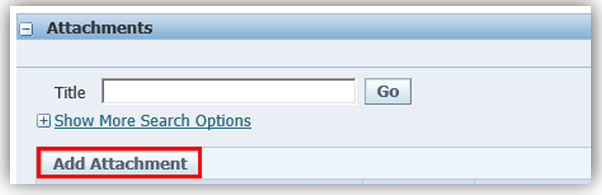
- To upload an electronic document as an attachment, under Attachments, click the Add Attachment button.
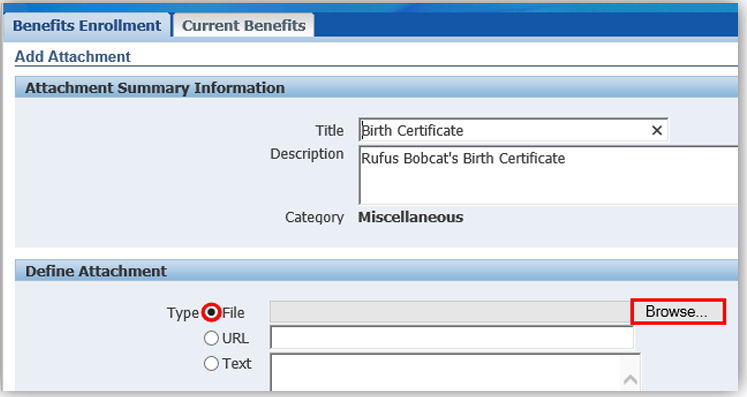
- Enter an optional Title and Description for the attachment. Example: Birth Certificate
- Under Define Attachment, verify the radio button next to File is selected and click Browse.
- Navigate to where the document is saved on your computer. Click to select the desired document and click Open.
- To upload additional attachments, click Add Another. Repeat steps 2-4.
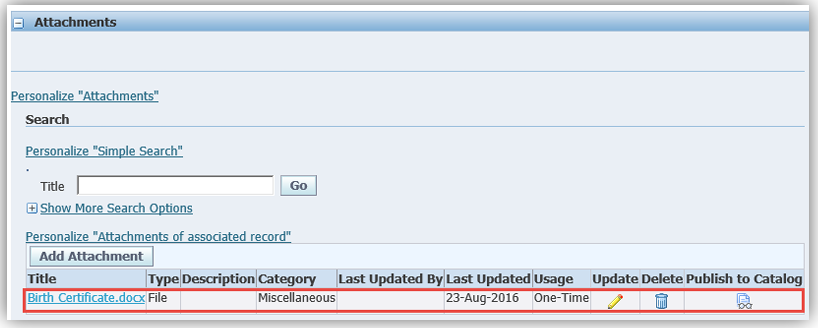
- When you are finished, click Apply. Your attachment(s) will display.
- Click Next to move to the Confirmation page.
Confirmation Statement
Save or print your Confirmation Statement for your records.
- On the Confirmation Statement, review your elections to verify accuracy.
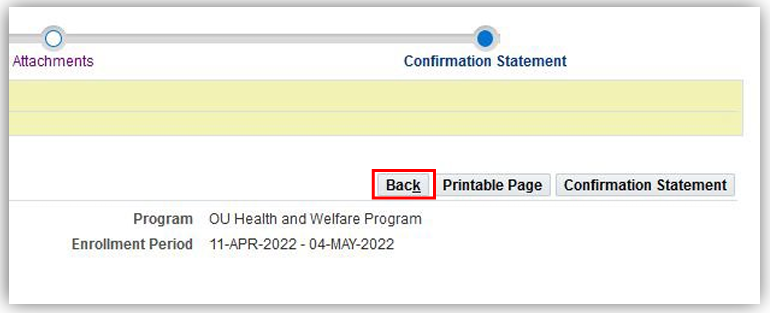
- To print your Confirmation Statement, click the Confirmation Statement button.
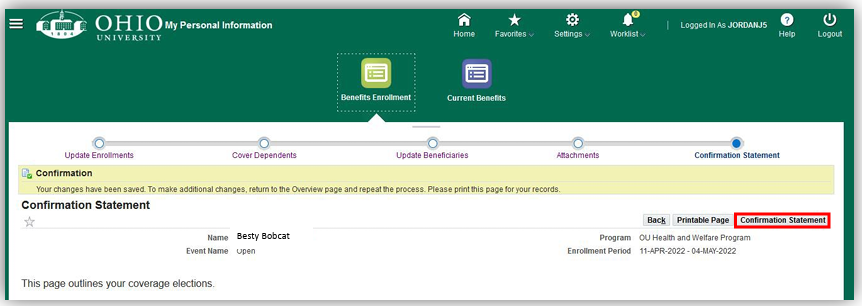
- You will be asked if you would like to open or save the file. Click Open.
- From Adobe Acrobat Reader’s File menu, click Print. Specify the desired printer Properties and click Print. Close Adobe Acrobat Reader.
- To make changes to your benefits elections, click the Back button.
- To complete the enrollment process, click Logout in the upper right hand corner.
View Current Benefits
At any time throughout the year, you may click the Current Benefits button to review your benefits by effective date. Next to Please Show Me The Benefits As Of, click the drop-down menu, select the effective date of the benefits you would like to review, and click Go.
Your benefit enrollments, covered dependents, and beneficiaries for the period that you selected will display.