
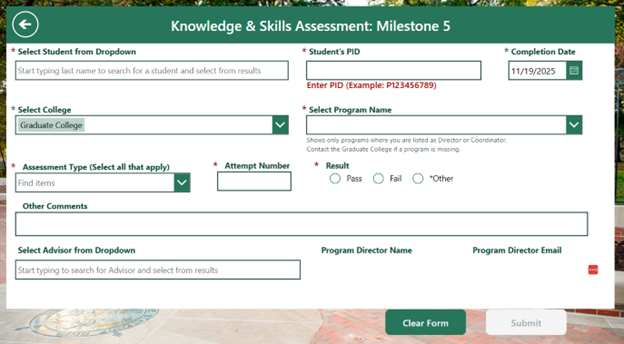
Milestone Five: Knowledge and Skills Assessment
Purpose:
Records program-specific assessment outcomes.
How to complete:
- Select student
- After selecting a student, the “See Milestones Completed” button will appear, allowing you to view all milestones completed by the selected student.
- College is auto populated by role (Can change if needed)
- Select program (Programs are filtered by role)
- Enter PID
- Choose completion date
- Select Assessment Type (All that apply)
- Enter attempt number
- Select Result (Pass, Fail, Other)
- If Other, enter comment to explain
- If Conditional Pass, a new form MUST be submitted with “Pass” status to update the student’s record officially

- Select Advisor (Optional)
- Submit
Approvals:
No approvals required, milestone posts immediately.
Email Notifications After Approvals (If approval is needed):
- Student
- CC: Program Coordinator (if applicable)
- CC: Program Director/Grad Chair
- CC: Academic College (Associate Dean)