
First Time Milestone Access for Faculty
Please note as well that only faculty that serve in the roles of Associate Deans, Graduate Chairs, or Program Directors/Coordinators can initiate milestones. Faculty that do not serve in these roles will be unable to access the milestone dashboard.
Instructions for First-Time App Access (Permission Screen)
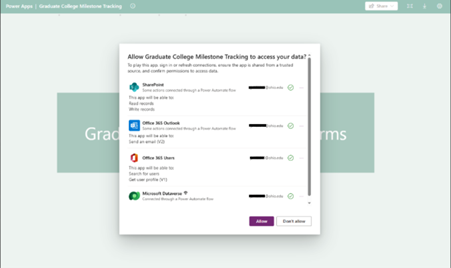
When users open the app for the first time, they will see a screen asking them to allow the app to access required data sources (SharePoint, Outlook, Office 365 Users, and Dataverse).
This is expected and must be completed before the app can load.
What to do:
- Review the list of connections the app will use.
These include SharePoint lists, Dataverse tables, email (to send notifications), and user profile information. - Click Allow at the bottom of the screen.
- The app will finish loading and take you to the home screen.
Why this is required:
The app cannot read program lists, send approval emails, or load the Milestone forms until these permissions are granted.
Users will only need to do this once per device/browser and periodically after an update.
Instructions for the Browser Banner (Refresh Required)
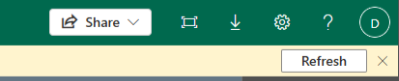
In some cases—usually after approving the app connections or after the app is updated—you may see a yellow banner at the top of the screen with a Refresh button.

What to do:
- Click Refresh when the banner appears.
- The app will reload and apply any required updates or complete the connection process.
- You may be asked to “Allow” the connections once more if this is your first time opening the app.
Why this appears:
- It ensures that the app loads with your permissions applied.
- It may also appear after the app owner publishes an update.