
In-Depth Instructions for Preparing a Proposal in Cayuse
In-Depth Instructions for Preparing a Proposal in Cayuse
Prior to beginning proposal entry in Cayuse, OSP strongly recommends that individuals view Cayuse’s orientation videos. These four six-minute videos will review details of the Sponsored Projects 4.0 application and help you more easily navigate the dashboard. To view the videos, create an account in Cayuse Academy and select Sponsored Projects 4.0, Researcher Level 1:
How to Start a New Proposal Record
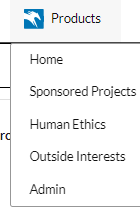
Step 1: From the main page, click on the “Products” drop-down menu in the upper right-hand corner and select Sponsored Projects.
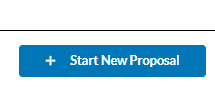
Step 2: In the upper right-hand corner, click “Start New Proposal”.
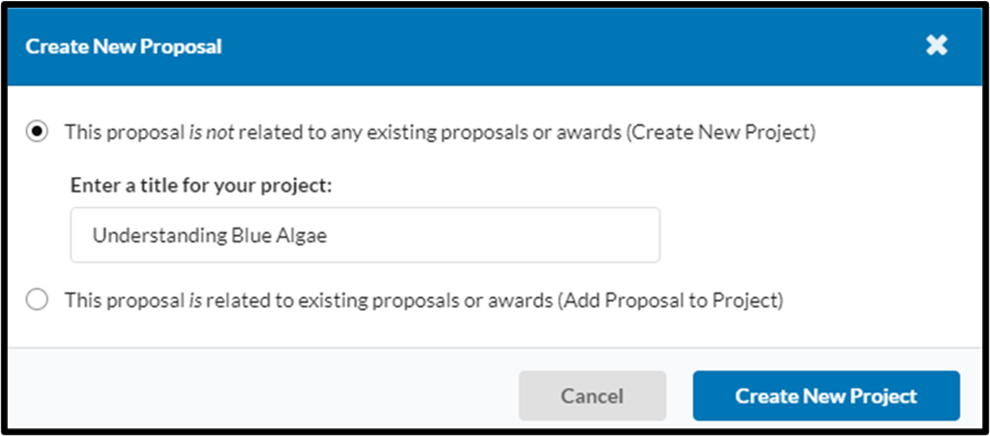
The Create New Proposal box pops up:

If the Proposal is New and not related to any existing proposals or awards, select “This proposal is not related to any existing proposals or awards (Create New Project)”. Enter the title for your project and click “Create New Project”.
If the Proposal is NOT New
If the proposal type is anything other than “New” or “Pre-Proposal” (Ex. Resubmission, Renewal, Revision Continuation, Supplement etc.), when the pop-up window appears, select “This proposal is related to existing proposals or awards (Add Proposal to Project)”.
You will need to select the previous proposal or award record that the proposal you are about to create is connected to from the dropdown.
Note: OSP recommends first utilizing the SP Dashboard to locate the previous proposal or award and notate the Cayuse proposal number/award number. This will help to ensure that the correct record is selected when viewing the various choices on the dropdown.
Once the correct previous proposal/award has been selected, click “Add New Proposal to Project”.
Step 3: The proposal form will display on the screen. The form contains a number of tabs. Each tab must be completed before you can route the proposal for review and approval. You can complete each tab in whichever order you choose. The numbers beside each tab indicate the number of required questions in each tab. Depending on your answers to some of the required questions, additional questions may appear and must be completed to have the tab completed. A green checkbox will appear in place of the red question numbers when a tab is completed.
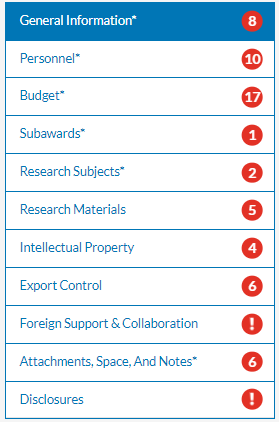
The General Information Tab
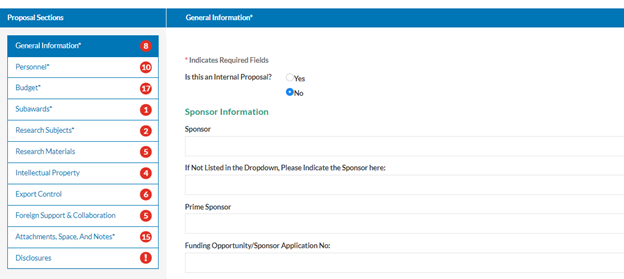
The General Information tab of the Proposal Record contains fields related to broad areas of the proposal including the Sponsor and the type of award mechanism, proposal type, and activity type.
Sponsor Information:
This section will ask for information about the Sponsor and the Proposal Guidelines
Sponsor:
The entity external to OHIO to which OHIO submits a proposal, or from which it receives an award.
NOTE: Before completing the If Not Listed instructions below, ensure that you have spelled out the entire name of the Sponsor and/or specifically searched for some of the major words within the Sponsor name.
If Not Listed in the Dropdown, please take note of your proposal number and complete the Cayuse Sponsor or External Organization Request Form. Th Sponsor Name will be entered into the record by OSP staff after it has been entered into the Cayuse System.
Prime Sponsor:
A prime sponsor is the entity that is the original source of the project funds.
Funding Opportunity/Sponsor Application No:
The Sponsor’s Funding Opportunity Announcement or Application number.
Proposal Guidelines (Select One):
- Sponsor Guidelines URL:
The URL of the Sponsor’s proposal guidelines (if applicable).
Or - Attachment:
Upload a copy of the guidelines
General Proposal Information
Title of Project:
The title of the proposed project as reflected on the proposal being submitted to the Sponsor.
Administrative Unit:
Select from the dropdown box the unit administering the project.
Dynamic Strategy Areas:
Indicate alignment of the proposed project with the Dynamic Strategy Focused Areas of Research by checking the relevant area. If not aligned with a focused research area, please tell us the field and/or discipline the project aligns with by checking the “other” box and writing in the area. This will help us identify potential emerging areas across the university.
Activity Type:
Select the activity type for your project. This selection is important for Ohio University’s annual expenditure report to the National Science Foundation.
- R&D (Applied Research): The systematic use and practical application of findings/theories in studies involving useful products, where such studies are designed to test and/or evaluate practical application of proposed solutions.
- R&D (Basic Research): Directed toward research that increases knowledge of the subject being studied. This includes activities that seek to increase the understanding of fundamental phenomena.
- R&D (Experimental Development Research): Normally follows basic research and attempts to expand the potentialities of new discoveries.
- Instruction: The development or enhancement of a curriculum.
- Other: Serves as the catchall for activities not reflected in the rest of the list.
- Clinical Trial: The controlled, clinical testing of investigational and/or approved drugs, devices, treatments or diagnostics in human subjects where such testing is performed under a sponsor or investigator-developed protocol covered by an IND or IDE from the FDA.
Proposal Types:
Select whether your proposal is New or falls into one of the other categories listed.
- New: Represents an original funding request made to a sponsor for a proposed project. No prior proposal has been submitted to the sponsor for the proposed project, and the sponsor has not previously made an award to support the proposed project.
- Resubmission: Represents an application that was previously submitted, but was not funded, and is now being resubmitted for new consideration. A resubmission is generally submitted to make a significant change (e.g., scope of work, budget, facilities, subawards) to a previously submitted proposal not yet funded by the sponsor.
- Competitive Renewal: Represents a request for additional funding that is intended to extend, or results in the extension of, a project beyond the originally approved project period following peer review.
- Continuation: Represents a non-competing application for an additional budget period within a previously approved project period. This proposal type is typically used when the sponsor commits to funding the entire project period but requires the submission of a continuation or progress report to monitor progress.
- Supplement: Represents a request for additional funds to support an existing project during the same project period.
- External Pre-Proposal: Represents a preliminary proposal submitted to the sponsor in order to determine whether a full proposal should be subsequently submitted or to help the sponsor organize a full proposal review. Please note that Cayuse is not required for Pre-Proposals unless the sponsor requires institutional approval and the proposal includes or requires an institution commitment (e.g. detailed budget, commitment to cost share, agreement to terms).
- Revision: Represents a request to revise a proposal that is not yet funded but not officially declined (e.g. submission of a revised budget) or an award (e.g. Change of PI).
- Other: Represents a submission not otherwise defined in this list.
Select Submission Method:
The Submission Method field indicates the portal through which the proposal will be submitted to the Sponsor.

The submission portals listed in the dropdown menu include:
- Grants.gov
- Research.gov
- ASSIST
- Acquisition Resource Center (ARC)
- eBRAP
- Proposal CENTRAL
- NSPIRES
- Justgrants
- EDGE
- Sponsor website
- Paper
- PI will submit
- Other
Please note: For submission methods marked as “Other”, please include additional information on how the proposal should be submitted in the next box.
Sponsor Deadline:
The date of the proposal deadline as identified by the Sponsor’s funding announcement.
The Personnel Tab
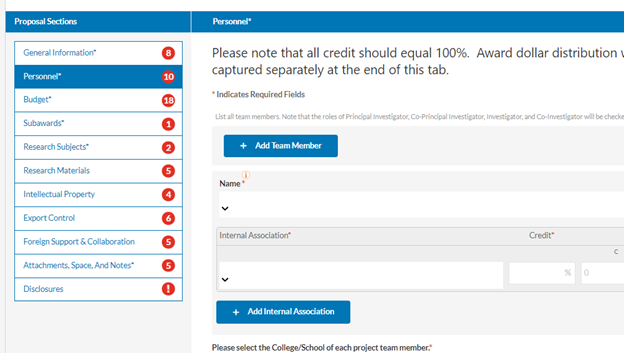
All OHIO project team members in the roles of Principal Investigator, Co-Principal Investigator, Investigator, Co-Investigator, or Mentor must be entered by name in this section of the Proposal Record. If the proposal is specifically for graduate students that must be named (F31, fellowship, etc.), please complete the Cayuse Individual Account Request form to have them added to Cayuse. Please note that all credit should equal 100%. Award dollar distribution will be based on Credit Distribution. RI distribution will be captured separately at the end of this tab.
Name:
The full name of the OHIO team member (select from dropdown).
Role:
The designated role of the person specified on the project. Individuals with asterisked roles will be asked to complete an Outside Interests Research Disclosure when an award is received for this proposal.
- Principal Investigator*: The OU employee responsible for the scientific, technical and administrative conduct of the proposed project.
- Co-Principal Investigator*: The investigator sharing equal responsibility with the PI for the direction of a sponsored research award.
- Investigator*: An individual performing various tasks related to the conduct of research activities but not responsible for the direction of the sponsored research award.
- Co-Investigator*: An individual who makes significant contributions but does not have overall responsibility and authority for the project. They are NOT considered PD/PIs.
- Fellow*: An academic research position in which an individual serves as an independent investigator or under the supervision of a Principal Investigator.
- Mentor*: A faculty member who guides a mentee (generally a student) in a one-to-one relationship.
Internal Association:
The designated unit of the individual listed. This field is integral to the routing process as it dictates which unit(s) will be responsible for approving the proposal.
Note: In instances where an individual has a dual appointment, you will be able to see all of the unit associations to which the person is connected and select the one that is appropriate for the proposal.
Credit Field:
Indicates the desired credit distribution for each person based on their contribution to the overall project effort, to be applied to fiscal year award dollars.
Effort Fields:
The three effort fields (Cost Share Effort, Sponsored Effort, and Total Effort) may be completed for each individual for information only. These should be entered in accordance with their academic appointment(s).
Please select the College/School of each project team member:
From the dropdown list, select each school that is represented by the project team. Each school can only be selected
once.
Please select all that apply:
This question will assist with proposal routing. From the dropdown, select all of the following that apply to this project. Select None if none apply.
- Advancement
- Capital Construction
- Clinical & Translational Research Unit (CTRU)
- International Activity
- Subawards
- None
Choose How many faculty members need release time, selecting from numbers 0-3. If 1-3 are selected additional fields will pop up:
List the faculty member:
Name of the faculty member.
Describe:
Describe the release time requested.
Research Incentive Distribution
Type of Distribution:
- Center/Institute
- Multiple Colleges/Investigators
- Standard
How many RI Distributions needed:
Choose the number from 0 - 20 of how many RI Distributions are needed. Selecting a number from 1-20 will prompt additional fields to pop up:
RI Distribution PI 01
Select the individual to receive Principal Investigator Research Incentive Distribution from the dropdown.
RI Distribution Percentage 01
Enter the percentage that the individual is to receive.
The Budget Tab
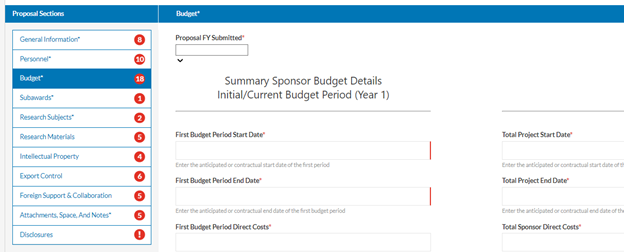
The Budget tab of the proposal form is where you will enter summary (i.e. “high-level”) budget information related to the proposal.
Proposal FY Submitted:
Select the current fiscal year from the dropdown.
The form then splits into two columns collecting summary budget details and dates for the first budget period and the total project period. Requested for each column are:
- Start Date
- End Date
- Direct Costs Requested from the Sponsor
- Indirect Costs requested from the Sponsor
- Total Costs (Direct + Indirect) requested from the Sponsor
- F&A Base
Indirect Cost Rate:
Please select the appropriate rate from the dropdown. Note that this rate does not calculate the data entered above. Options are:
- Research Rate (51%, 52%, 53%, 54% of Modified Total Direct Costs)
- ODOT Rate (51%, 52%, 53%, 54% of Salaries and Wages)
- Instruction Rate (49%, 50%, 51% of Modified Total Direct Costs)
- Other Rate (30%, 40%, 41% of Modified Total Direct Costs)
- Off-Campus Rate (26% of Modified Total Direct Costs)
- Sponsor Defined Rate
- Sponsor Forbids Indirect Costs
- IDC Cost Share Approved (4.68%-9.72% of Modified Total Direct Costs)
If Sponsor Defined or IDC Cost Share Approved is selected, an additional question will pop up:
Upload Documentation of Sponsor Published Restricted Rate or Voluntary Cost Share Letter:
Upload the documentation supporting the rate.
Administrative Costs:
Answer Yes or No if the Administrative Costs are direct charged. If Yes is selected, additional information with instructions to follow:
Direct-Charged Administrative Costs require prior authorization per ORSP Procedure B05.17. Please complete the Authorization to Direct Charge Administrative and Clerical Staff Form and upload it in the Additional Attachments section of the Attachments, Space, and Notes tab.
Voluntary IDC Cost Share Amount:
Enter the amount.
Graduate Tuition
The sponsor may fund graduate tuition. If not requested from the sponsor, are graduate fee waivers needed from the University?
- Yes
- No
Number of semesters per year:
Enter the number of semesters per year needed
Number of years:
Enter the total number of years needed.
Total semesters:
Enter the total semesters needed.
Dollar Value:
Enter the total dollar value of the waived tuition, if known.
After entering the budget information, you will be asked if the proposal contains cost-share.
Cost Sharing
Does this notice include additional Cost Sharing commitments?
- Yes
- No
If “Yes” is selected, the following question will appear:
Total Cost Share Amount:
Enter the amount
Additional Resources
Will the proposal project require any equipment installation, space modification, ventilation, electrical service/back-up generator or other modification that would require approval from the facilities department?
- Yes
- No
If yes, select the resources needed for this proposal (check all that apply):
- New Personnel
- Space
- Equipment
The Subawards Tab
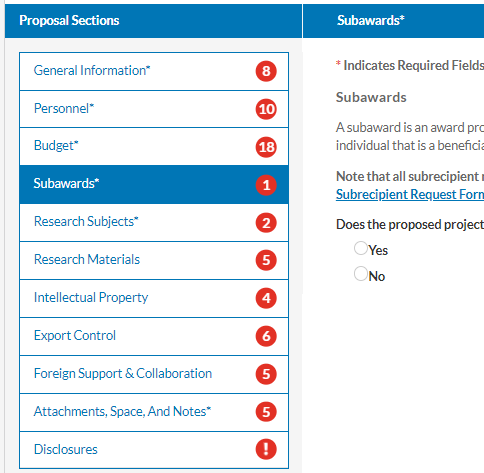
A subaward is an award provided by a pass-through entity to a subrecipient for the subrecipient to carry out part of an award received by the pass-through entity. It does not include payments to a contractor or payments to an individual that is a beneficiary of a sponsored program.
Note that all subrecipient names will begin with "S:" to differentiate them from sponsors in the system. Start your search with "S:name of subrecipient". If the subrecipient is not available, please complete and submit the Cayuse Subrecipient Request Form. You will be notified when the subrecipient name is available for selection.
How many subawards are on this project?
Enter the number from 0-10 of the subawards needed for this project. If numbers from 1-10 are selected, additional fields will pop up:
Subrecipient 1
Select the subrecipient from the dropdown. If not available, complete the Subawardee Request Form and submit. You will be notified when the name is available.
Does this Subrecipient have any Ohio University personnel serving on their board(s)?
- Yes
- No
If Yes is selected, an additional questions will pop up:
Did Ohio University personnel on subrecipients board(s) complete their annual COI disclosure?
- Yes
- No
List the OU personnel and their role on the board.
Enter the names of the OU personnel and what their role is on the board.
The remaining questions are document uploads:
Subrecipient 1 Budget – Upload document (required)
Subrecipient 1 Scope of Work – Upload document (required)
Subrecipient 1 Commitment Form – Upload document (required)
The Research Subjects Tab
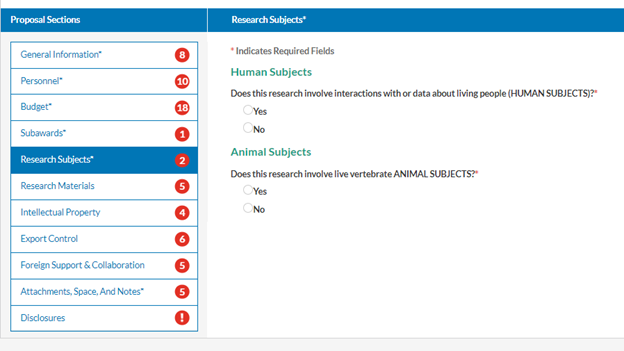
The Research Subjects tab of the Proposal Record contains questions on Human and Animal Subjects.
Does this research involve interactions with or data about living people (HUMAN SUBJECTS)?
- Yes
- No
If “Yes” is selected, an additional question pops up:
Has your team submitted an application for IRB approval?
- Yes
- No
If “Yes” is selected, an additional question pops up:
Please list the IRB studies associated with this research:
Enter the IRB protocol numbers for the project
Please list the IRB studies associated with this research:
Enter the IRB protocol numbers for the project
Does this research involve live vertebrate ANIMAL SUBJECTS?
- Yes
- No
If “Yes” is selected, an additional question pops up:
Has your team submitted an application for IACUC approval?
- Yes
- No
If “Yes” is selected, an additional question pops up:
Please list the IACUC application numbers:
Enter the IACUC protocol numbers for the project
The Research Materials Tab
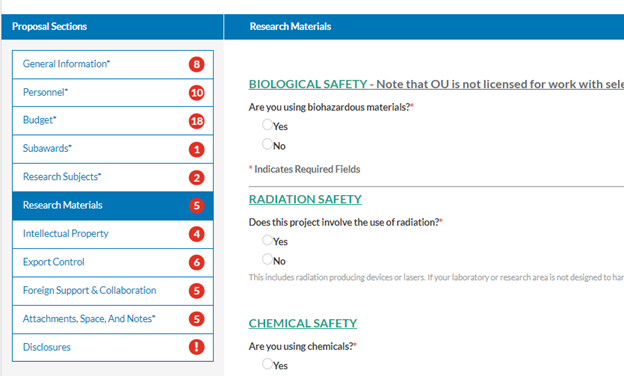
BIOLOGICAL SAFETY - Note that OU is not licensed for work with select agents. Contact EHS for more information - 704-593-1666
Are you using biohazardous materials?
- Yes
- No
If yes, additional questions will pop up:
Will you be working with rDNA:
- Yes
- No
Will you be working with bloodborne pathogens?
- Yes
- No
Will you be using infectious agents?
- Yes
- No
RADIATION SAFETY
Does this project involve the use of radiation?
- Yes
- No
If yes, additional questions will pop up:
Will you be using ionizing radiation?
- Yes
- No
CHEMICAL SAFETY
Are you using chemicals?
- Yes
- No
OTHER QUESTIONS RELATED TO RESEARCH
Does this project involve the use of materials provided by the sponsor on any other party?
- Yes
- No
If yes, an additional question will pop up:
From where?
Does this project provide subawards for research involving biological, hazardous chemicals, and/or radiological materials conducted at other institutions where OU is the primary institution administering the funds?
- Yes
- No
The Intellectual Property Tab
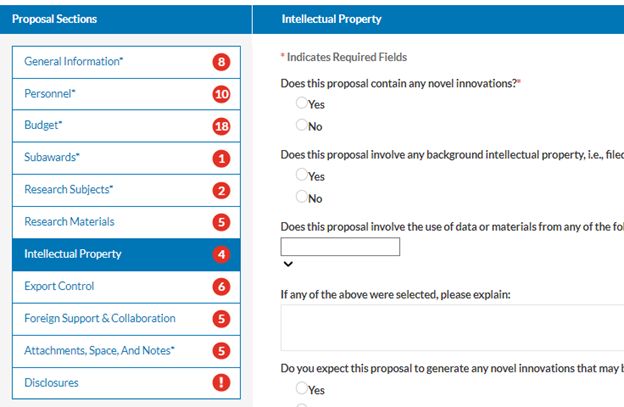
Does this proposal contain any novel innovations?
- Yes
- No
If yes, another question will pop up:
Have you submitted an invention disclosure to the Technology Transfer Office?
- Yes
- No
If yes, another question will pop up:
Please provide the title and/or invention ID number of the invention disclosure.
Enter the title and invention ID number
Does this proposal involve any background intellectual property, i.e., filed patent applications, issued patents, or copyrights?
- Yes
- No
Does this proposal involve the use of data or materials from any of the following:
- Material Transfer Agreement (MTA) include Addgene, Jackson Labs, etc.
- Biological Materials (human blood, tissue or cell lines)
- Third Party Database
- Other
If any of the above were selected, please explain:
Provide detailed information on the data or materials you will need to obtain.
Do you expect this proposal to generate any novel innovations that may be patentable or copyrightable?
- Yes
- No
The Export Control Tab
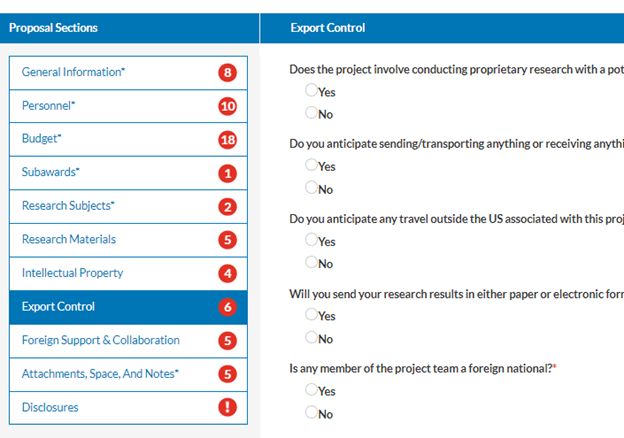
It is the responsibility of the PI to identify any items, technology, or activities that might implicate federal export control regulations. For more information about research and export controls, please see the OSP website.
The Export Control tab of the Proposal Record contains the below questions regarding federal export control regulations.
Does the project involve conducting proprietary research with a potential military application?
- Yes
- No
Do you anticipate sending/transporting anything or receiving anything from outside of the US?
- Yes
- No
If yes, additional questions will pop up:
Please list the name(s) of the country(ies).
List the countries
What items do you plan to ship or transport out of the US? Please be specific. Keep in mind your proposed budget may have to include additional costs for permits, licenses, and tariffs, if applicable.
List all items (data, equipment, software) you plan to ship or transport outside of the US.
Do you anticipate any travel outside the US associated with this project?
- Yes
- No
If yes, an additional question will pop up:
To which countries are you traveling?
Enter the countries.
Will you send your research results in either paper or electronic format to a foreign country or foreign national?
- Yes
- No
If yes, another question will pop up:
Please list the country or countries.
List the countries.
Is any member of the project team a foreign national?
- Yes
- No
If yes, additional information is required:
Please list the country of the foreign national.
Does this project involve carrying out classified research on campus or require a security clearance for OU personnel? Do not include work with Select Agents.
- Yes
- No
The Foreign Support & Collaboration Tab
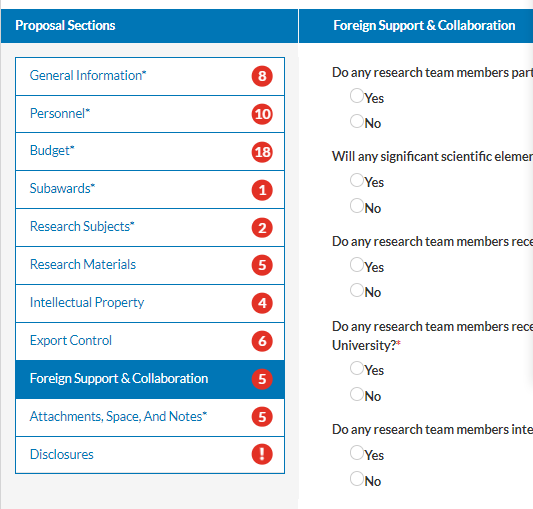
The Foreign Support & Collaboration tab of the Proposal Record contains questions regarding the disclosure of all sources of other support (domestic or foreign) as well as all foreign components to research projects.
Do any research team members participate in a foreign talent program?
- Yes
- No
Will any significant scientific element of this project occur outside the United States?
- Yes
- No
If yes is selected, an additional question will appear:
Have you identified the foreign components in the proposal?
- Yes
- No
Do any research team members receive any foreign support for their research efforts?
- Yes
- No
If “Yes” is selected, an additional prompt will appear:
Please explain
Do any research team members receive any personal payments from a foreign institution, have a faculty appointment at a foreign institution, or are any research team members performing research on behalf of a foreign institution outside of a grant or contract through Ohio University)?
- Yes
- No
If yes is selected, an additional question will appear:
Have the research team members disclosed this in their Outside Interests disclosure?
- Yes
- No
Do any research team members intend to collaborate with entities or individuals based or ordinarily resident in Iran, Cuba, North Korea, Syria, or Sudan?
- Yes
- No
If yes, is selected, an additional prompt will appear:
Identify and explain the collaboration with the foreign entity or individual.
The Attachments, Space, and Notes Tab
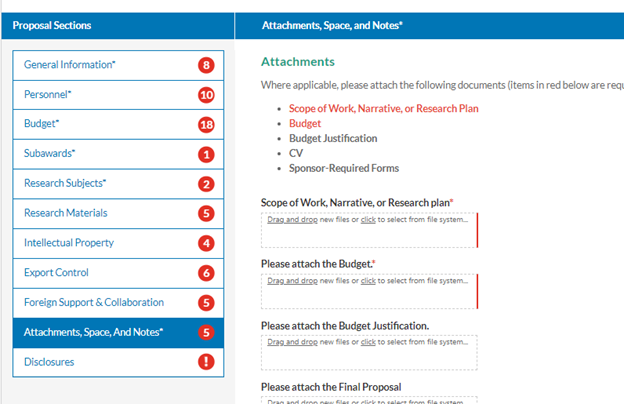
This tab collects documents for the proposal that have not already been uploaded.
Scope of Work, Narrative, or Research Plan:
Upload your scope of work, narrative, or research plan to this section.
Budget:
Attach the budget for the project
Budget Justification:
Attach the budget justification for the project
Final Proposal:
Attach a complete copy of the final proposal
Additional Attachments:
Upload any additional documents you want to include in this section to include biosketches, letters of support, etc.
SPACE
For on-campus space, select the building from the dropdown. If the building is not listed, select Not Listed, which is the last entry in the list. A box will appear for you to enter the Building Name(s) and Room Number(s). For off-campus space, please list a full address.
On-Campus? Off-Campus?
Please select an appropriate response.
If On-Campus is selected, additional questions will pop up:
In how many locations will this project occur?
Select the number of locations needed for this project, choosing numbers 0 -5. If numbers 1-5 are chosen the following fields will pop up:
Select Building Where Project Will Occur (from the dropdown)
Enter Room Number
If you have run out of space or the building is not listed, enter the Building and Room numbers here.
Enter information for buildings not listed in the dropdown or if additional buildings are needed.
If Off-Campus is selected, additional questions will pop up:
Lease Agreement?
- Yes
- No
Off-Campus Address
Enter the off-campus address in full
Submission Notes
Enter any additional comments on this proposal
Enter any information that you would like those reviewing your proposal to know.
For OSP Use Only
This section will be used by ORSP for information tracking.
The International Tab
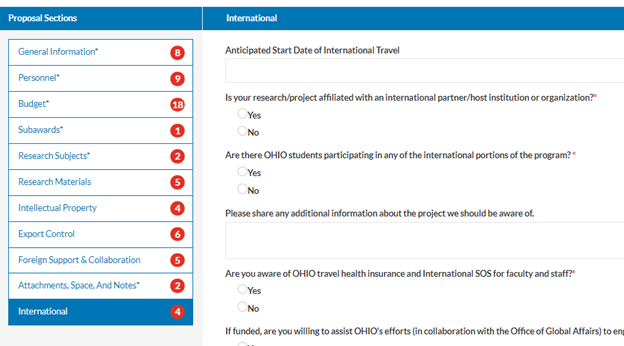
This tab appears only if international activity is indicated in your previous responses and provides additional information to the Office of Global Affairs related to the international activity in your project.
Anticipated Start Date of International Travel
Enter the start date of travel
Anticipated End Date of International Travel
Enter the end date of travel
Is your research/project affiliated with an international partner/host institution or organization?
- Yes
- No
If yes is selected, an additional question will pop up:
Internation Partner or host Institution
Enter requested information
Are there OHIO students participating in any of the international portions of the program?
- Yes
- No
If yes is selected, an additional field will pop up:
Please note that if students will be traveling internationally as part of the program, they must abide by the OHIO Travel Registration process. Please provide details about student participation.
Enter the details regarding student participation.
Please share any additional information about the project we should be aware of.
Enter any additional information that would be helpful to the Office of Global Affairs.
Are you aware of OHIO travel health insurance and International SOS for faculty and staff?
- Yes
- No
If funded, are you willing to assist OHIO’s efforts (in collaboration with the Office of Global Affairs) to engage stakeholders, such as organizing Alumni events or supporting student recruitment?
- Yes
- No
- Maybe
Is the Funder outside the United States?
- Yes
- No
If yes, then what country?
Enter country
You have now completed your proposal and it is ready for routing. You can check the planned routing, which is determined based on your answers to specific questions, by clicking on the Routing tab at the top of your proposal. If you are ready to route your proposal for review, click on the Route for Review button on the top left portion of your screen. Additional information on the Routing and other sections of the screen follow.
The Routing Section

Please review the specific instructions for Routing a Proposal for Review.
The History Section

The History section of the proposal record serves as an audit trail of every action taken on the proposal record. This section lists:
- The person who created the proposal record
- Anyone who edited the proposal record
- All proposal approvers
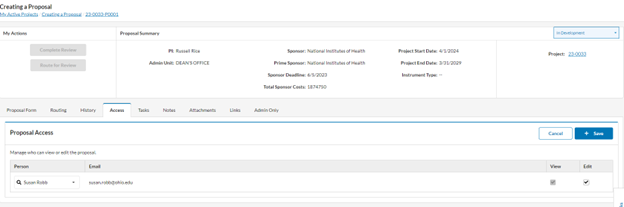
The Access Section

The Access section will list users who have the ability to view or edit this specific proposal record. This section is particularly important in instances where the PI initiates the proposal record in Cayuse SP. If a PI initiates the proposal record but at any point needs the assistance of other support staff (i.e. research administrator) to help complete it, they will need to utilize the Access section to give that person the appropriate access to edit their proposal.
To add an additional person with edit rights to the proposal:
- Click “Add Person”
- Enter the person’s name
- Select the “edit” checkbox
- Select “Save
The Tasks Section

The Tasks section of the proposal record is a place to create internal tasks related to this specific proposal record.
To Create a New Task:
- Click “New Task”
- Search for the person’s name in the “Assign To” field
- Enter the date that the task is due
- Describe the task in the free text field
- Click “Assign and Send”
Note: The URL field should be ignored.
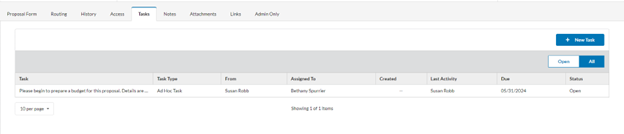
A new task will be created in this section of the proposal record. Additionally, the new task will be viewable to the person it’s assigned to when they first log into Cayuse SP and are taken to the “My Tasks” section.
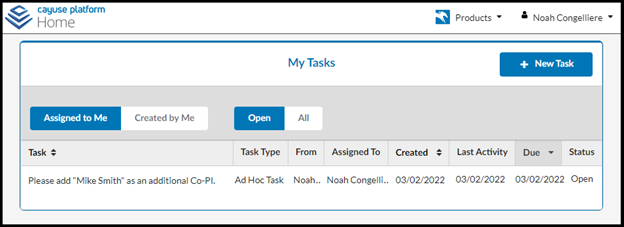
To Complete a Task:
- Click the task to open it
- Complete the requested task
- Change the Task Status from “Open” to “Closed”
- Click “Save Changes”
Note: Tasks created by users are not for the purposes of proposal routing and approval, which is a process that is entirely automated by the system.
The Notes Section
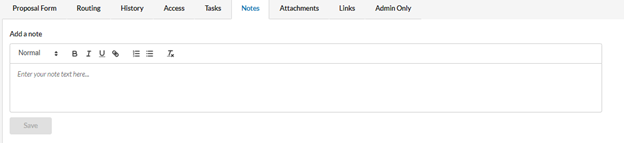
The Notes section of the proposal record is an area used to collect pertinent information that needs to be highlighted as part of the overall proposal record.
The Attachments Section
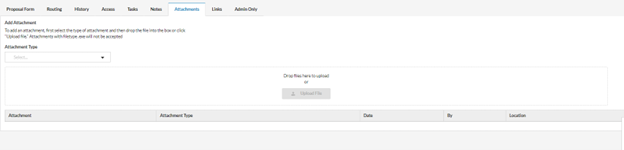
The Attachments section of the proposal form will list all of the documents uploaded during the proposal preparation process and is where additional documentation can be uploaded after proposal submission (sponsor acknowledgment/response, etc.) This is where all of the proposal documentation required by the Sponsor and the Office of Research and Sponsored Programs will be housed.
Attaching Proposal Documentation:
- Open the proposal record
- Locate and click on the Attachments section under the ‘Proposal Form’ tab
- Locate the drop area for the document you wish to upload
- Locate and select the document you wish to upload, you have the option to drag the document from your local computer or search for the document from your file system
- Your document will be uploaded
The Admin Only Section
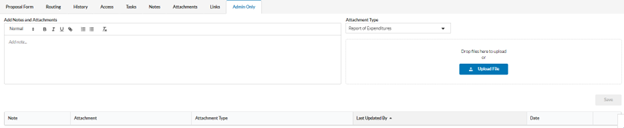
Notes in this section can only be created by users who have the SP Proposal Administrator role, which is currently limited to ORSP Sponsored Programs Managers. The notes in this section will relate to processing or situation notes so that if a different Manager picks up the proposal or award, information will be there.