
How to Submit an Annual Disclosure as Part of the Annual Campaign
Purpose
The purpose of an Annual Disclosure is to disclose all outside interests. Annual Disclosures are typically initiated yearly during the annual campaign; however, they can be initiated throughout the year as needed and they can be modified throughout the year when SFIs change. Changes to significant financial interest (SFIs) must be reported within 30 days of the change.
Scope
It is the responsibility of all investigators participating in a sponsored research project and/or human subject research to report their outside interests in the Cayuse Outside Interest Module.
How to Guide
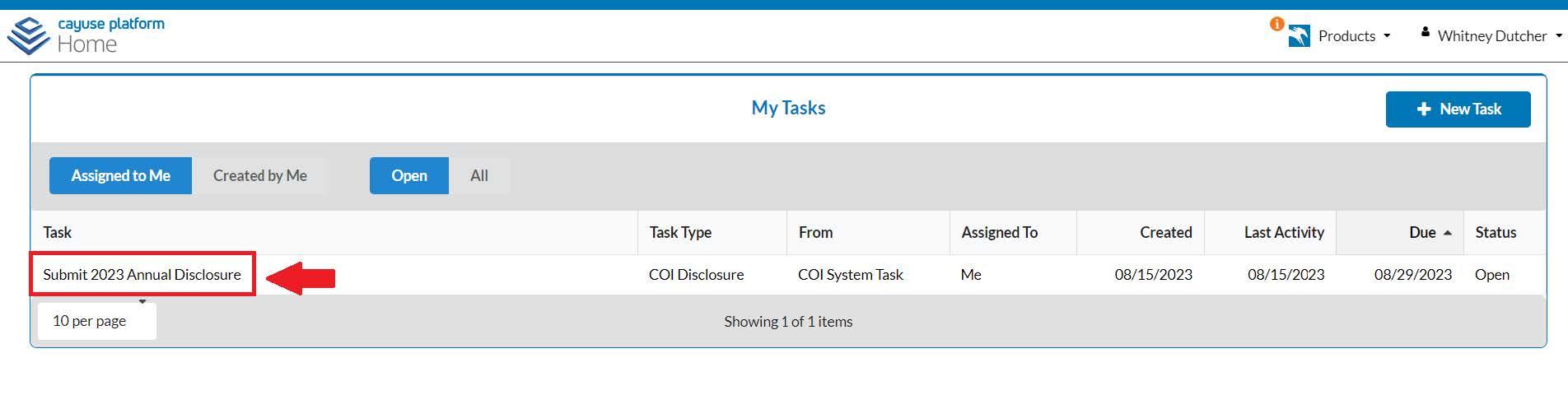
If you were a part of the annual campaign you will see “Submit [Year] Annual Disclosure” as a task under your “My Tasks” table.
- Locate your task and click anywhere along the row to begin. This will take you to your Profile page.
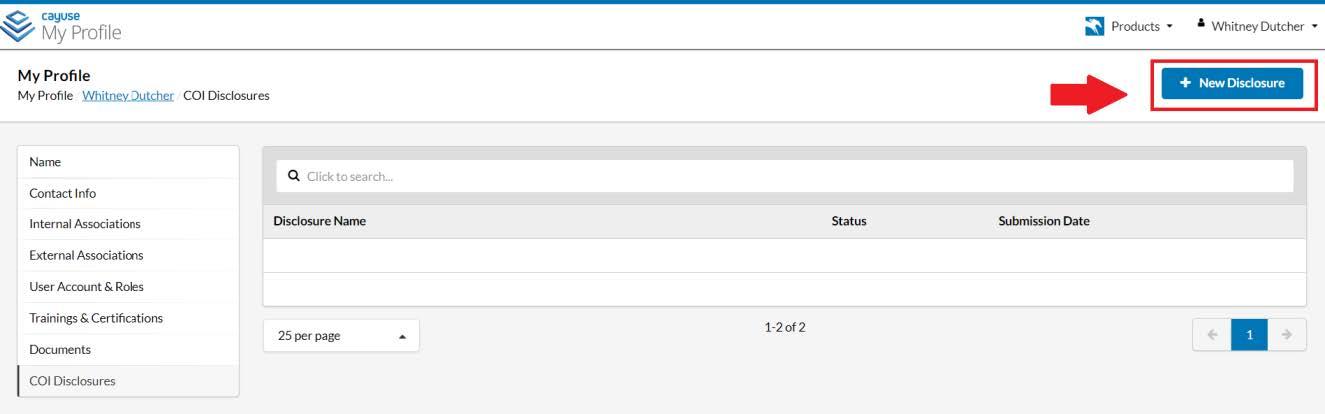
- Click “COI Disclosures”, then “New Disclosure”.
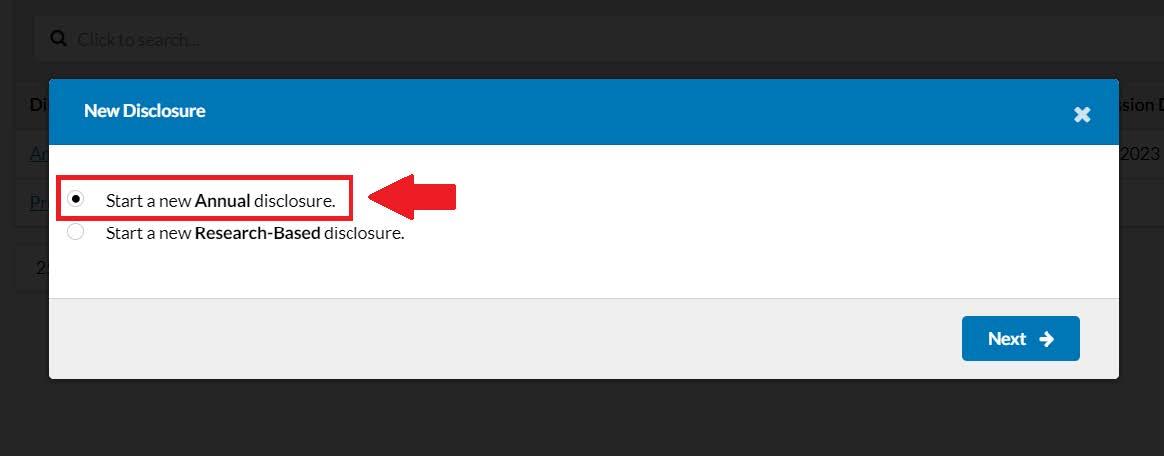
- Select the bullet for “Start a new Annual disclosure”.
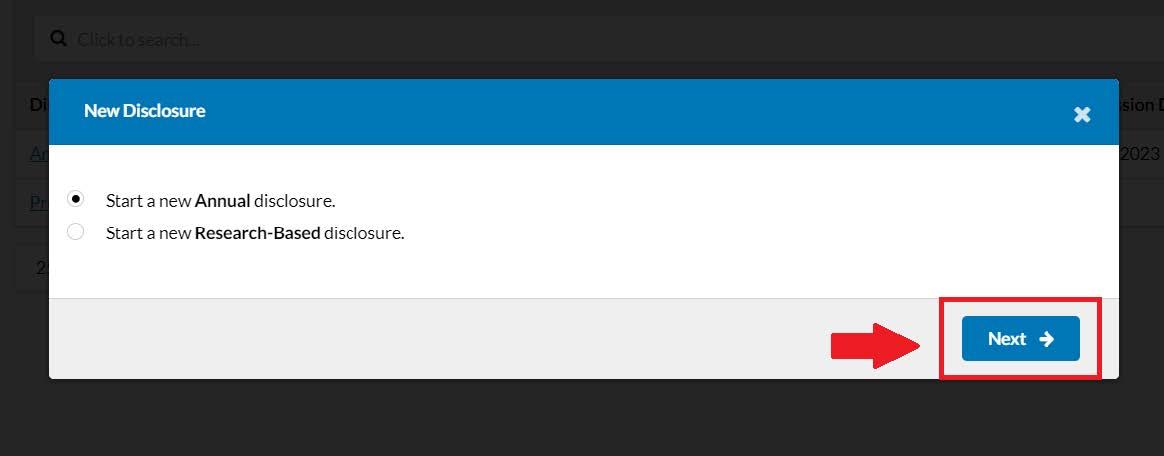
- Hit the “Next” button to advance to the form.
- Completed sections of the form are marked with a green check mark icon. Incomplete sections appear with a red icon with the number of remaining questions in the middle of the icon.
- Note, the red eye icon is an instructional section that requires view. Please click on the section and read its content to advance through the form.
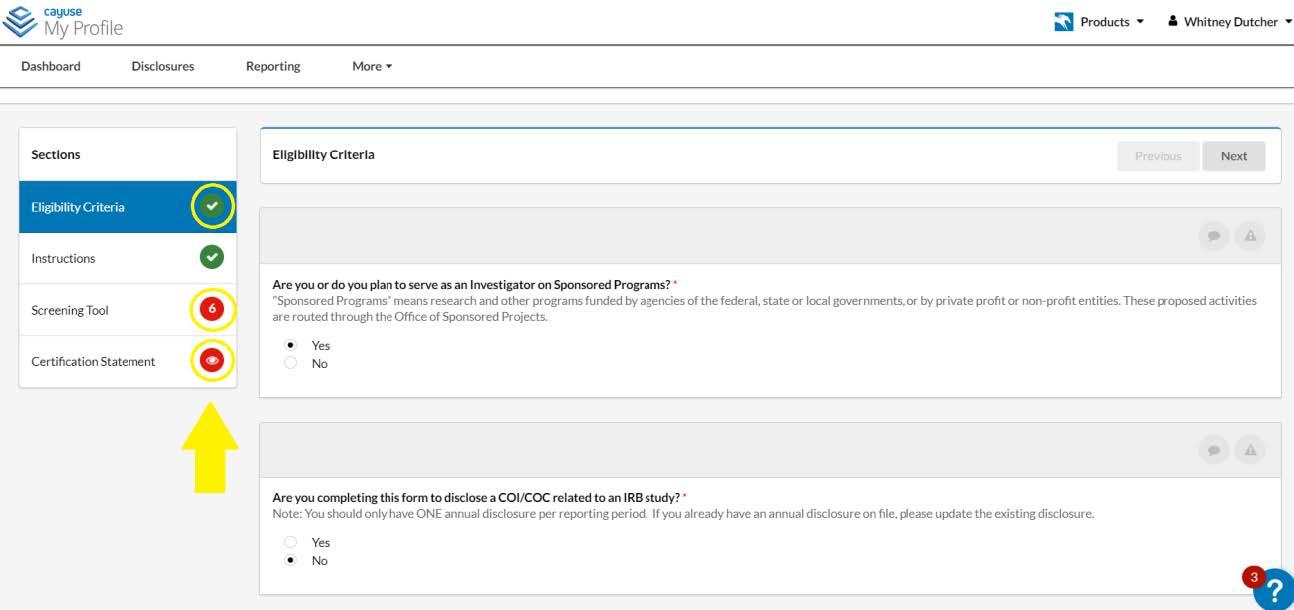
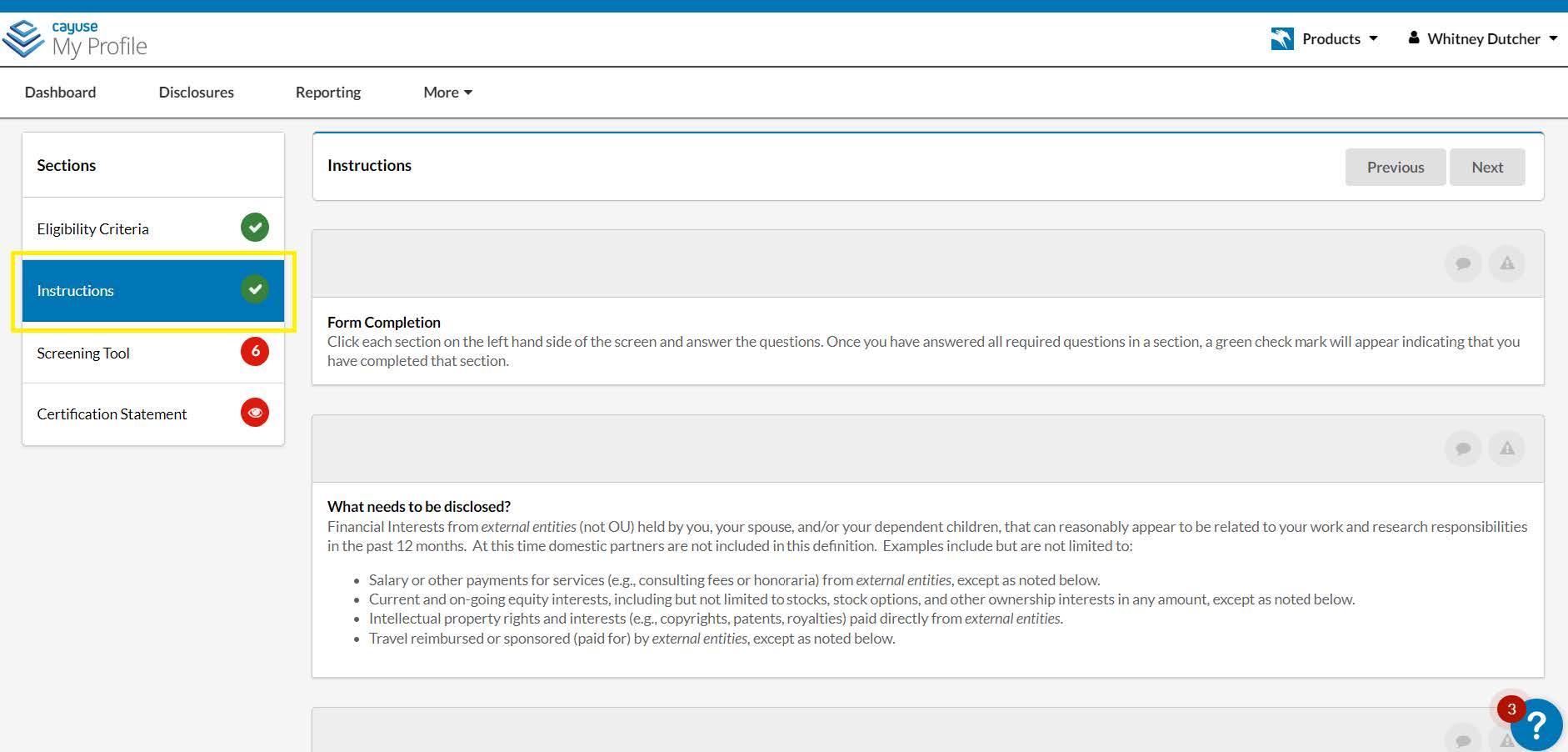
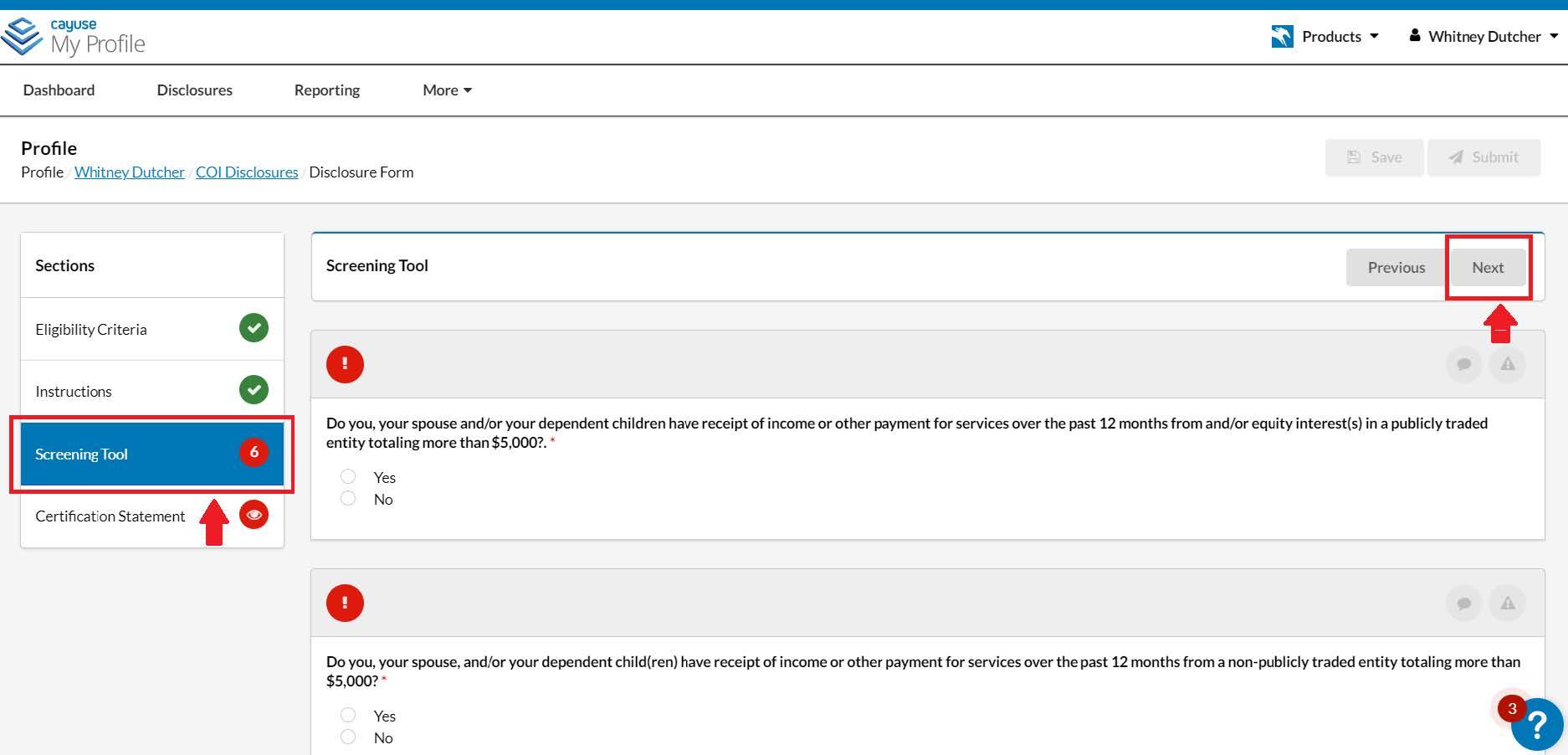
- To advance from section to section, please be sure to answer each question. You can move from section to section by clicking on the section title on the left-hand side of the screen or by using the “Next” button on the right-hand side of the screen.
- Depending on your responses, you may be prompted to add details about your outside interests using the “Add New Relationship” function.
- Note, you can add multiple individual relationships in each annual disclosure.
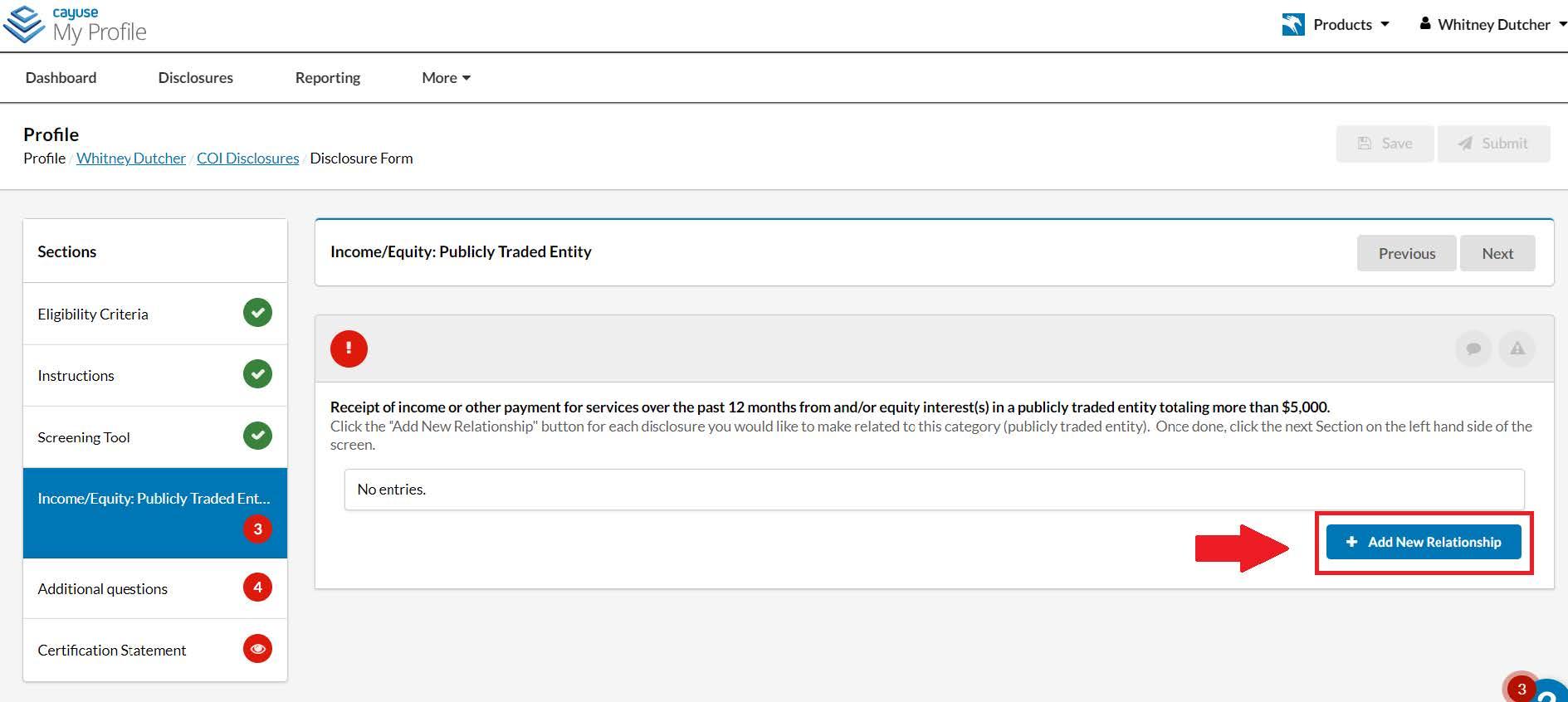
- After selecting “Add New Relationship”, the smart form will open additional questions about the relationship for you to fill out. To search for an external organization, use the “Find external organization” search function.
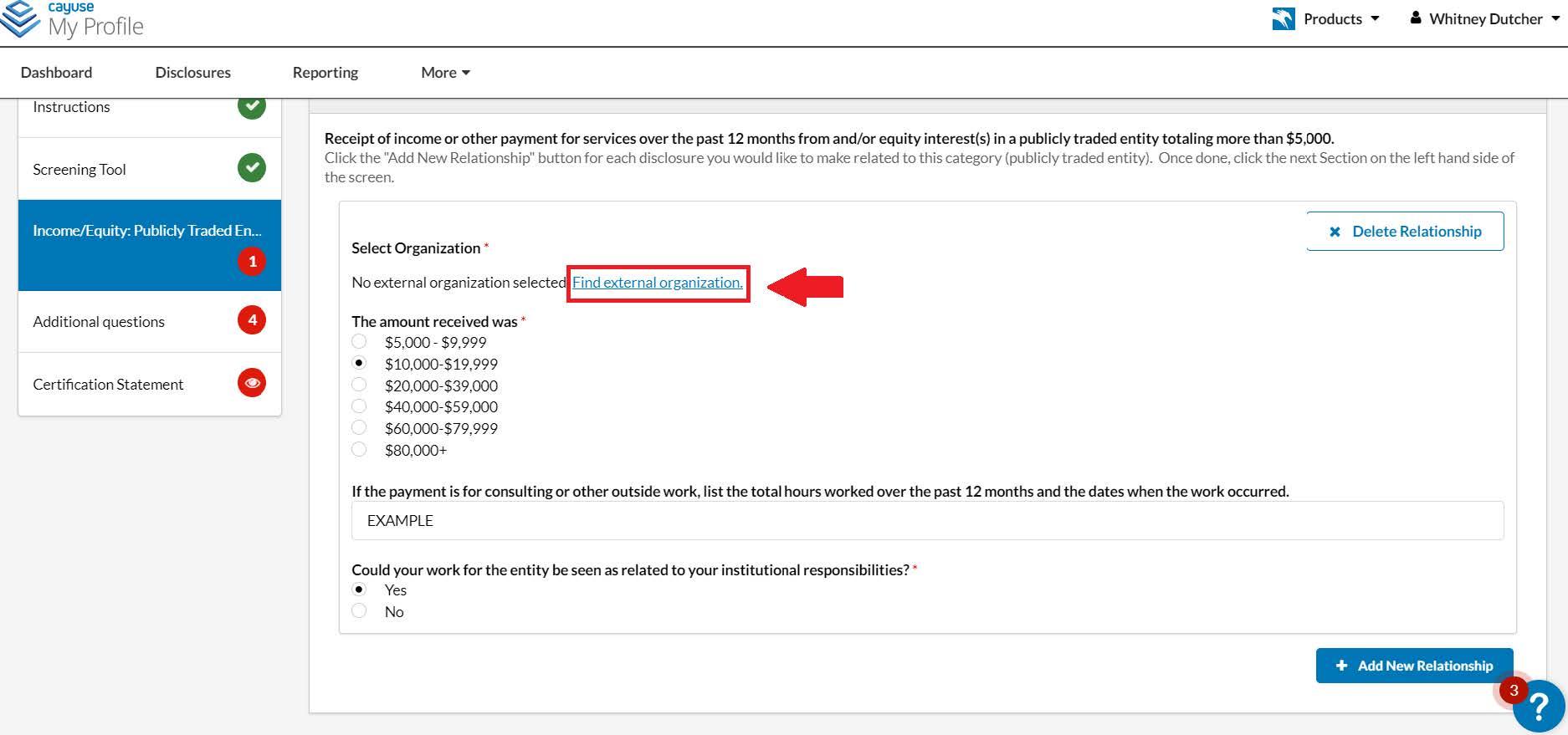
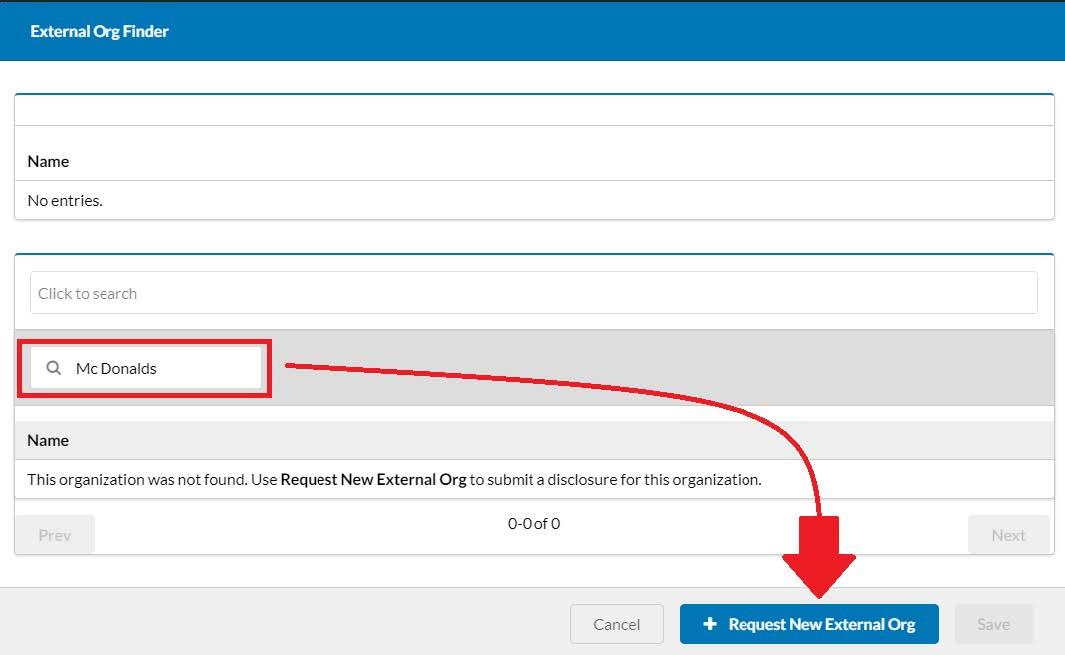
- In the search window with a magnifying glass enter the name of your external organization. If the name of your organization does not appear you can use the “+ Request New External Org” function instead by clicking the button at the bottom of this window.
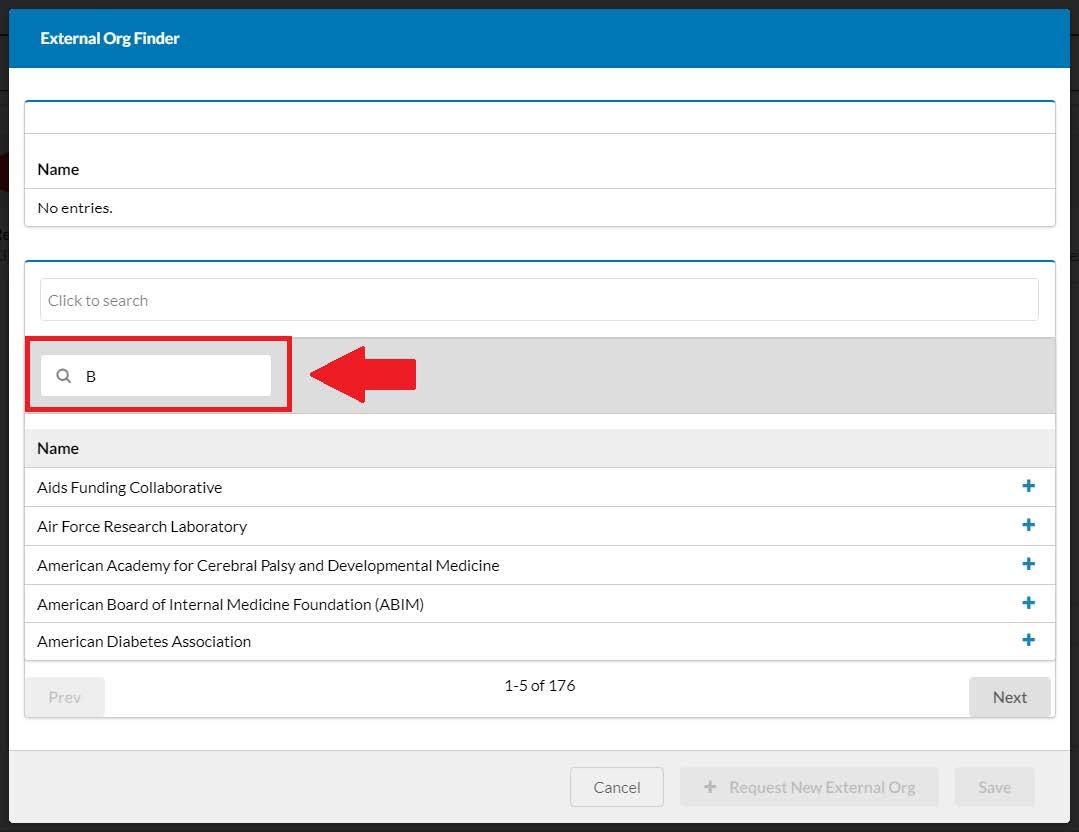
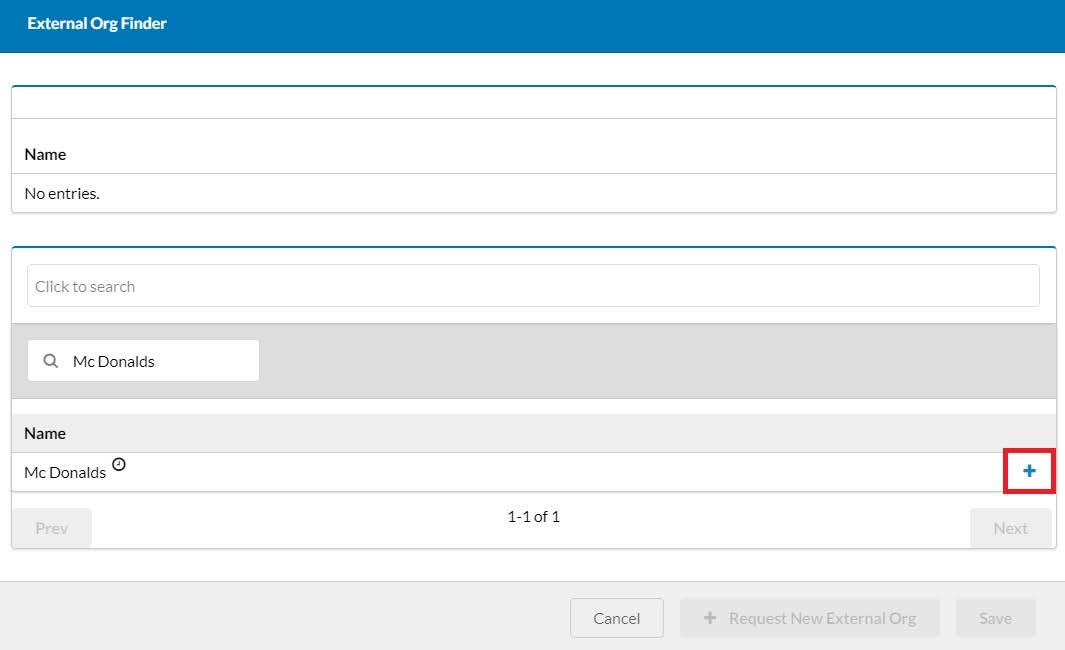
- Once you find your external organization, press the plus icon to add your organization to the disclosure form. NOTE: Do not select organizations that appear with the prefix “S...”.
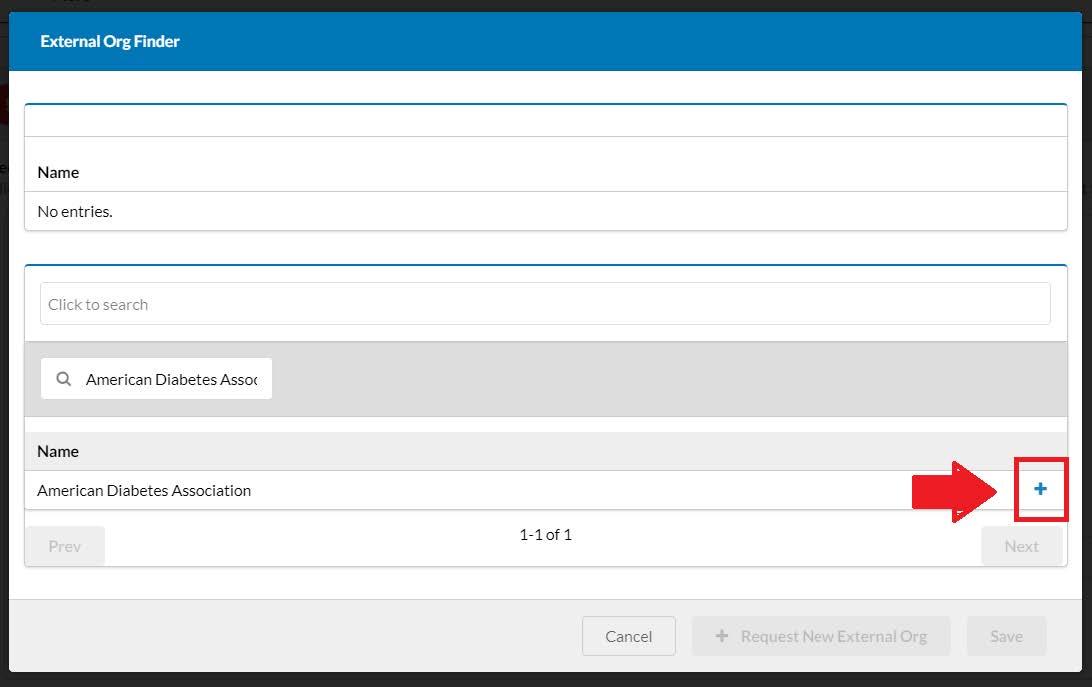
- Next, press “Save”.
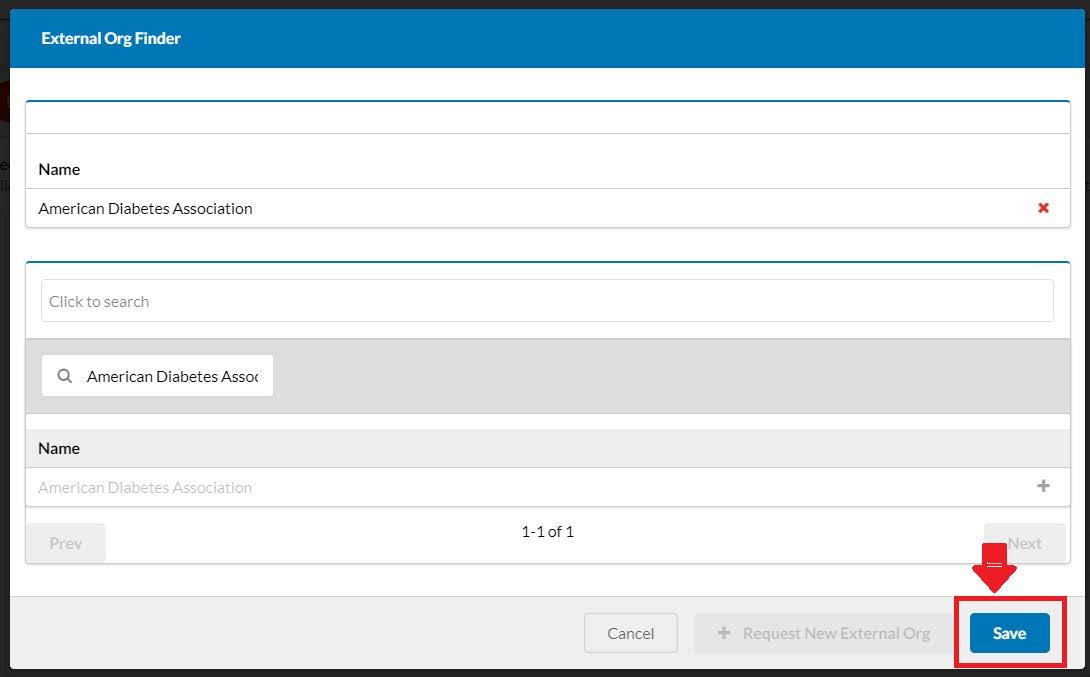
- If you have a relationship with an external organization that does not appear in the search results, you will need to use the Request New External Org feature. This feature will appear after your organization is not found in the search results. After the search, select “+ Request New External Org”.
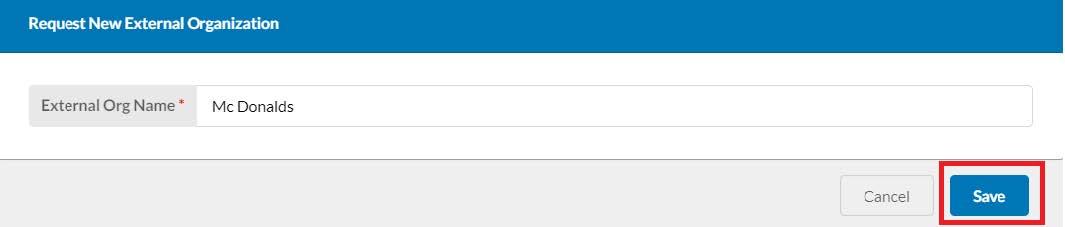
- Enter the name of the organization in the space provided and then press “Save”.
- Next, press the “+” icon.
- Hit “Save”.
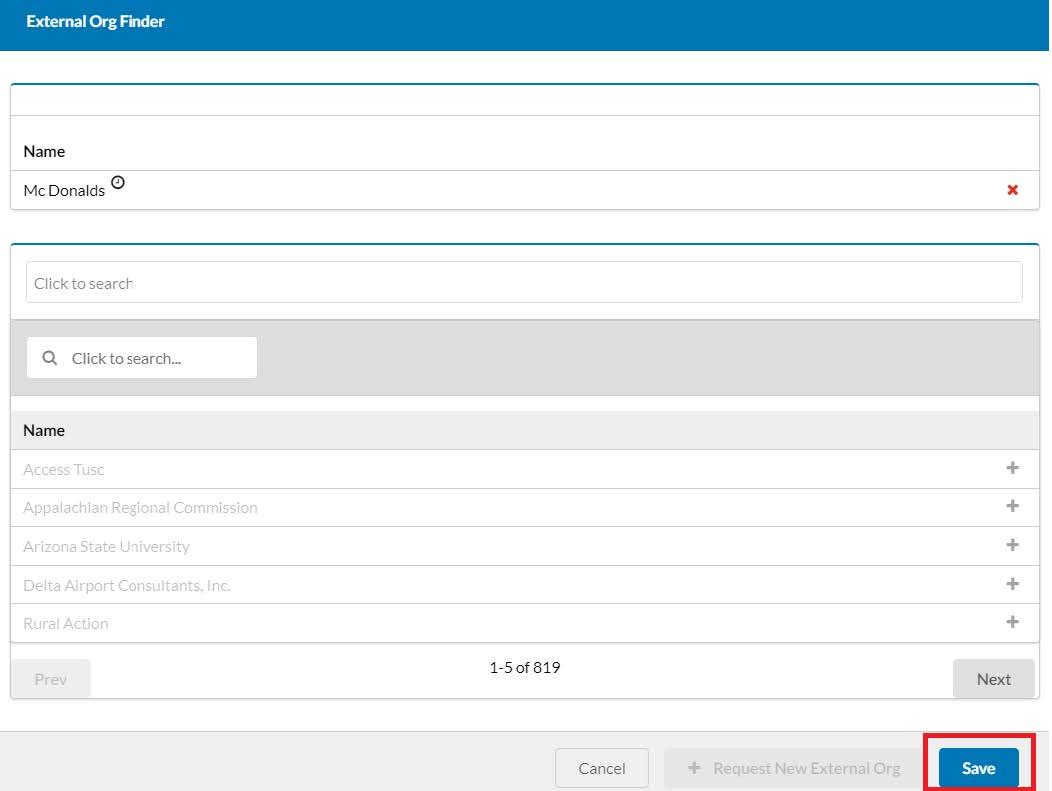
- The external organization will then appear in the space on the screen.
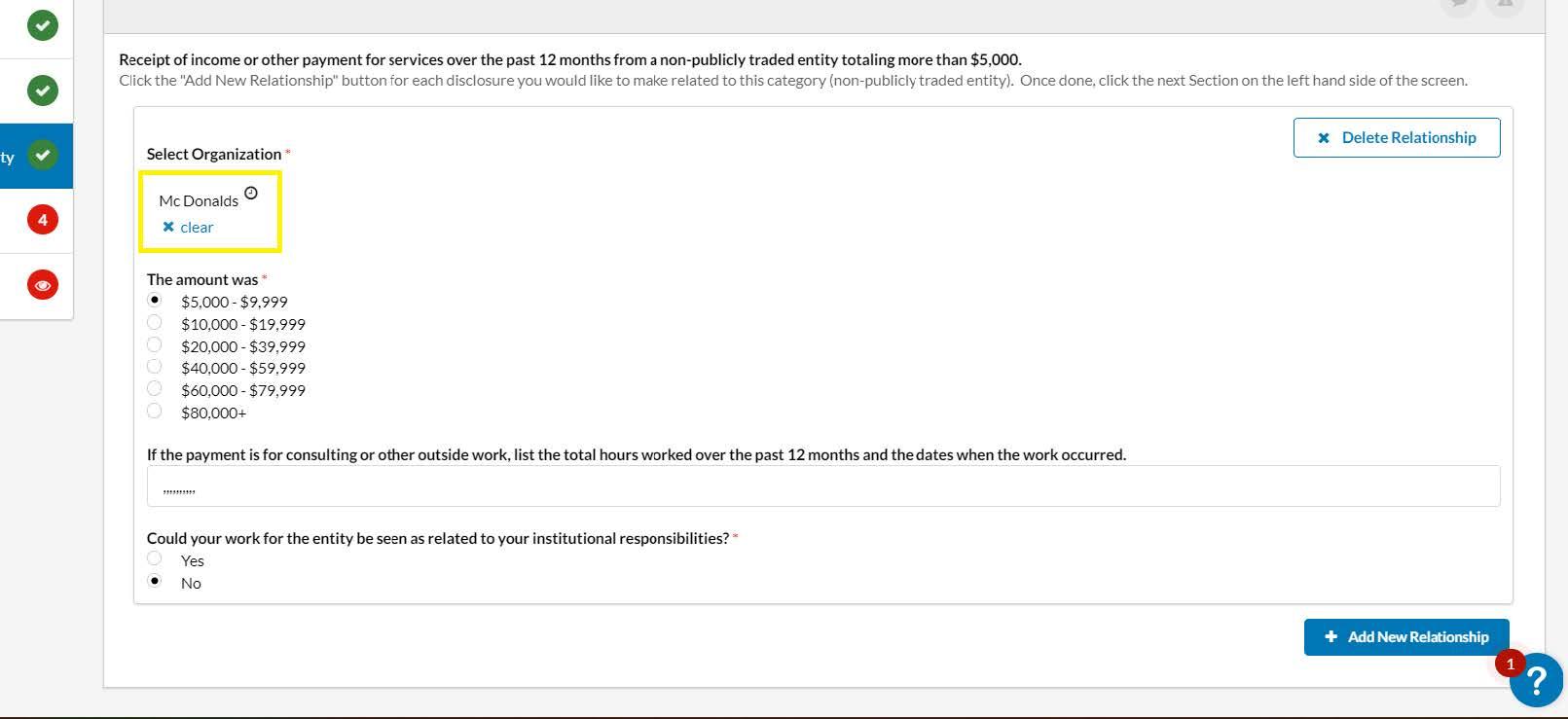
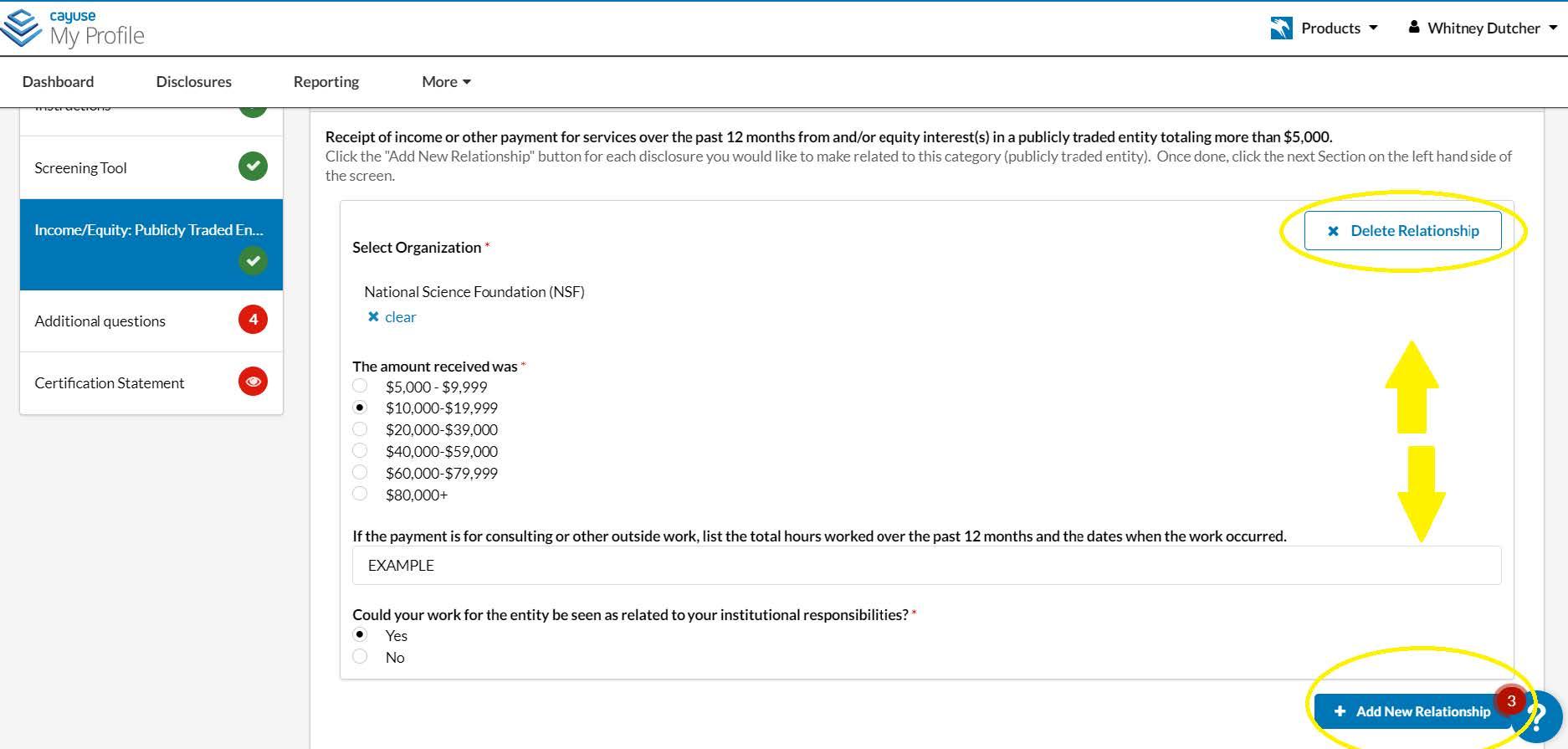
- If you make a mistake and need to remove an organization, you can press “Delete Relationship” or you can add another relationship by using the “Add New Relationship” function and by repeating the steps 8-10 outlined above.
- Please do not initiate a new annual disclosure form in order to disclose additional relationships. The purpose of the annual disclosure form is to capture all your external relationships in one form.
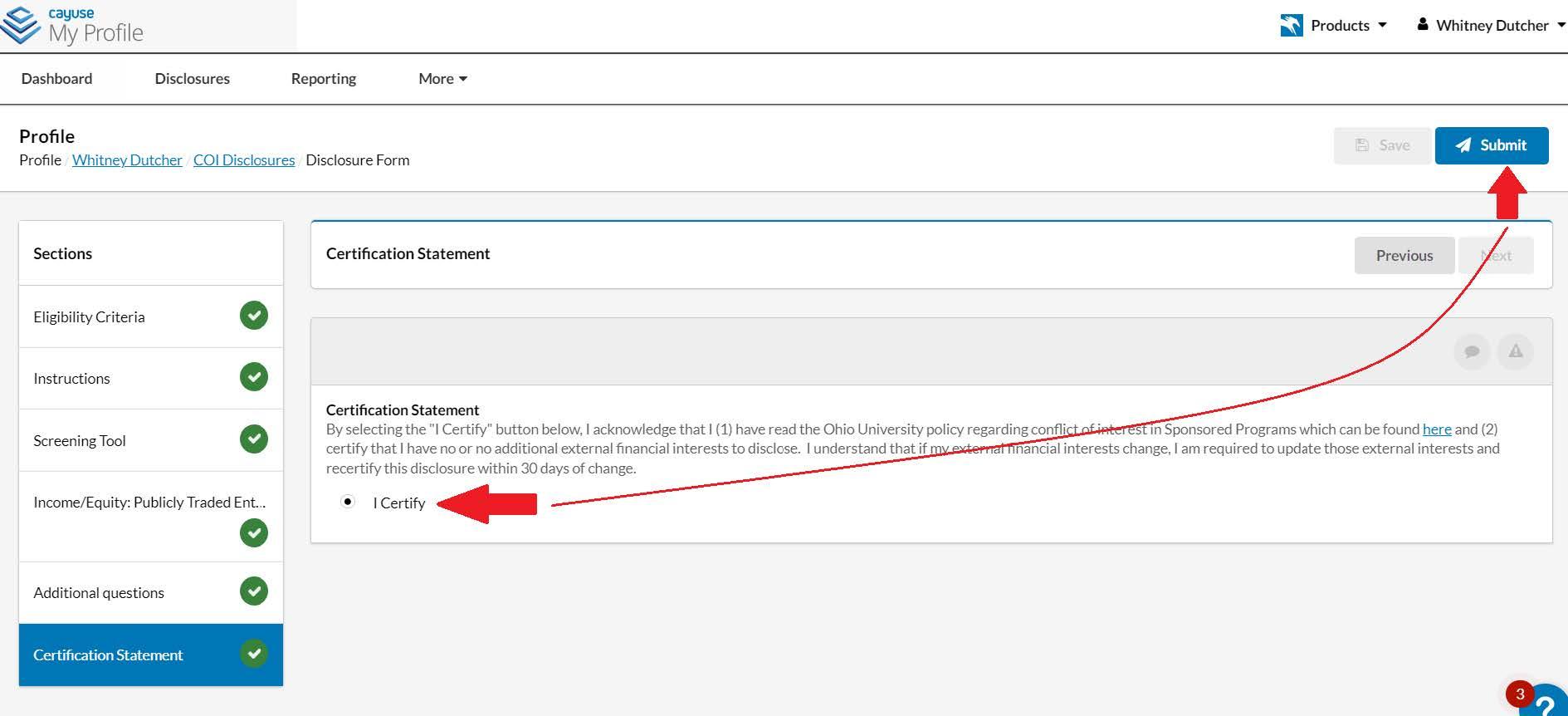
- Once all required sections are completed, you will be provided with a certification statement, please read the statement carefully before hitting the “Submit” button.
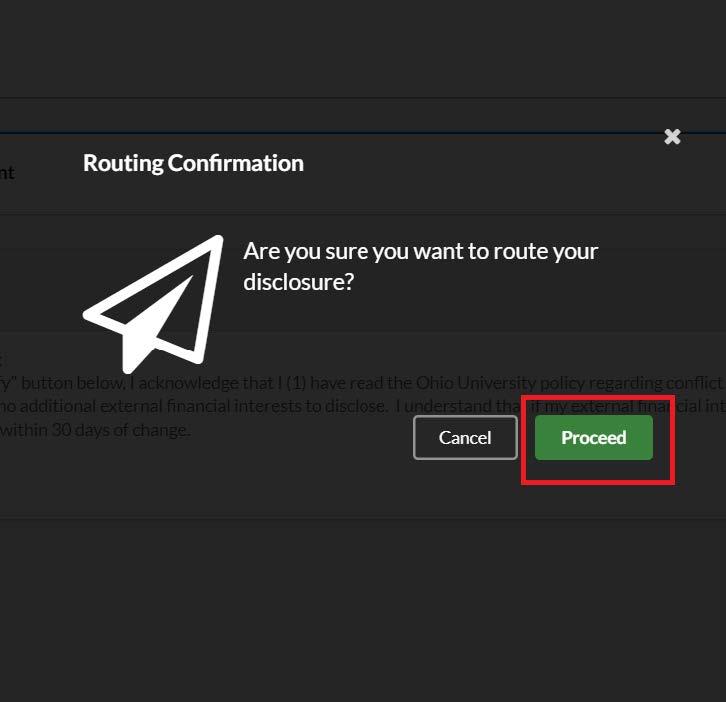
- After selecting the “Submit” button you will be given the opportunity to either “Proceed” with the submission of the disclosure or to “Cancel” and resume editing the disclosure. Once you press “Proceed” the disclosure will be routed to the Office of Research Compliance for review.
What Happens Next?
- Processing- Your annual disclosure will route to the Office of Research Compliance for preliminary review. If warranted, your disclosure may need to be reviewed by the Conflict-of-Interest (COI) Committee at a convened meeting. Please note that the COI Committee meets on an as needed basis.
- Resolution- There are three potential outcomes for an Annual Disclosure:
- No COI determined
- COI determined and managed
- COI determined and not managed
- Disclosee Acknowledgement- If your Annual Disclosure requires a “COI determined and managed” resolution, you will be contacted by a representative from the Office of Research Compliance via a Task in Cayuse to review, sign, and return your COI Management Plan
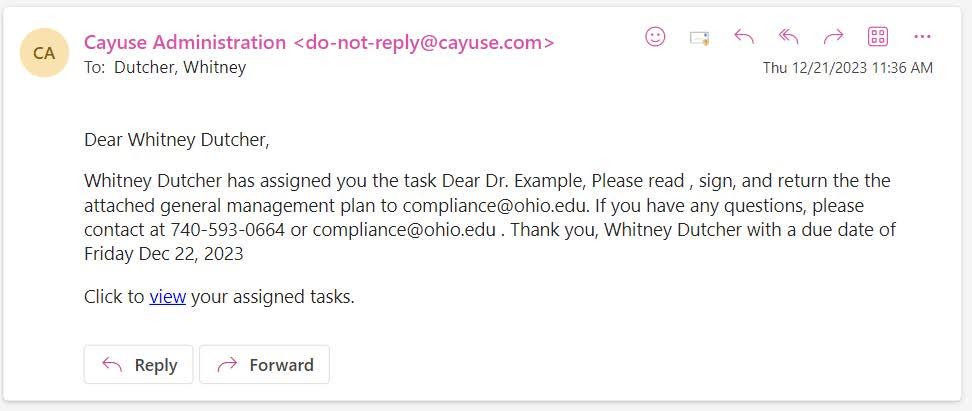
- You will receive a notification from Cayuse that you have been assigned a task. Click the imbedded link to travel to your Home page in Cayuse.
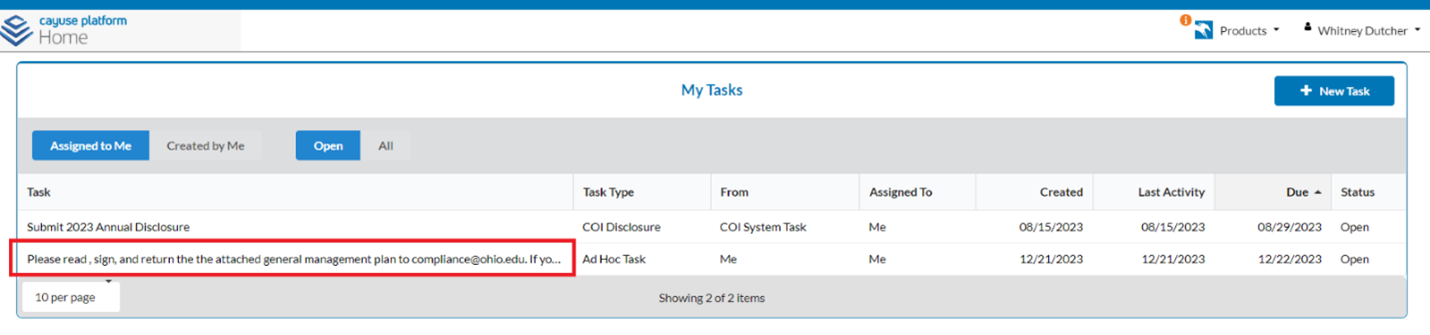
- To begin the task, click on the task.
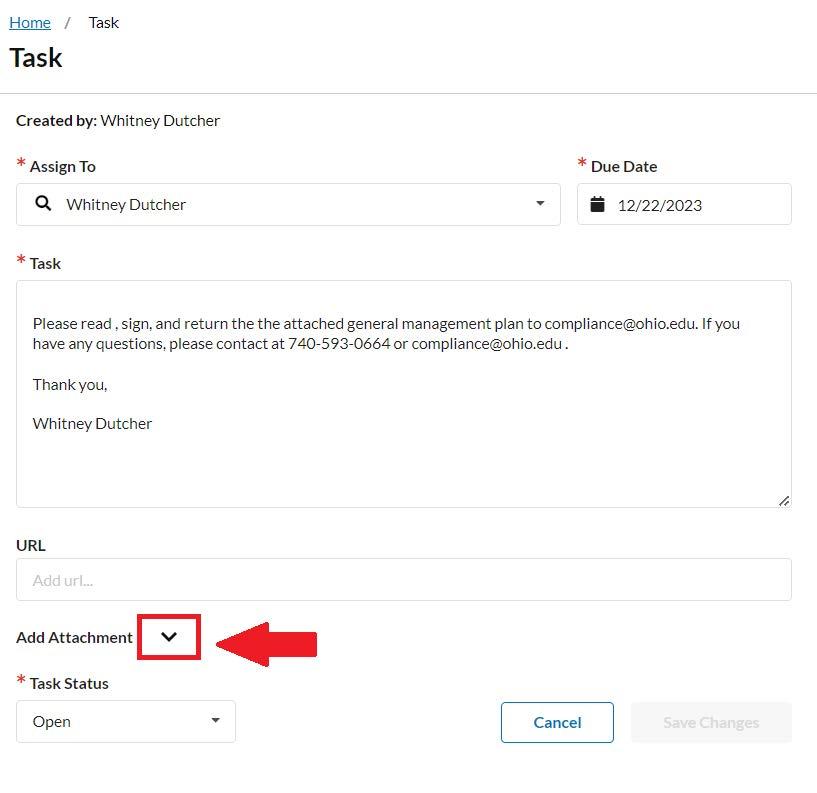
- Select the drop-down arrow next to “Add Attachment” to view the attached management plan.
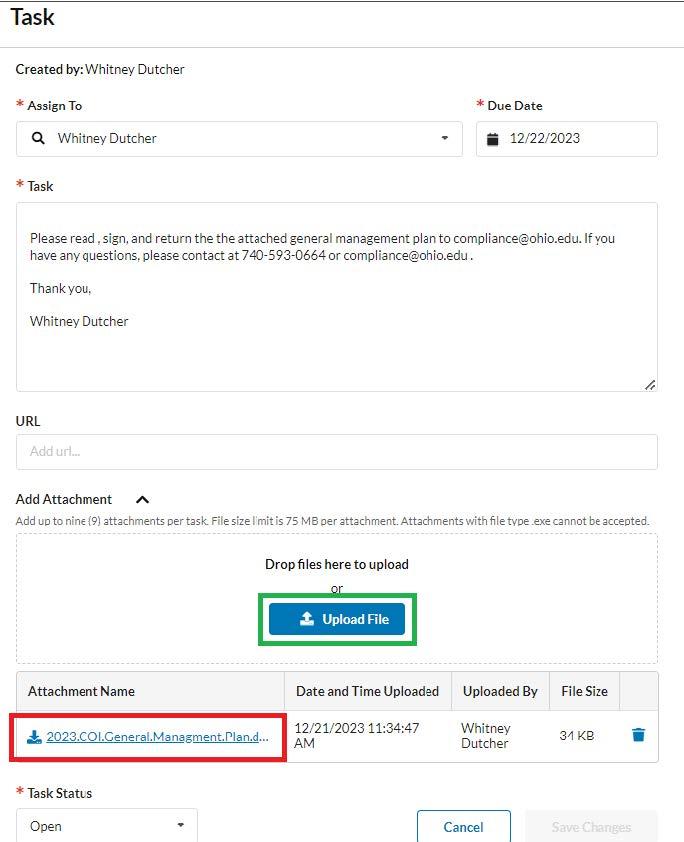
- Download the plan. Once you have reviewed and signed your management plan. Attach the signed plan using the “Upload File” feature. Finally, select “Save Changes”.
If you have any questions or if you need assistance, please contact the Office of Research Compliance at 740-593-0664 or at compliance@ohio.edu. Thank you!