
How to guide 001: Understanding Protocol Access & Dashboard Navigation in Cayuse- A Guide for PI Group Members
Introduction
- Purpose- This guide is intended to help Principal Investigators (PIs) and PI Group members navigate the Animal Oversight module in Cayuse. It explains how protocol access works through PI Groups, how to locate and interpret key dashboard features, how to initiate common protocol activities, and the steps required to review, submit, and track IACUC submissions throughout the review process.
- Scope/Audience- Principal Investigators (PIs), PI Groups Members.
Key Points-What Are PI Groups?
- PI Groups provide access to protocols in Cayuse- Being listed as study team personnel does NOT grant visibility AND editing access.
- PI Group members can view AND edit protocols
- This includes the ability to draft or make edits to:
- New Protocols
- Amendments
- De Novo (Renewal) submissions
- Continuing Reviews (Annual Progress Reports)
- PI approval is still required- Even if a PI Group member drafts or edits a submission, the PI must review and submit before it can be formally submitted for review. IMPORTANT: If this step is not completed, the IACUC Office will not receive your submission.
- Access is granted at the PI level—not the protocol level- PI Group membership provides access to all protocols under that PI, not just a single protocol.
- PI approval is required to add members- Individuals are only added to a PI Group with the PI’s explicit direction or approval. Contact compliance@ohio.edu to request the setup of your PI Group.
- Use of PI Groups should be intentional- Because access applies broadly across all of a PI’s protocols, membership should be limited to individuals the PI is comfortable granting full access.
Basics For PI Group Members
The steps below will show you how to login to Cayuse, access the Animal Oversight Module, and toggle the PI Group feature.
Step 1: Logging into the Cayuse system using your ohio.edu credentials.
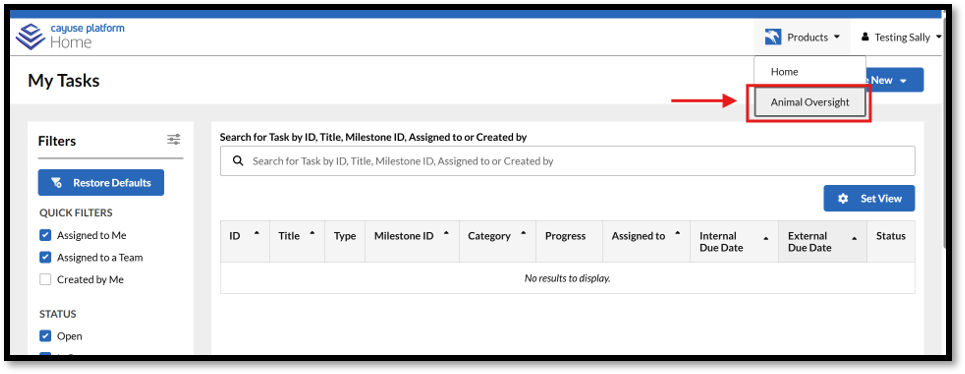
Step 2: Navigating to the Animal Oversight module- While on your Home page, select “Animal Oversight” from the “Products” drop-down menu.
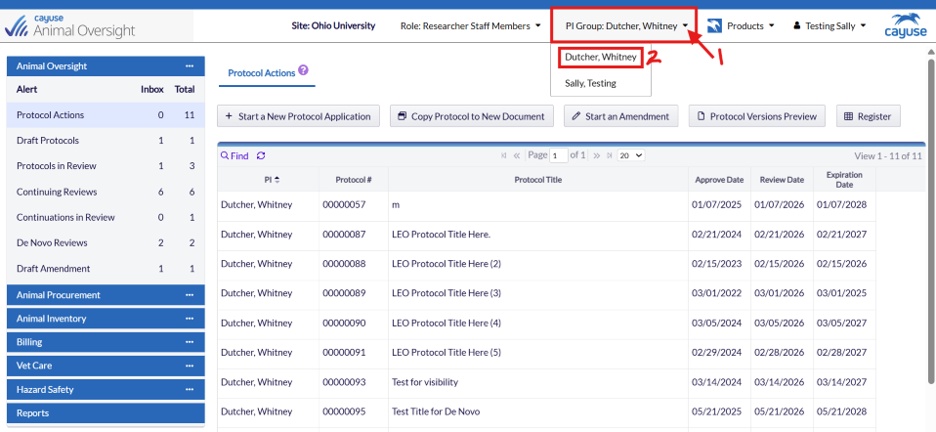
Step 3: Toggle PI Group- To begin, first locate the PI Group Drop Down Menu. This menu will display any and all PI Groups for which you are assigned. Select the name of the PI to toggle the dashboard for the given PI.
Getting to Know Your Dashboard
The information below will help you understand the major components of your dashboard, how to navigate them, and what they mean for you and your study team.
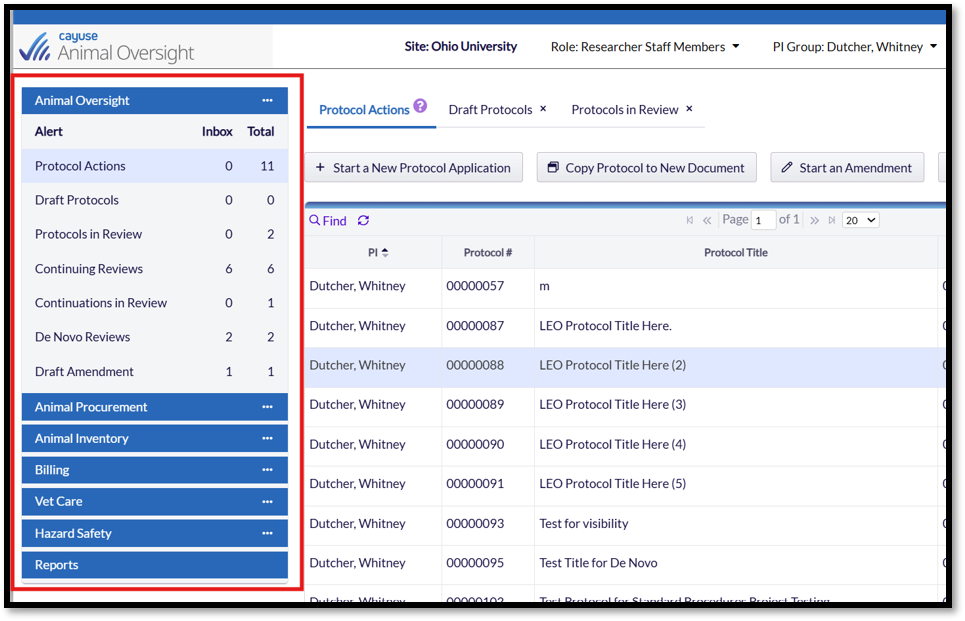
Step 1: Locate the Actions Menu- On the left side of your screen, you will find the Actions Menu, which is displayed in a table-style format. This menu organizes your submissions based on their current status in the review process and the type of submission.
Step 2: Decoding the Menu
| Dashboard Item | Meaning |
|---|---|
| Protocol Actions | The Protocol Actions menu serves as the initiation workspace for the PI and study team. It displays all protocols associated with the PI and provides access to protocol-related activities. From this area, users can create and submit amendments, Continuing Reviews, and De Novo Reviews, as well as view protocol details. To begin an action, select the protocol from the dashboard and use the action buttons located at the top of the screen to perform an action. |
| Draft Protocols | Draft protocols that have been started but have not yet been submitted to the IACUC for review. |
| Protocols in Review | Protocols that have been submitted and are currently being reviewed by the IACUC Office or members of the committee. Inbox: If a protocol count appears in the Inbox column of the Protocols in Review row, it has been returned to the study team with a revision request and requires action before the review process can continue. |
| Continuing Reviews | The Continuing Review is an annual progress report that are due on the 1st and 2nd anniversary of a protocol's approval date. These submissions allow the study team to report on the status of the protocol. |
| Continuations in Review | Continuing Review submissions that have been submitted and are currently under IACUC review. |
| De Novo Reviews | Protocol renewals that occur at the end of the approval period and require a comprehensive review of the protocol. The dashboard displays a countdown to help study teams track upcoming renewal deadlines and initiate the renewal process. |
| Draft Amendments | Amendments that have been started but have not yet been submitted for review. |
| Inbox | The number of items that currently require action from a study team member. If a number appears in the Inbox column, someone on the study team must interact with that item. |
| Total | The total number of submissions in that category, regardless of whether action is currently required. |
START - Step 3: Interacting with the Menu- The Actions Menu uses a simple point-and-click interface. Selecting an item from the menu will filter the content displayed on your dashboard to show only the relevant submissions.
Below are a few examples of how to interact with the Actions Menu and your dashboard to initiate and resume actions in Cayuse Animal Oversight.
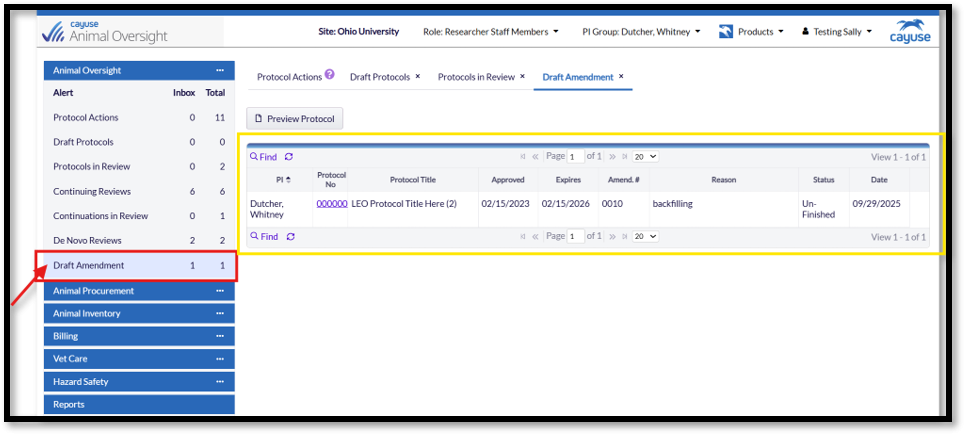
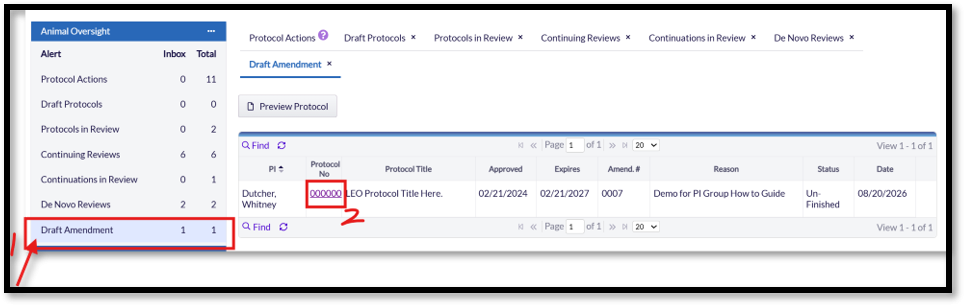
Example 1- For example, if you select Draft Amendment from the actions menu, the center section of your dashboard will display only protocols that are currently in draft status. Next, you would click on the protocol number hyperlink to resume interacting with a draft amendment.
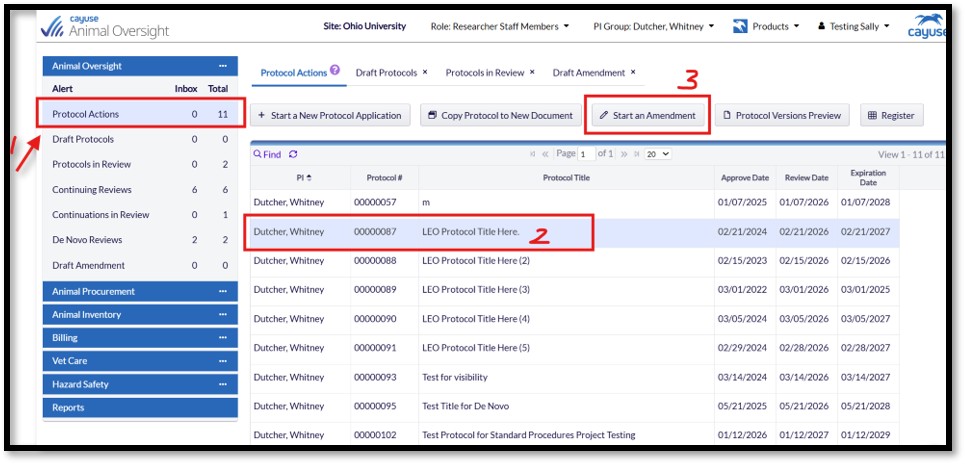
Example 2- If you select Protocol Actions, the dashboard will then display all protocols associated with the PI; this display also contains useful information about the protocol’s approval history and expiration date. Protocols can be selected, and the available actions can be initiated using the buttons displayed horizontally across the screen. You can start a brand-new protocol, copy contents, start an amendment, or preview the protocol in a static view mode.
In this example, you can initiate an amendment by first selecting 1) Protocol Actions and then 2) highlighting the protocol by clicking on it and 3) pressing the Start Amendment button.
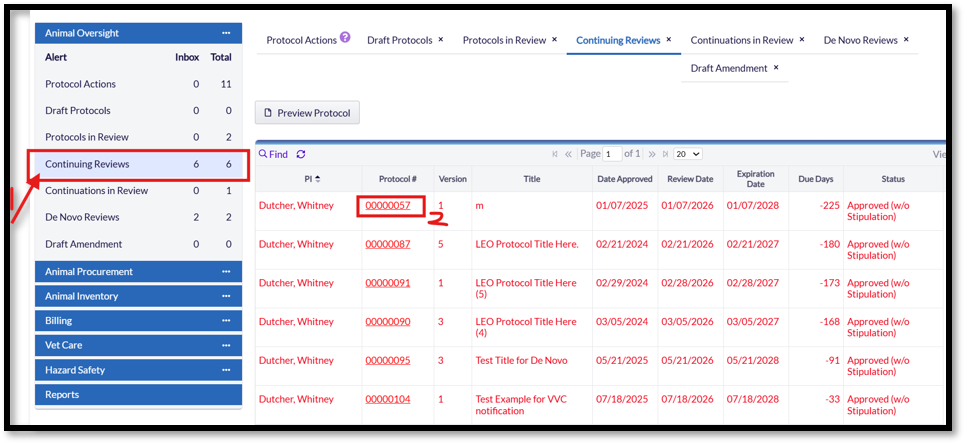
Example 3- In this example, selecting 1) Continuing Review populates all Continuing Review reports that are coming due for the PI. Again, the Continuing Review Report is NOT a protocol renewal process; this report is simply an annual progress report due on the 1st and 2nd anniversary of the protocol’s approval date.
The due date column in this dashboard will give you a count down to the due date for a given report. To initiate the report, please 2) click on the protocol number’s hyperlink. Once submitted, the report moves to the Continuations in Review space, this is where you can track the movement of your submission.
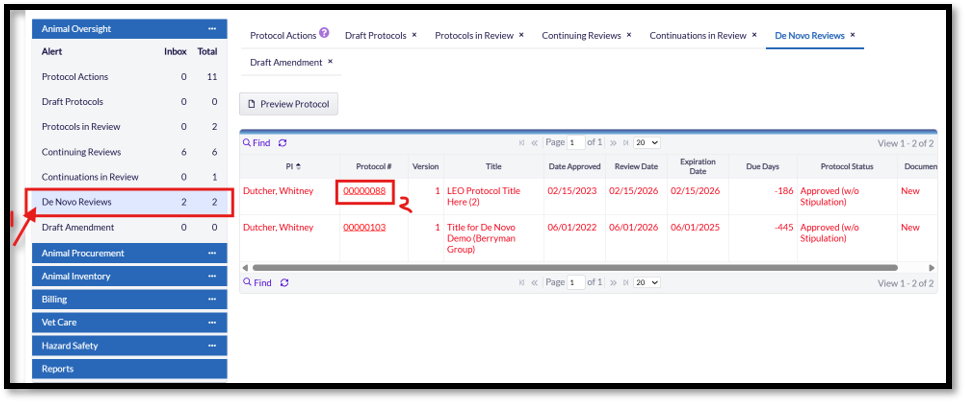
Example 4- In this example, selecting 1) De Novo Reviews populates all protocols that are approaching their expiration date and require renewal.
Unlike a Continuing Review, a De Novo Review is a protocol renewal process that must be completed before the protocol's expiration date to maintain IACUC approval. The expiration date displayed in the dashboard is critical. If a protocol reaches its expiration date before renewal approval is obtained, all animal activities must cease immediately until IACUC approval is reinstated.
The Expiration Date column provides a countdown to help study teams monitor upcoming renewal deadlines. To initiate the renewal process, 2) click the protocol number hyperlink.
If all work under the protocol has been completed and no additional animal activities are planned, the study team may elect to allow the protocol to lapse upon expiration rather than submit a De Novo renewal. Protocols that are no longer needed do not need to be renewed.
Once submitted, the De Novo Review will move to the Protocols in Review section of the dashboard, where you can monitor its progress throughout the review process.
PI Approval Steps (Required Actions for PIs)
NOTE: Even if a PI Group member drafts or edits a submission, the PI must review and submit before it can be formally submitted for review. IMPORTANT: If this step is not completed, the IACUC Office will not receive your submission.
Step 1: Notices- Once a PI Group member submits something, a new protocol, amendment, De Novo, Continuing Review the PI will be notified by Cayuse to review the submission and formally submit.
The notice will instruct the PI to log into the system, review the draft, and submit to the IACUC office for review.
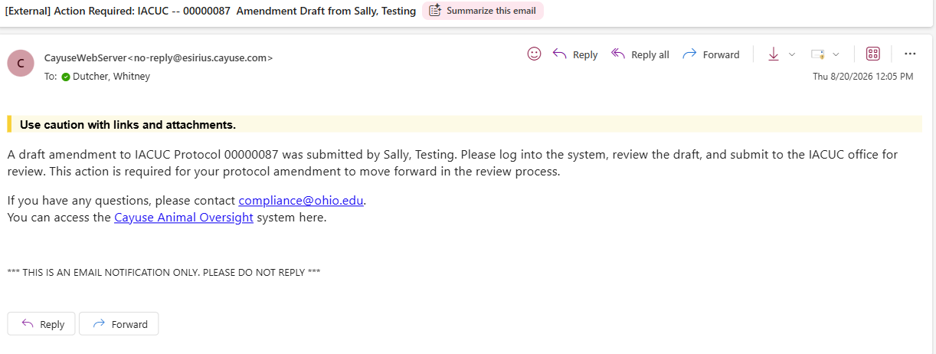
Step 2: Locate Submission for Review- I am skipping the login and navigation steps because they are covered earlier in this guide. To begin, the Principal Investigator (PI) should log in to Cayuse, access the Animal Oversight module, and locate the submission requiring review.
The Cayuse notification email will identify both the submission type and the protocol number. In the example below, the submission is an Amendment, so it can be found in the Draft Amendments section of the dashboard.
To review the submission, click the protocol number hyperlink. This will open the submission and allow you to review, approve, and submit it for IACUC review.
Step 3: Review & Submit-
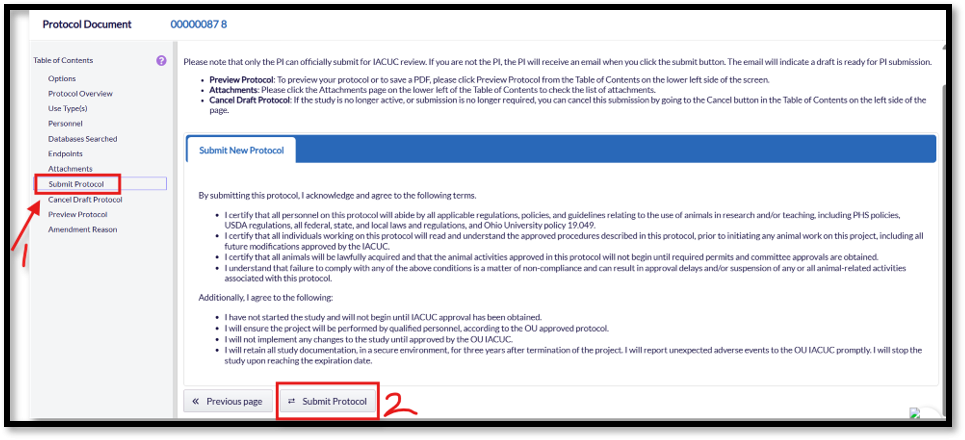
If the PI is satisfied with the submission, they can navigate to the 1) Submit Protocol section in the Table of Contents and then 2) select the Submit Protocol button.
If changes are needed before submission, the PI may either:
- Make edits directly to the submission within Cayuse, or
- Communicate with members of the PI Group outside of Cayuse (e.g., by email, phone, Teams, or in person) to request revisions. Once the requested changes have been made, the PI should return to the submission to complete their review and submit it.
Once the submission has been successfully submitted to the IACUC Office, it will move from the draft workspace to the Protocols in Review section of the dashboard. This allows the PI and study team to monitor the progress of the submission throughout the review process.
We strive to make our guides practical, easy to follow, and respectful of your time. While we aim to cover the most common processes and questions, it is not possible to address every situation you may encounter in Cayuse.
If you have questions, encounter challenges navigating the system, or need assistance with a specific scenario, please contact the Office of Research Compliance at compliance@ohio.edu. We are always happy to help.
We also welcome feedback and suggestions for future guides. Thank you!