
Key Members
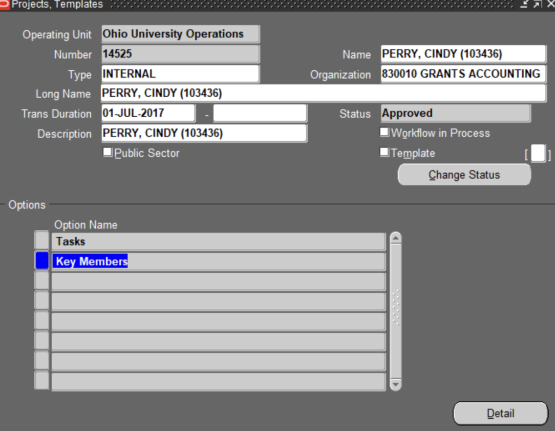
- Select Key Members and select Detail or select in the blue box to the left of Key Member under Options.
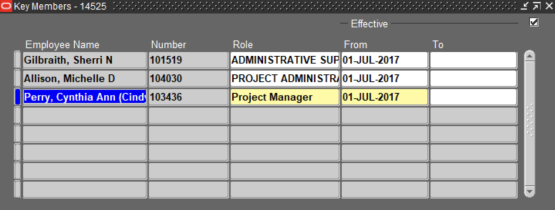
- The Key Members window is used to enter the key members on a Project.
Note: The Project Manager role is required and entered upon setup of the Project.
The following roles are optional:
- Administrative Support
- Project Administrator
| Field Name | Enter... |
|---|---|
| Employee Name | Enter employee last name, first name. |
| Number | Employee number will auto populate and should be verified if there are employees with similar names. |
| Role | Project Manager is a required role. |
| From | Defaults to the start date of the project. If this date is in the future, this date may need to be edited so the employee will be able to return to this project before that future date for possible edits. |
| To | End date only if replaced with a new Project Manager. |
Select Save. Close the window by pressing F4 or select the X (top right) of each window. This will take you to the Navigator – Grant Accounting window.
Employees added/edited must be valid/active employees during the dates entered.
If the project manager changes during the life of the project, DO NOT delete the name. End date and then add a new line with the new personnel information and the new start date.
If other roles such as administrative support or project administrator change, delete the line item with the previous employee and add a new line item with the new employee.
End of Key Members Setup.