
Award Setup
Award setup procedures do not include Research Incentive (RI) Awards. RI Awards will be setup centrally by General Accounting and Financial Reporting. For information, refer to the OBI F&A/IDC Distribution Process Quick Reference Guide.
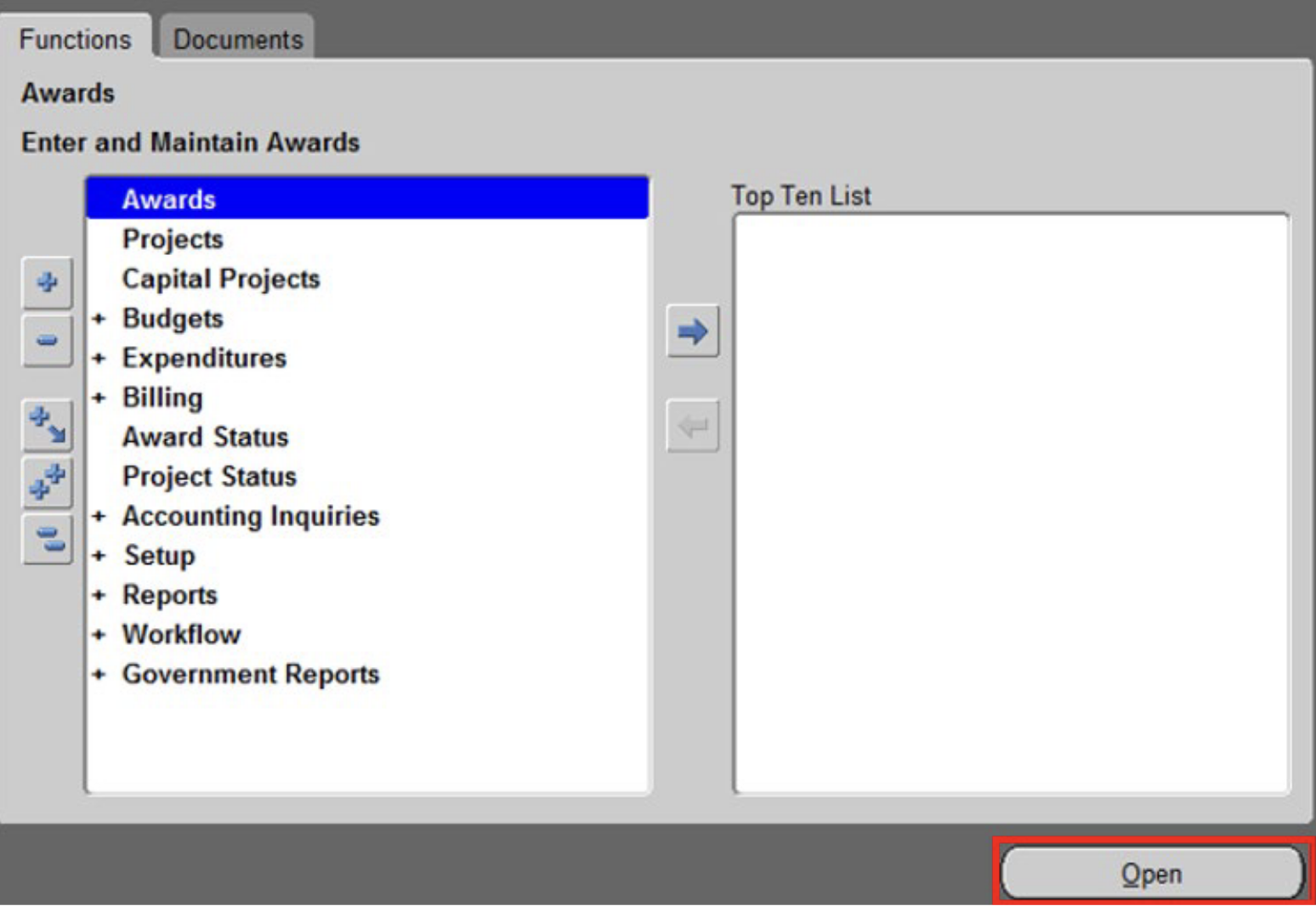
- Select Awards and select Open.
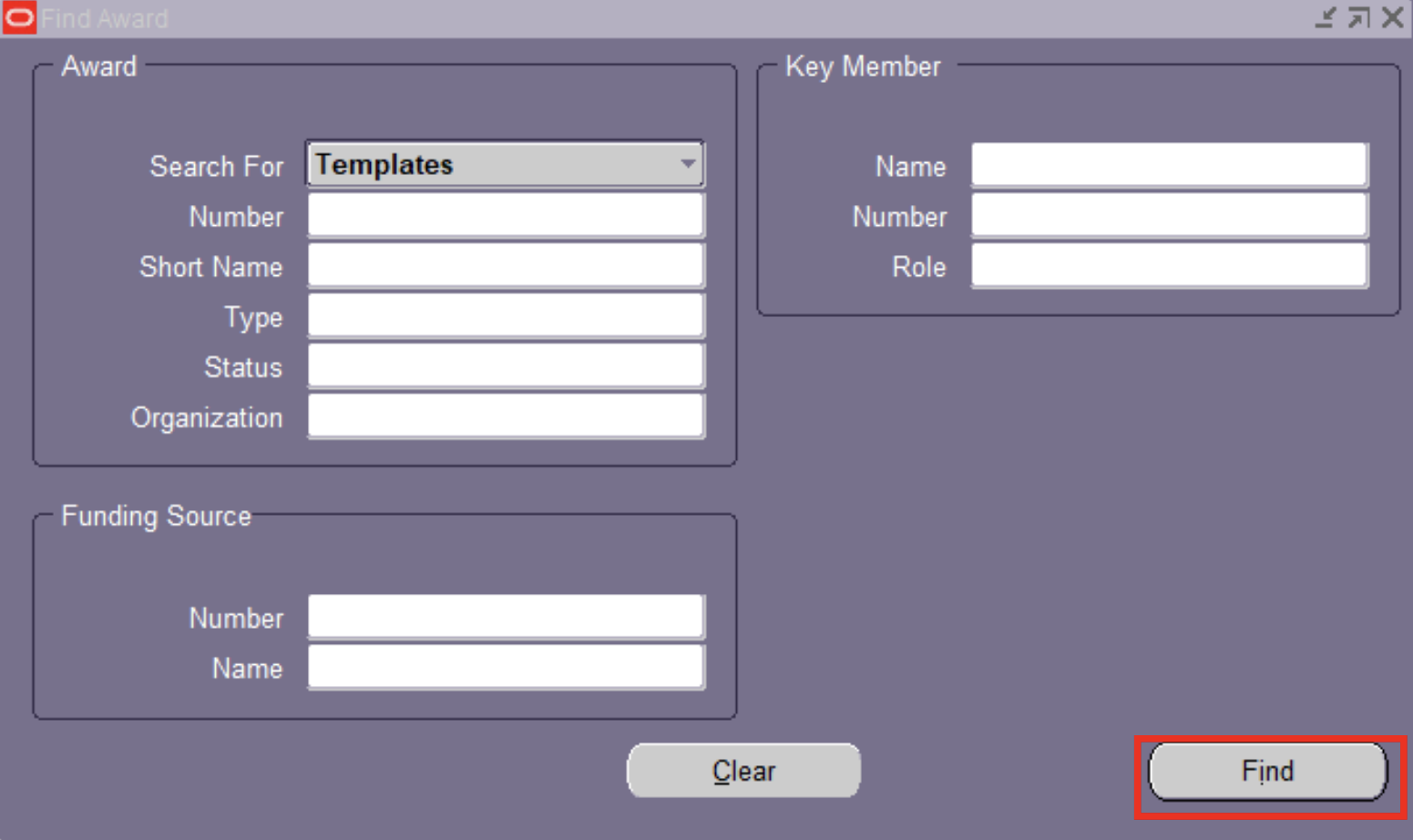
- To create a new award, in the Search For field, select Templates.
If you are not creating a new Award, Select Search for Awards and type in your already existing Award Number in the Number field and select Find, then skip to the Installments section.
- Select Find.
The only template that will be available will be the one for the planning unit for which you work and that you have your name assigned.
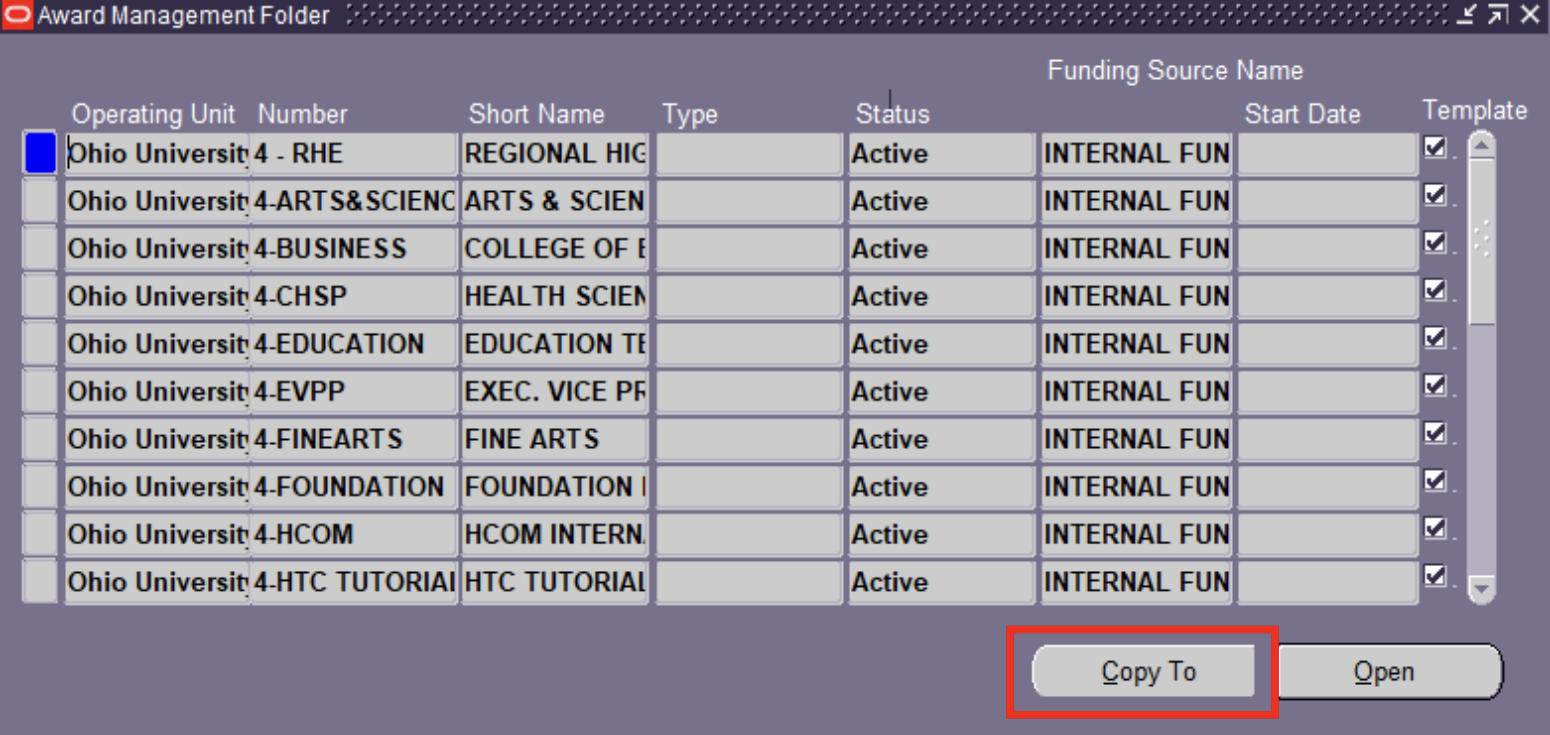
- Select the Copy To button to copy the selected template to a new award.
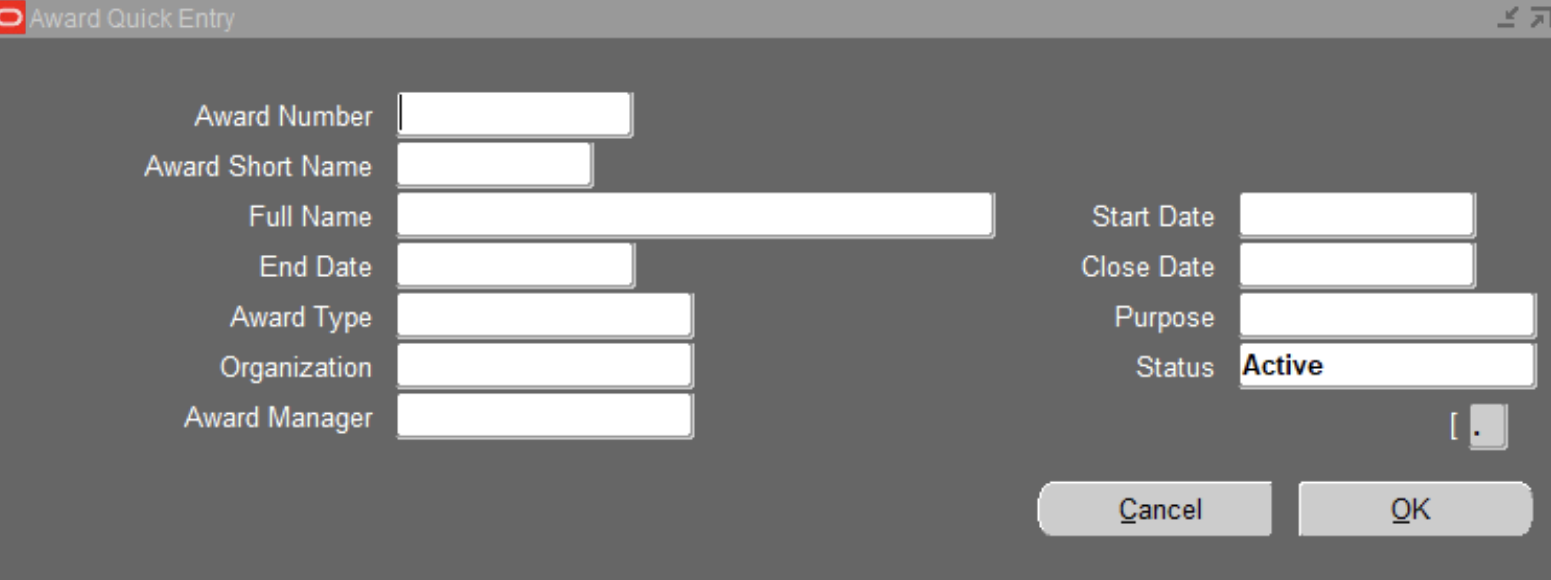
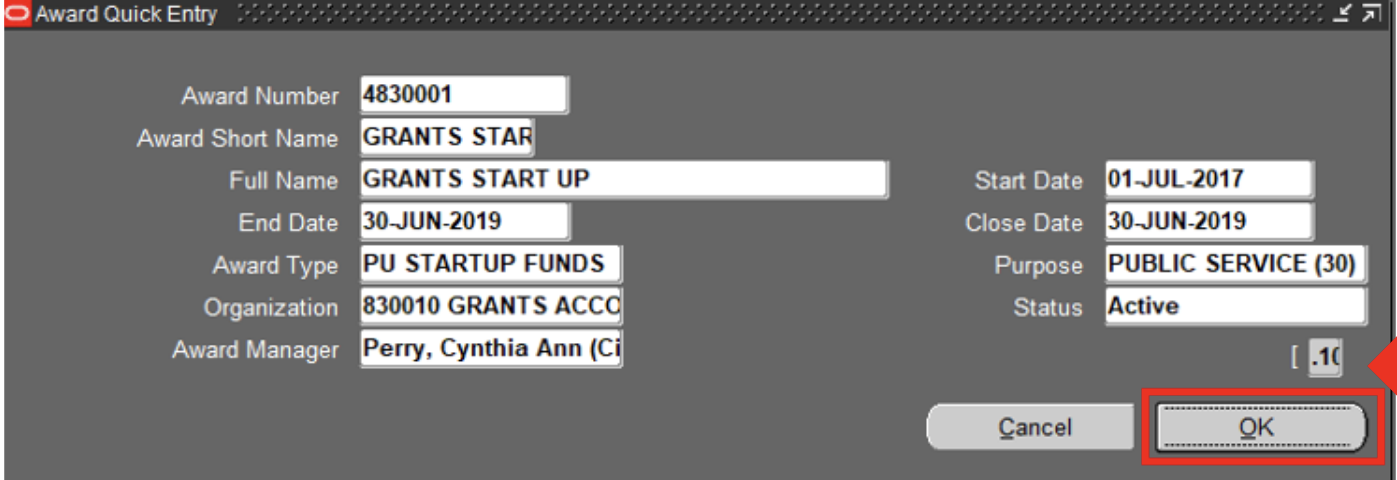
- The following is entered in each field of the Award Quick Entry.
| Field Name | Enter… |
|---|---|
| Award Number | The Award number is a 7 digit smart number using the following sequence and must be determined prior to the setup of the award:
|
| Award Short Name | This field is 30 characters (alphanumeric). Example, Planning Unit Startup Funds |
| Full Name | This field is 240 characters (alphanumeric). Can be same as Award Short Name. |
| Start Date | Start date of funding. Format: DD-MON-YEAR (i.e. 01-JUN-2017). Select on the list of values and select date. See Appendix C for further explanation. |
| End Date | End date of funding. Format: DD-MON-YEAR (i.e. 01-JUN-2017). Select on the list of values and select date. See Appendix C for further explanation. |
| Close Date | Add 60 days to the end date. Format: DD-MON-YEAR (i.e. 01-JUN-2017). Select on the list of values and select date. Note: Expenditures cannot be entered for an award after this date. See Appendix C for further explanation. |
| Award Type | Type of funding selected from list of values. Example, PU STARTUP FUNDS (112410). See Appendix F for valid Internal Award Types: Award Type (Source) and Transfer Object Code. |
| Purpose | Purpose is selected from the following values: University Research, Instruction, Public Service, Student Services, Academic Support and Fundraising & Development. This is selected based on the purpose of the spending according to the NACUBO Functional Expense Classification. |
| Organization | The organization which the award is assigned. This is for reporting purposes only. |
| Status | This is a list of values to select as follows:
|
| Award Manager | Department staff who provides administrative and financial management of the award. Enter Award Manager (Last Name, First Name). Note: This is for query purposes on Award/Project Member field in the Grants Funds Available and Summary Reports in OBI Dashboard. The Award Manager is a required field. |
| Awards Descriptive Flexfield | This is the account number that will fund the award. A debit will be processed to this account when completing the Events process on the Compliances tab (See Compliances tab). This process is for only one account number to fund an award. Note: The account entered in the Award Descriptive Flexfield must be valid with the Award Type on the Award. See Appendix F: Award Type, Sources and Transfer Object Code. This is an example of a University account funding a University Award Type: 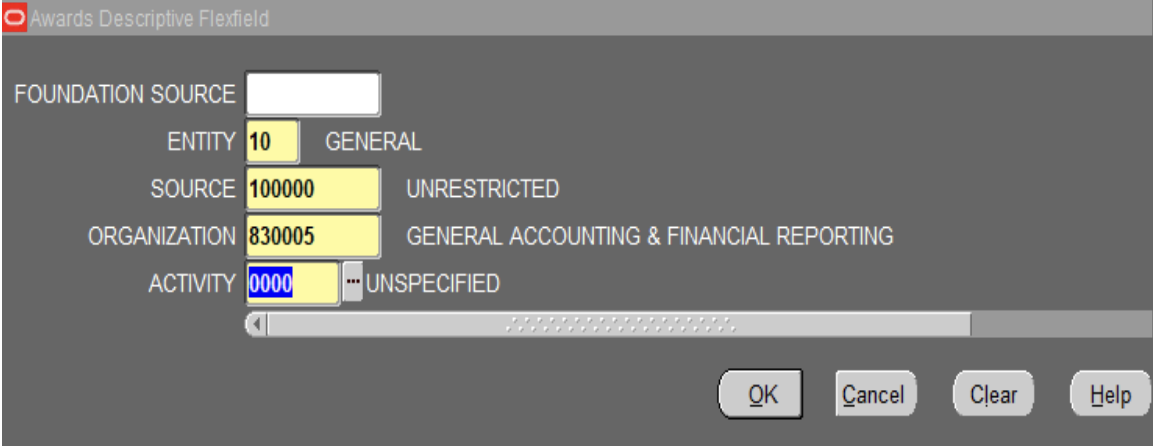
This is an example of a Temporarily Restricted University account funding a Temporarily Restricted University Award Type: 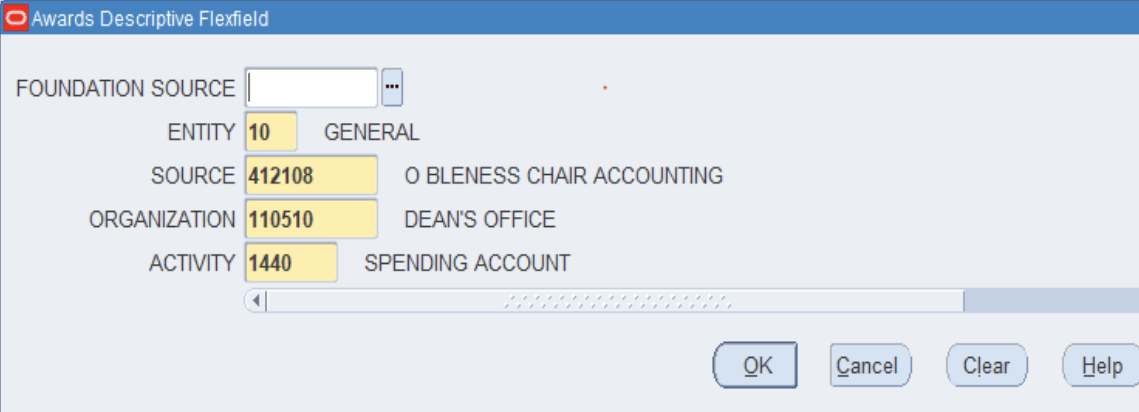
Example of a Foundation account funding a Foundation Award Type: 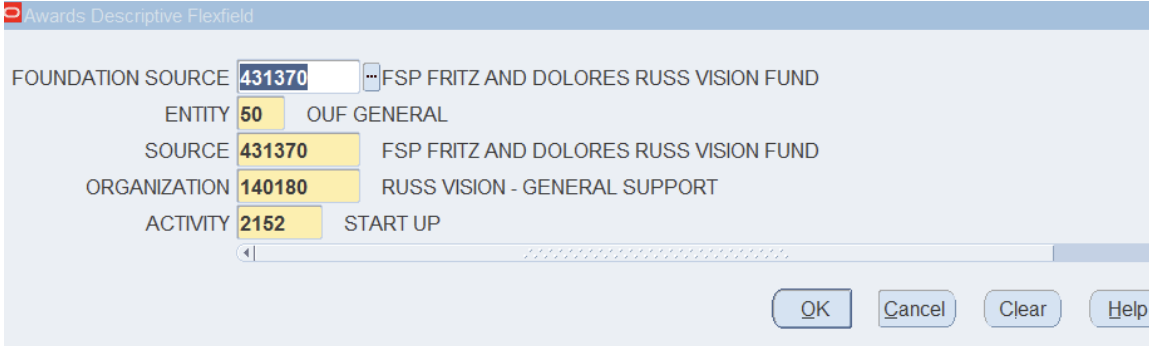
Note: The FOUNDATION SOURCE must equal the SOURCE in the account string and correspond with the AWARD TYPE in Appendix F. |
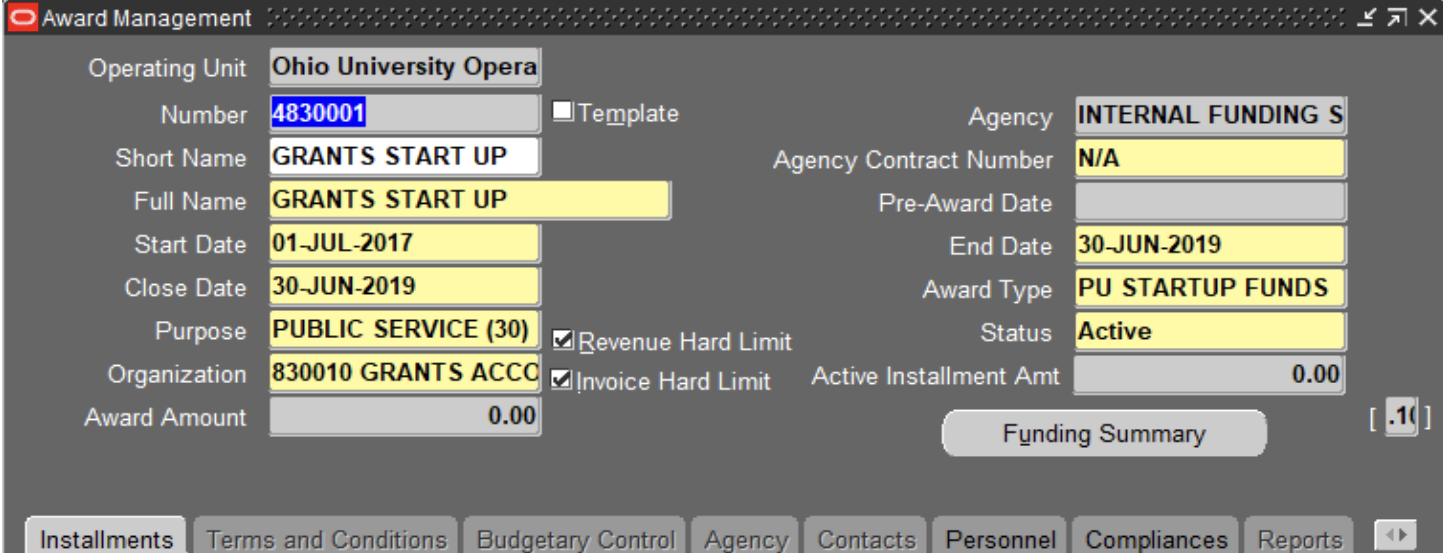
Award Management
- The following must always be checked:
- Revenue Hard Limit
- Invoice Hard Limit
Installments
Select the Installments tab.
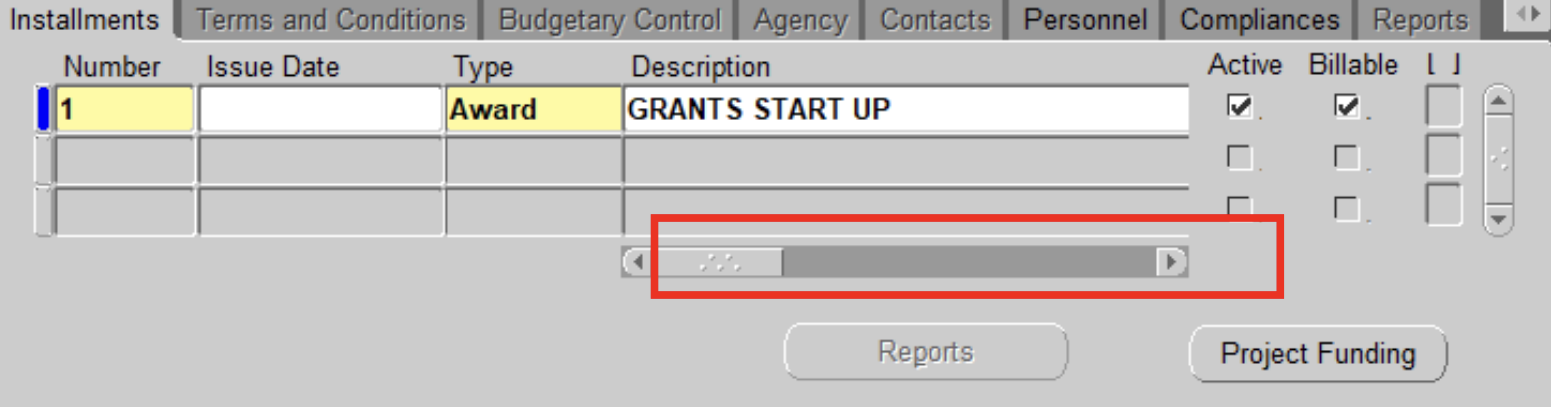
Award Installments
An installment defines the dollar amount that will fund the project and task.
Attention: Awards can have multiple installments, but we recommend only using installment 1 and increasing that installment's direct funding if adding funds.
- To create a new supplemental installment, click in the existing installment Number field and arrow down. This creates a new line. Review the account number that will fund the award which is entered in the Awards Descriptive Flexfield and change if necessary. A debit will be processed to this account during the 6 pm nightly processing after completing a new revenue event in the Compliances tab.
Enter the following information in Installments tab (use scroll bar outlined in red to view all fields):
Note: When decreasing the installment, adjust the direct cost down on the same installment number where the revenue and funding was adjusted.
| Field Name | Enter… |
|---|---|
| Number | The naming convention for the installment number is in sequential order. |
| Issue Date | Effective date of award/modification. This can be blank. |
| Type | This a list of values with three choices:
|
| Description | This is a short description for the purpose of the installment. For example: FALL AWARD or FISCAL YEAR |
| Start Date | Enter start date of the award. |
| End Date | Enter end date of the award. Date installment is no longer active. |
| Close Date | Add 60 days to the end date. |
| Direct Cost | Enter full funding amount. (Do not use commas when entering dollars.) This can be increased if you add funds to an award later. |
| Indirect Cost | Leave this blank. |
| Total Cost | Defaults from Direct Cost. |
| Active |
|
| Billable | Billable box will be automatically checked once the Active box is checked. This is required in order for the transfer journal entry to be generated. |
Select Save.
Project Funding
When the Active box is checked in Installments, the Project Funding button becomes active.
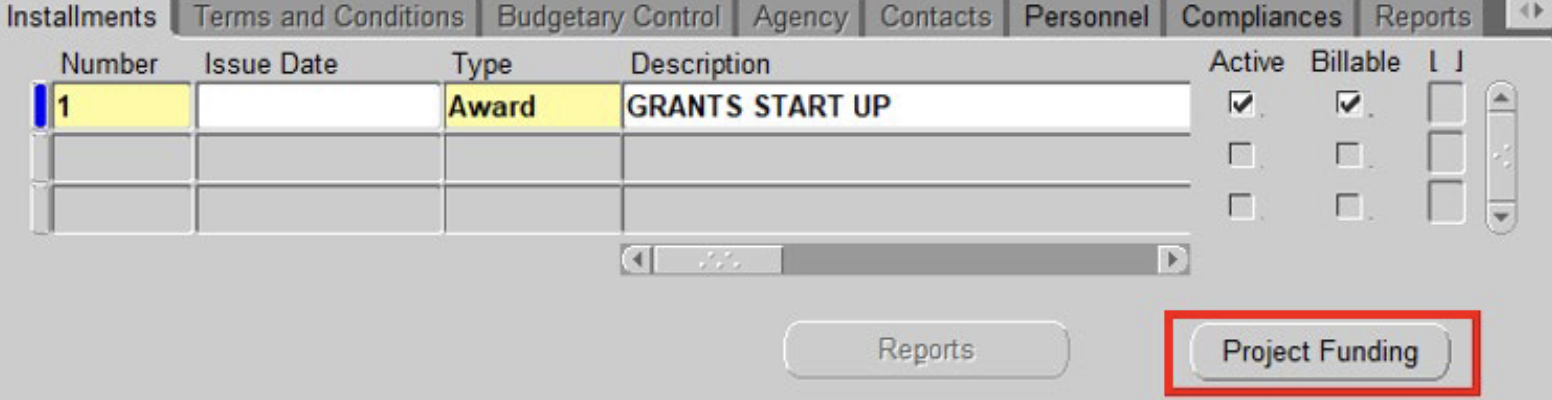
- Select Save. With your cursor on the correct installment, click Project Funding. Note: When decreasing funding, verify and click on the installment that contains the revenue being decreased.
Project funding is an allocation of funding from an award to a project and task.
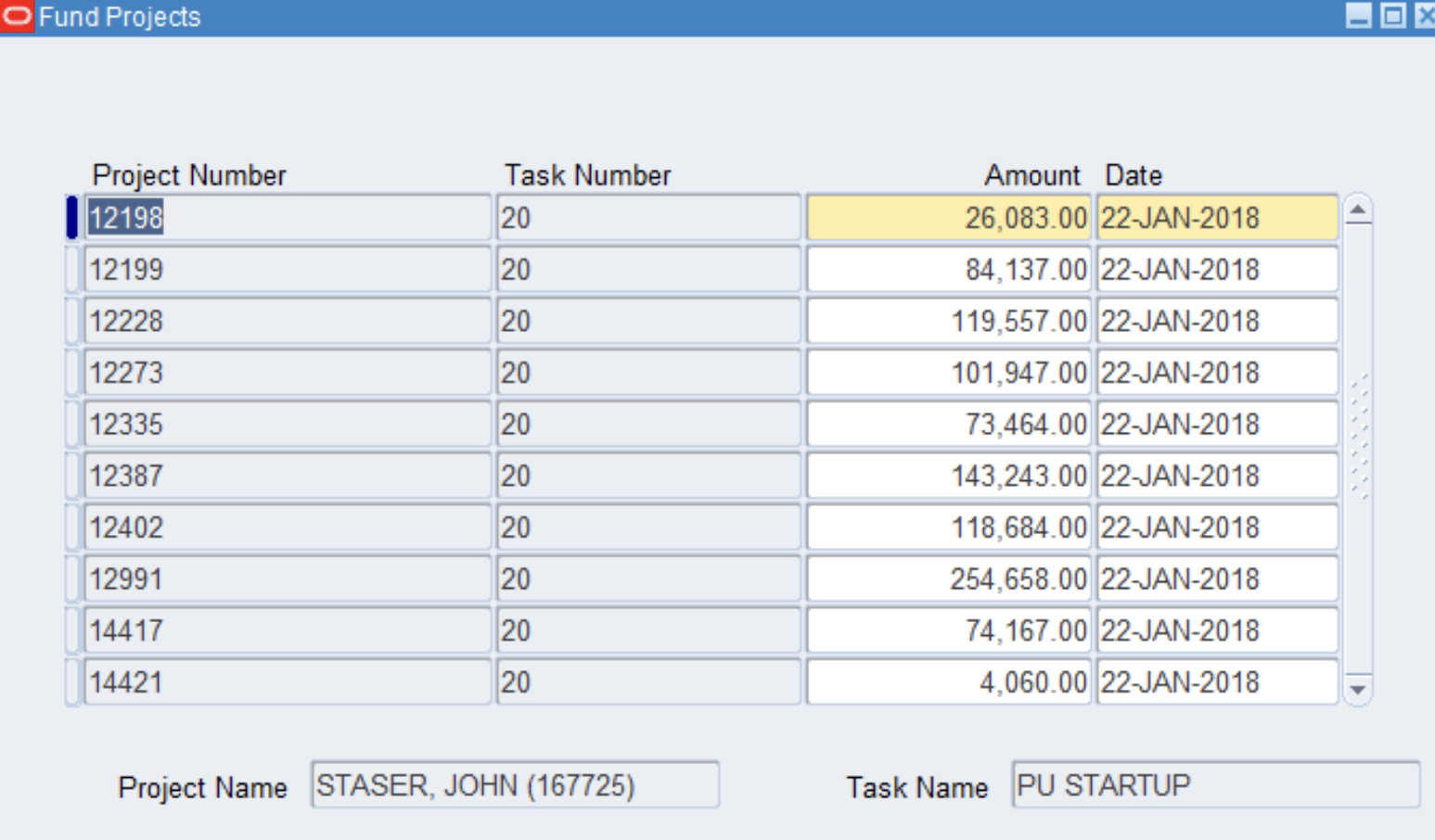
- To fund projects, complete the following steps: Additional funding lines can be added when increasing or decreasing the funding at a later date. Arrow down or click green ‘+’ to add funding lines.
| Field Name | Enter… |
|---|---|
| Project Number | Select the Project number to fund. |
| Task Number | Select the Task number to fund. |
| Amount | Enter funding amount |
| Date | Defaults to the current date. The Project funding date is for informational purposes only, but can be changed to a future date. It has no effect in completing the revenue event or expenditures posting to the PTA. The Revenue event goes by the Event dates and the Installment dates must be within the Award dates. Expenditures can only post based on the latest start and earliest end date of the PTA. |
Select Save.
- Complete this process to verify the Project Funding totals are correct.
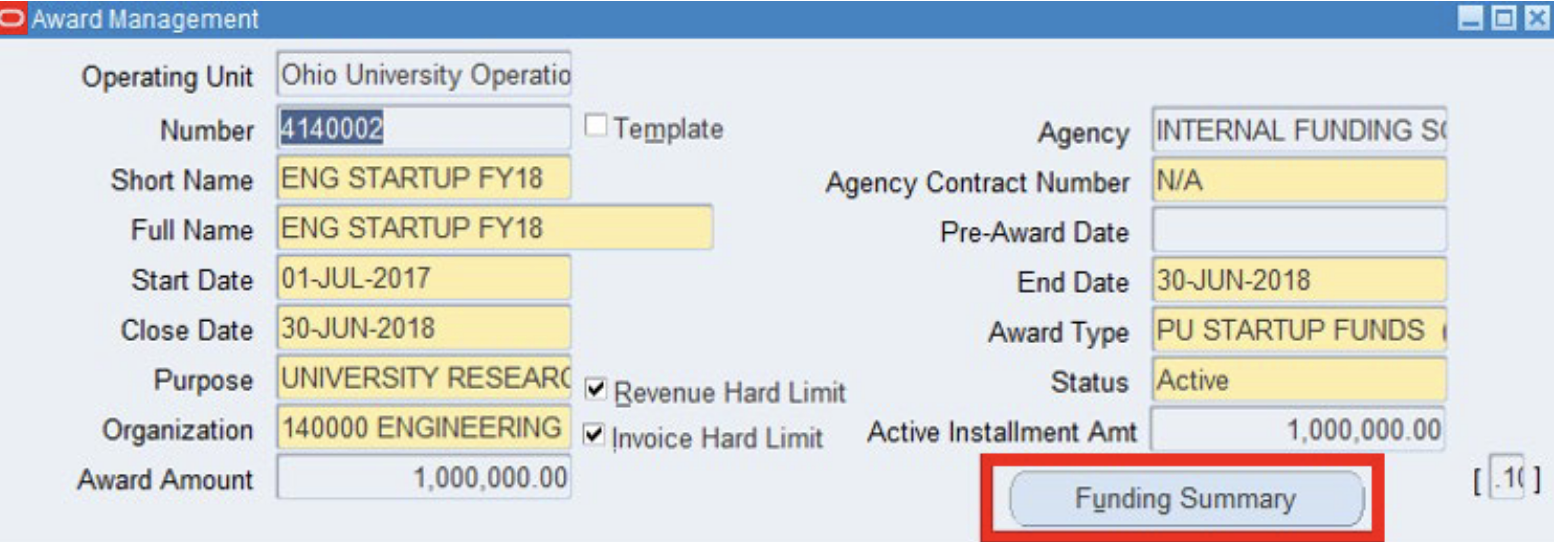
- Select Funding Summary.
The Funding Summary screen displays the following:
Total Funding Amt: Amount Funded for each project and task
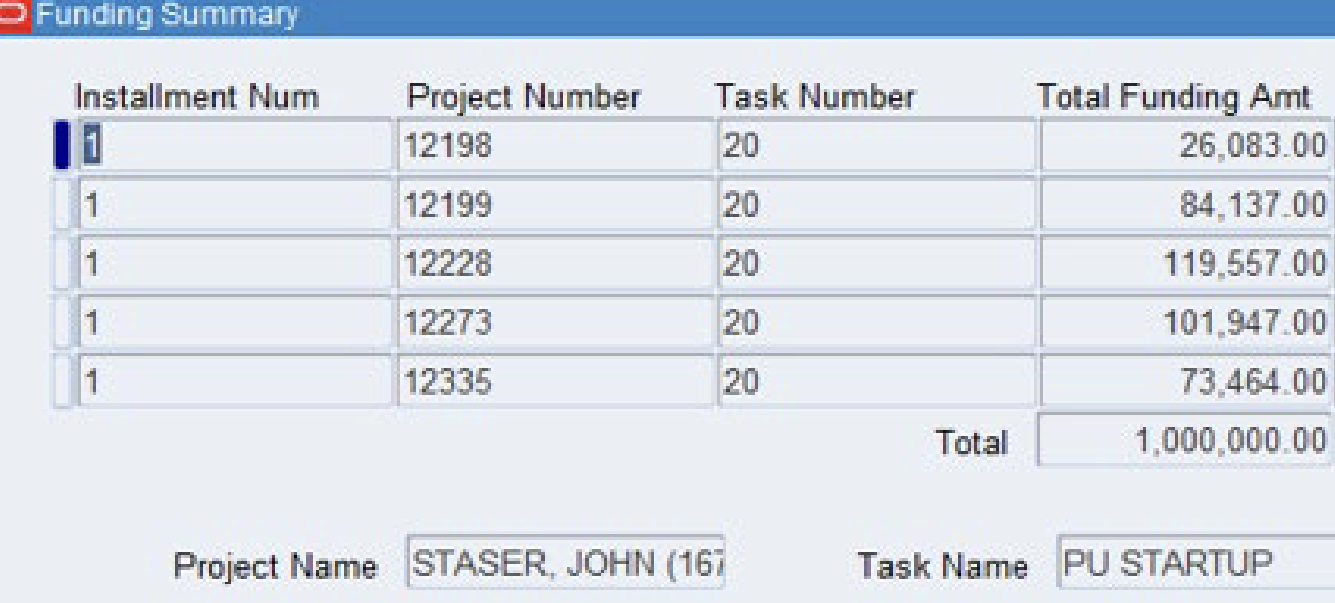
The total of the dollar amounts by installment number/project/task funding must equal the Compliances (revenue) events for the same installment number/project/task. This is important to note when making any adjustments to the Funding and Compliances (revenue) events.
Personnel
- Select the Personnel tab.

Award Personnel
The Award Manager is a required field. The Award Manager role will default from the Award Quick Entry window.
Employees added/edited must be valid/active employees during the dates entered.
The from date defaults to the start date of the award. If this date is in the future, this date may need to be edited so the employee will be able to return to this award before that future date for possible edits.
- If the award manager changes during the life of the award, DO NOT delete the name. End date and then add a new line with the new personnel information and the new start date.
Optional Roles:
- Co-Award Manager
- Administrative Support
If other roles such as co-award manager or administrative support change, delete the line item with the previous employee and add a new line item with the new employee.
- Select Save.
Compliances
- Select the Compliances tab.
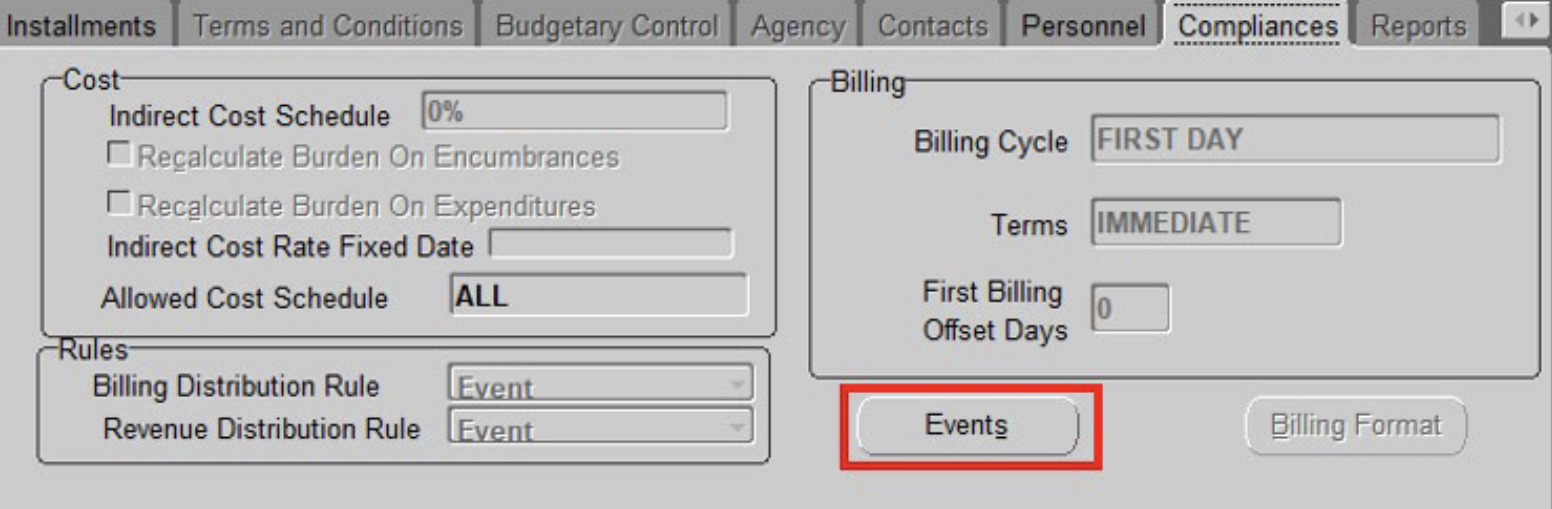
Information defaults from the Award Template and the Award Quick Entry form.
The following process initiates the funding transfer which generates the revenue journal entry:
- Select Events. The following window will display:
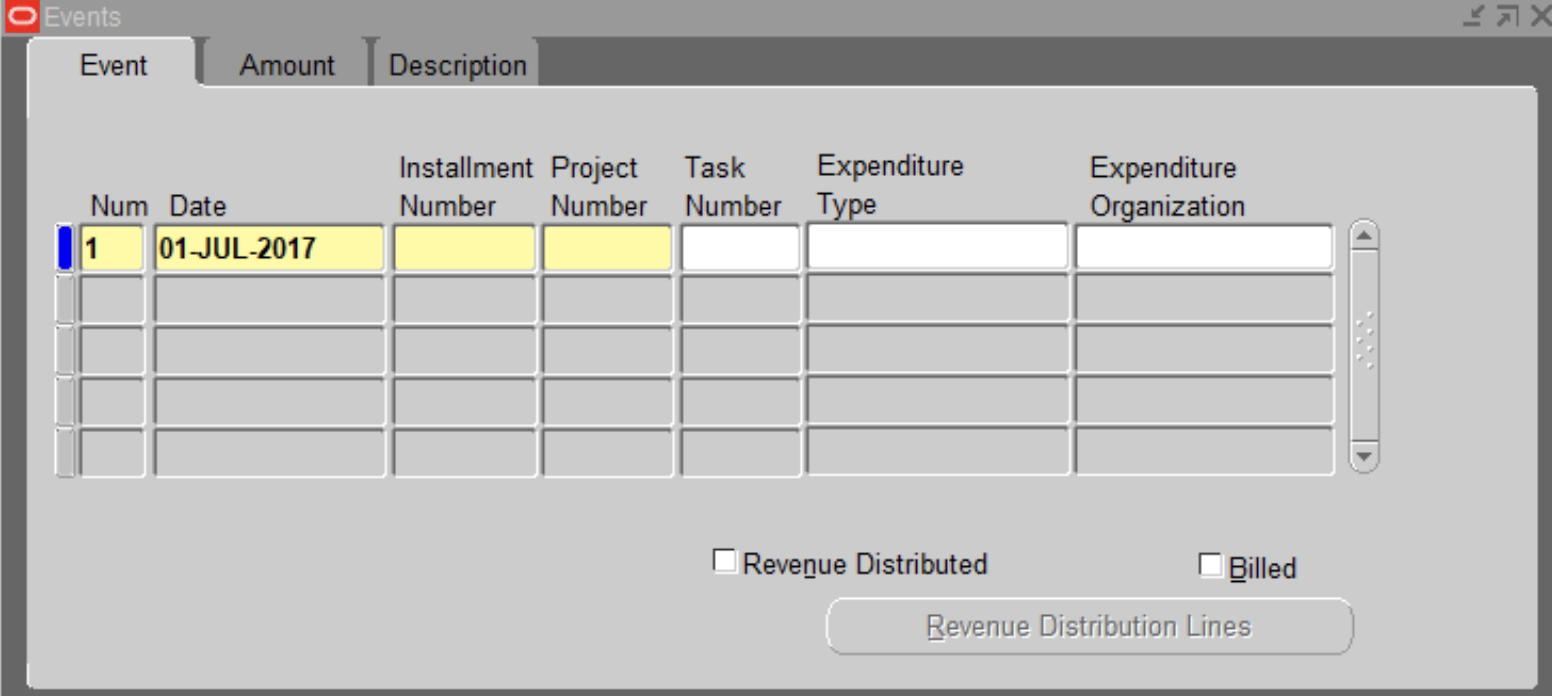
Enter the following for the Event:
| Field Name | Enter… |
|---|---|
| Num | Number is assigned in sequential order when you hit Save. Arrow down or click green ‘+’ to add Event lines. If you don’t hit Save then the number won’t populate in sequential order and has to be changed manually. |
| Date | Date completing Event or can schedule an Event for a future date. Coordinate this date with the budget entry date as the revenue event journal entry must be in same period as the budgeted amount entry date. Note Exception: When entering a negative revenue event, the adjusted budget date may be earlier. *See Appendix C: Dates Explained for Event Date entered during the month of July. |
| Installment Number | Installment number for this Event to complete the transfer of funding. (When decreasing revenue be sure to verify the correct installment to adjust.) Example: This Event is completing the transfer of funding for Installment 1. 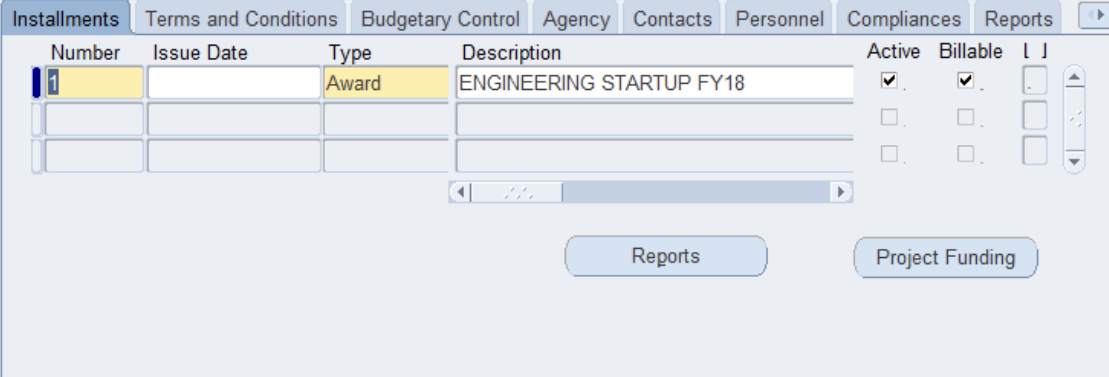
|
| Project Number | Project Number funded by this transfer. |
| Task Number | Task Number funded by this transfer. |
| Select on Amount | Enter Revenue Amount for the transfer of funding. 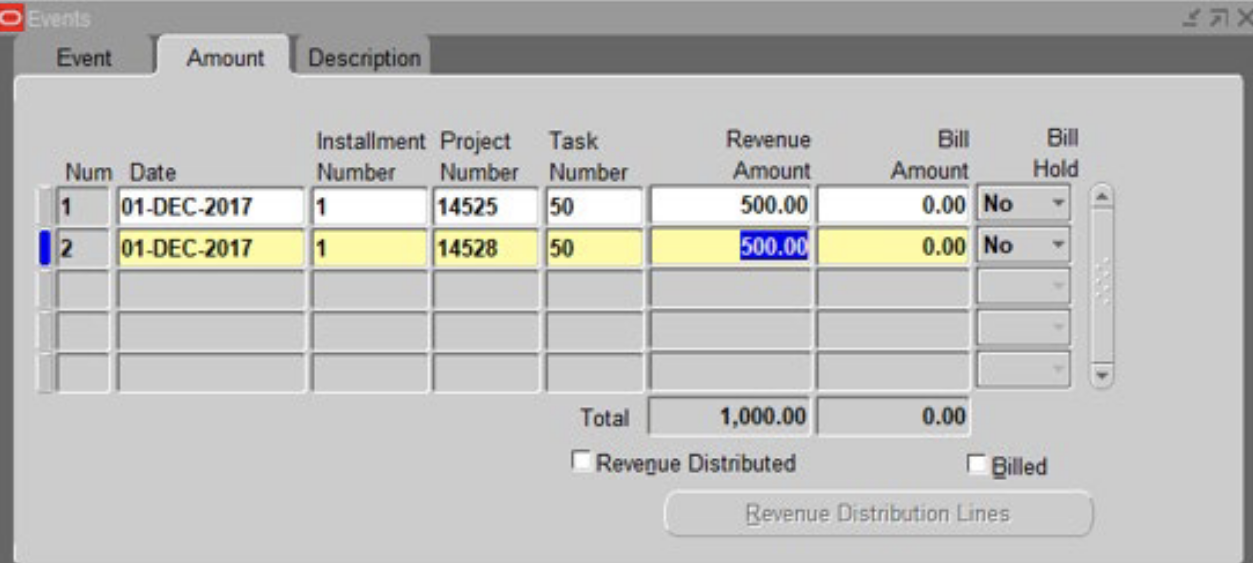
|
| Select Description | Enter the Description for the Event. Example: START UP Fall 2025 |
Select Save. Click the X (top right) to close and return to Award Management. End of Award Setup
Note: Do not close the Award Management window. Proceed to Budgeting Awards.